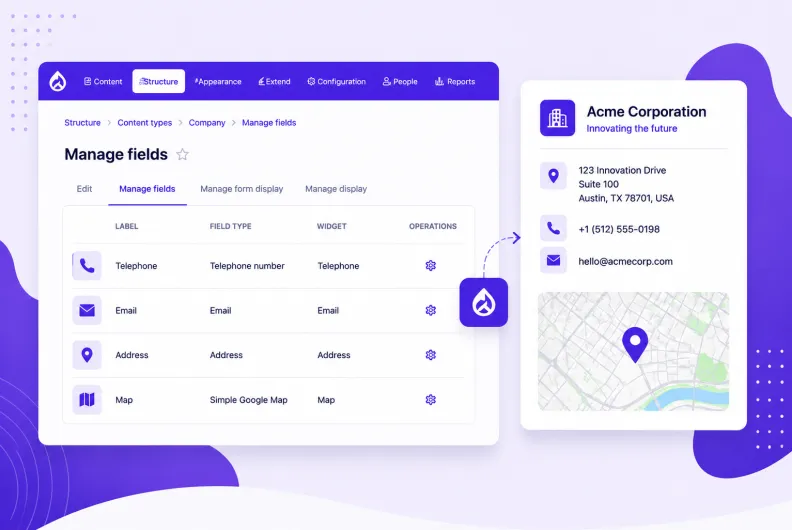
A Simple Guide to Creating Company Contact Details with a Map in Drupal

Addresses and other contact details are among the most familiar pieces of information we encounter online. They guide deliveries, define locations, and connect digital content to the real world. The way they are structured and displayed quietly shapes how useful and reliable they become.
A well-presented company address is consistent, clear, and ready to be used across different contexts: a contact page, a catalog of companies, search results, and more. In this article, we’ll look at how Drupal approaches the creation of company contact details in practice. We’ll build a simple company contact card with a street address, telephone number, email address, and a map, walking you through the essential steps.
A perfect company contact card: why structure matters
Good contact details rely on structure. It’s what makes them both user-friendly and technically flexible at the same time. They become:
- easy for visitors to understand, so they can quickly find how to reach you
- easy for editors to enter in a consistent and predictable way
- easy for systems (search engines, content aggregators, assistive technologies, and others) to interpret correctly
This structure also allows the same data to be displayed consistently and reused beyond a single page. For example, it can be exposed through Drupal Views for multiple company listings, reused across different layouts, or enhanced for search engines through structured data. If you’re interested, there’s a separate article by our digital strategists on structured data, a way of organizing content so it can be understood more clearly by search systems.
One of the areas where structured data really shines is rich snippets in search results: instead of a plain text listing, search engines can display a company’s phone number, address, a map, office hours, or other details. This improves visibility, builds trust, and reduces friction for users who want quick access to essential contact information.
Drupal is particularly well-suited for structured content thanks to its field system. Drupal fields shape the structure of content in every detail, and they will be the main building blocks of a company contact card that we’ll create today. There’s a dedicated overview if you want a deeper look at how fields work in Drupal and how the interface for adding them has evolved.
How to create company contact details with a map in Drupal
1. Install the modules
In this setup, we’ll use Drupal core capabilities and two contributed modules:
- Drupal core. It provides the Email and the Telephone fields. There is nothing to download, but the Telephone module just needs to be enabled on the Extend tab because it is not active out of the box.
- The Address module. It takes care of structured, human-readable address handling.
- The Simple Google Maps module. It converts a plain text address line into a map. This is just one of multiple ways to create a map for company contact details, and it is known for its ease of use.
The recommended way of installing modules is via Composer, so the following command will install the Address and the Simple Google Maps modules:
composer require drupal/address drupal/simple_gmap
You can further enable the modules on the Extend tab of your Drupal admin dashboard.
2. (Optional) Create a content type for a company
Since contact details will be attached to content representing a company, you can either use an existing content type or create a new one. To create a new one, go to Structure > Content types > Add content type and create a new content type that you could name “Company,” “Organization,” and so on. Proceed with the default settings and save the result.
3. Add the contact information fields
To add contact information fields to the “Company” content type, go to Structure > Content types > Company > Manage fields > Create a new field. For this demo, we’ll keep the setup clean and minimalistic by focusing only on the essential contact details:
- telephone number
- address
- map
Additional fields, such as company description, services, logo, or even references to projects and employees, can be added later based on your project’s needs.
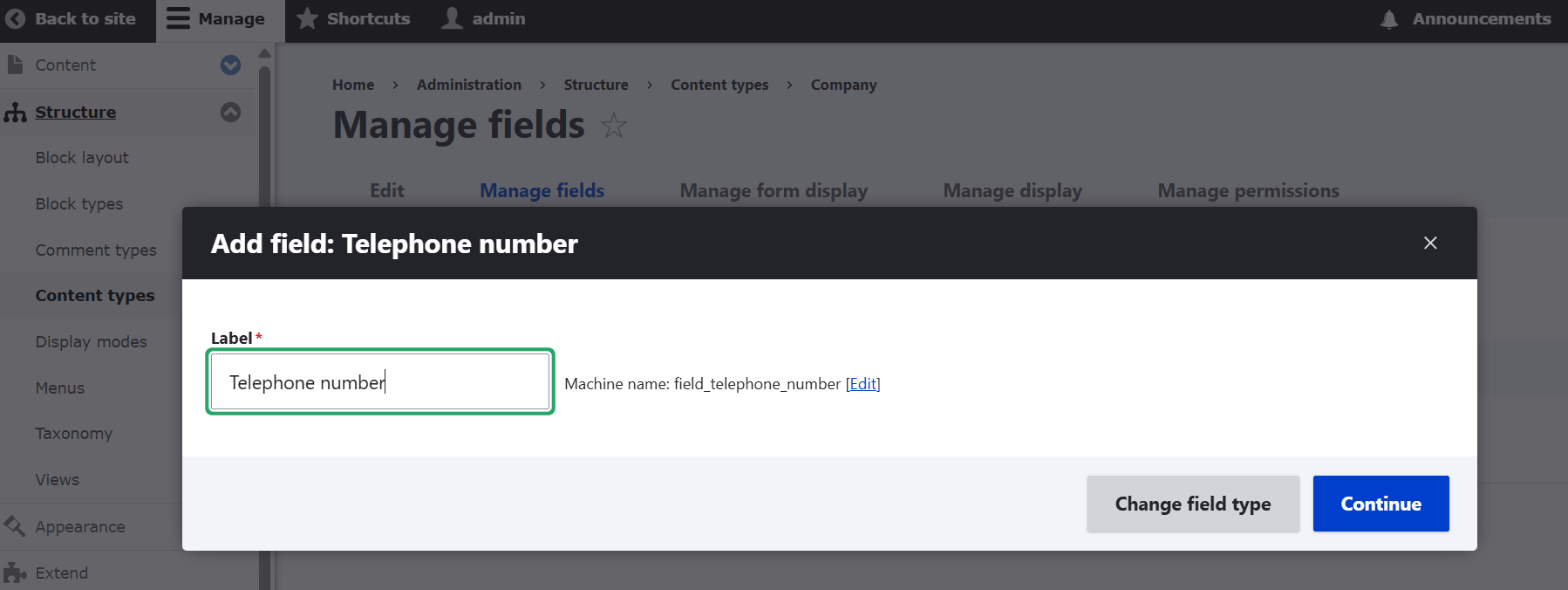
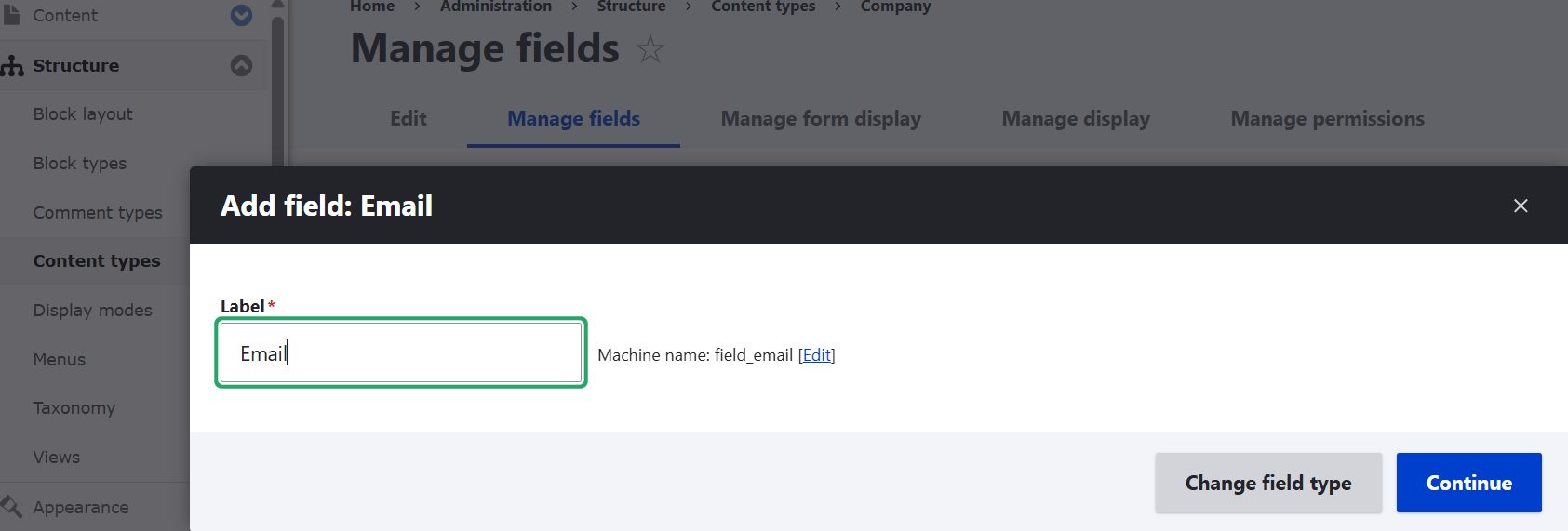
To add each field, click to select the needed field type, and keep configuring it by hitting “Continue.” You can customize how each field is named, make it required or not, add help text for editors, and so on. More details on how each field will appear to users on the front end and to editors in the content editing form can be further configured on the “Manage display” and “Manage form display” tabs.
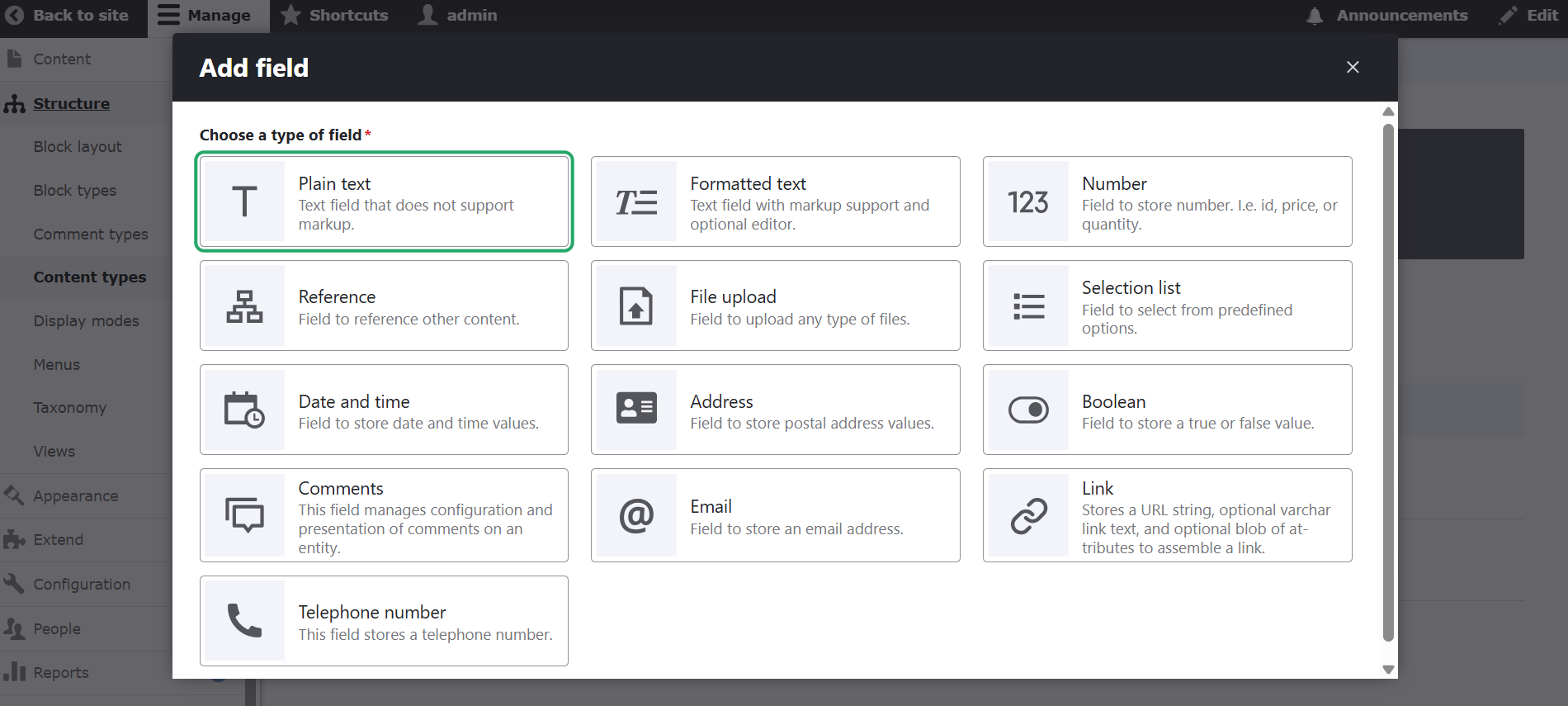
A. The “Telephone number” field (Field type: Telephone number)
B. The “Email” field (Field type: Email)
C. The “Address” field (Field type: Address)
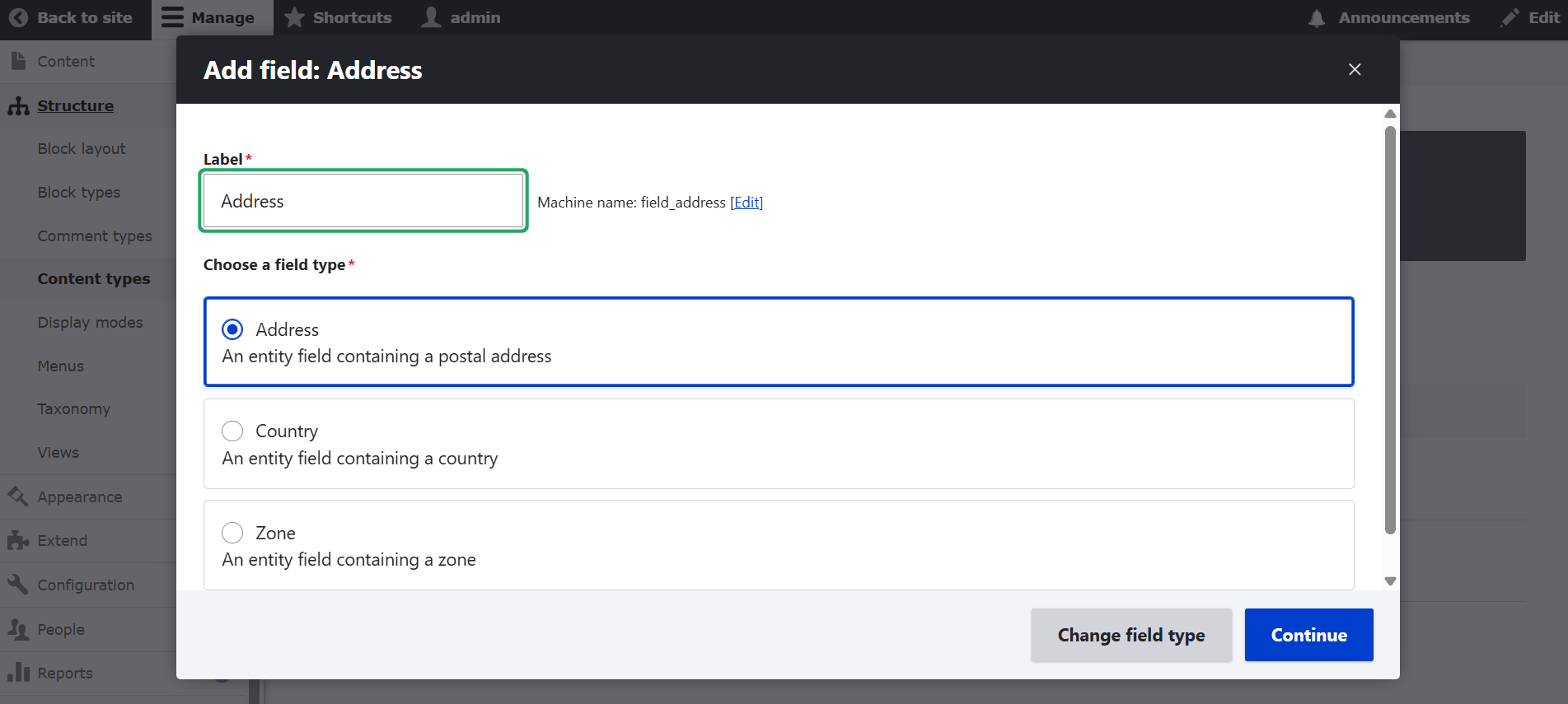
As you add this field, make sure the default “Address” field subtype is checked.
Specifying available countries. You can limit the available countries by selecting the ones you want to include, depending on your use case. If you leave everything as is, all countries will be available.
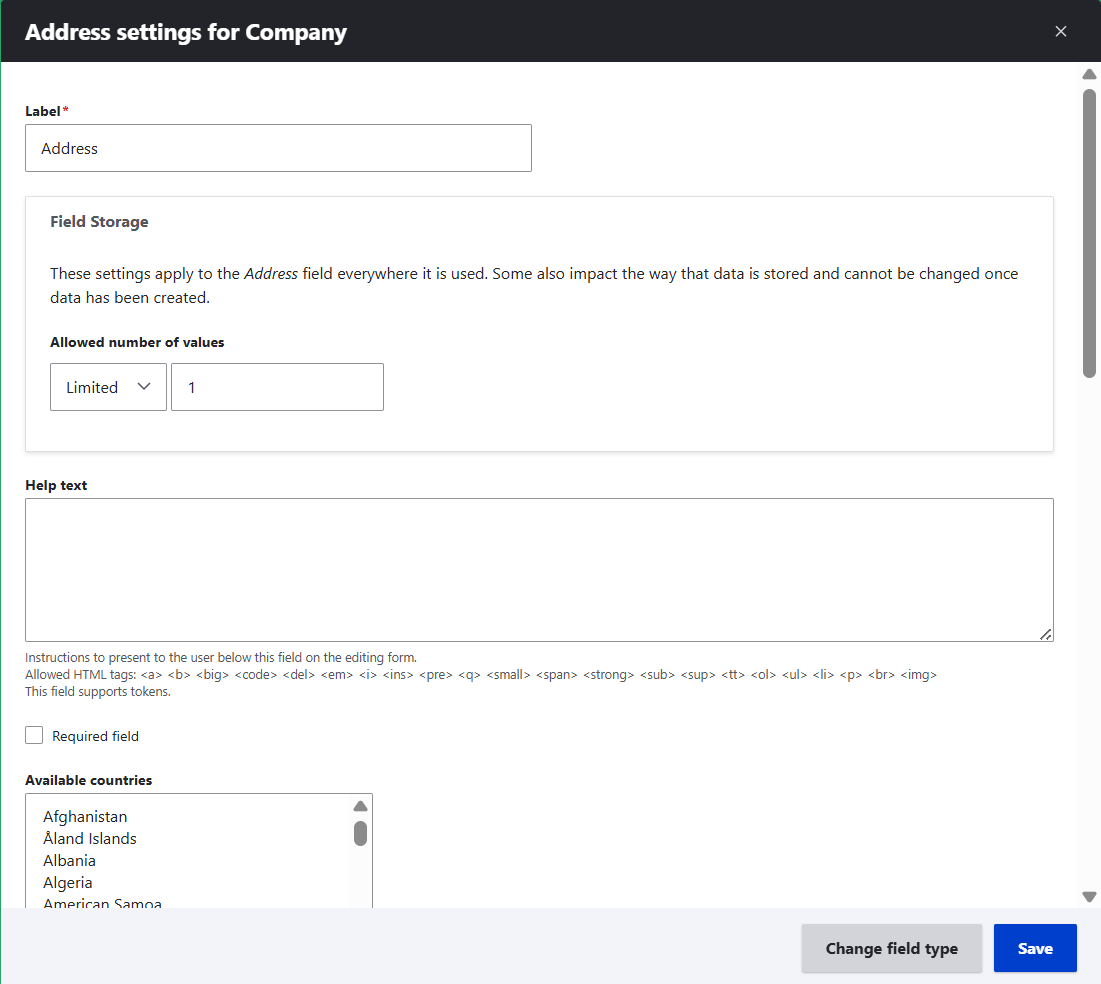
Customizing the sub-fields. The Address field is a composite field, meaning it stores multiple sub-fields. In the “Fields override” section of the Address field settings, you can decide which sub-fields to hide and which to make required or keep optional. This will make sure the address meets your Drupal website’s needs and country-specific formatting preferences. Here are the available sub-fields:
- First name
- Middle name
- Last name
- Organization
- Address line 1
- Address line 2
- Address line 3
- Postal code
- Sorting code
- Dependant locality (like neighbourhood)
- Locality (like city)
- Administrative area (like state or province)
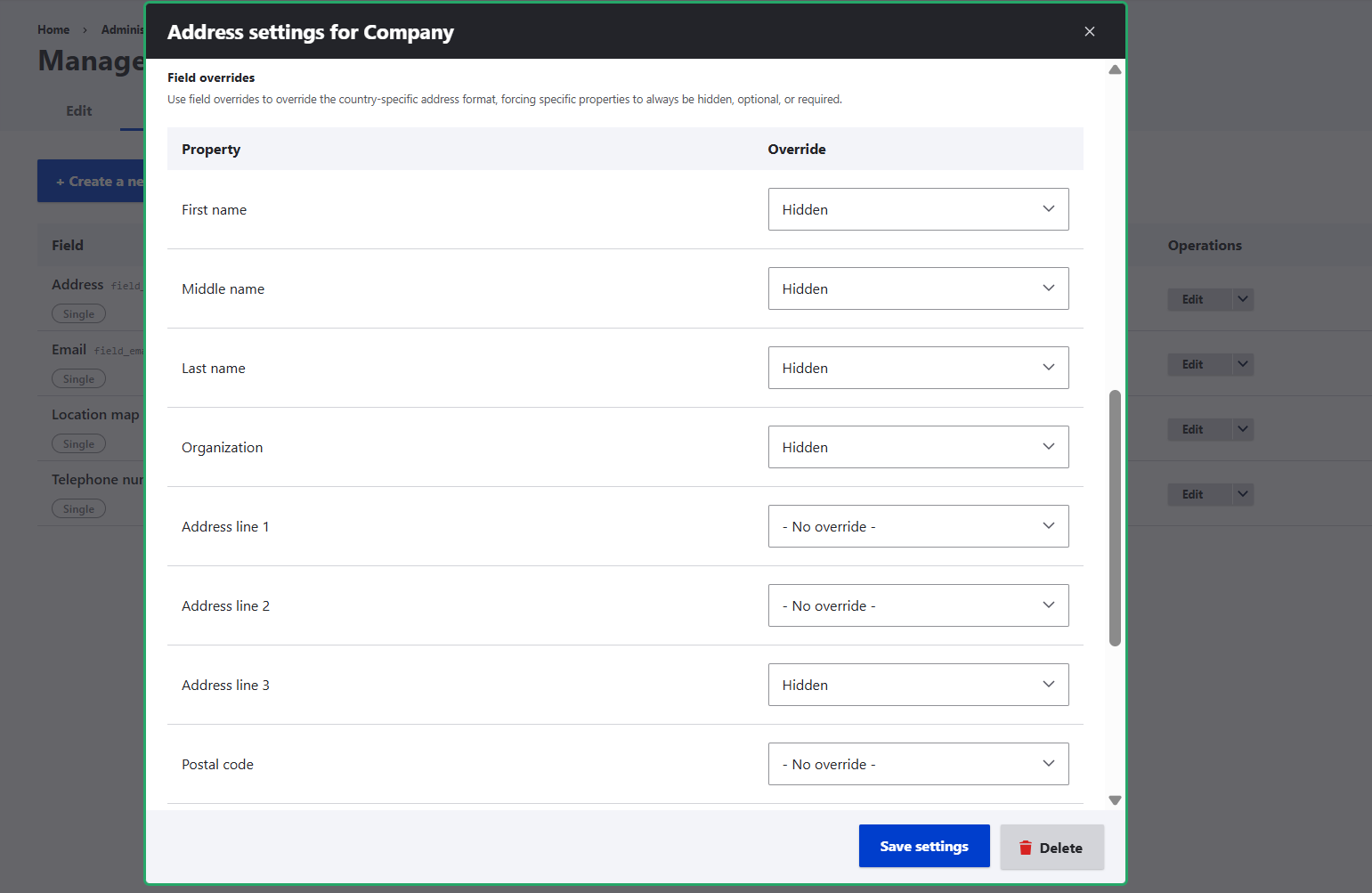
To hide specific fields from display, select “Hidden” next to them in the “Override” tab and proceed to save the result. A similar step is needed if you want to make fields required.
D. The “Location map” field (Field type: Plain text)
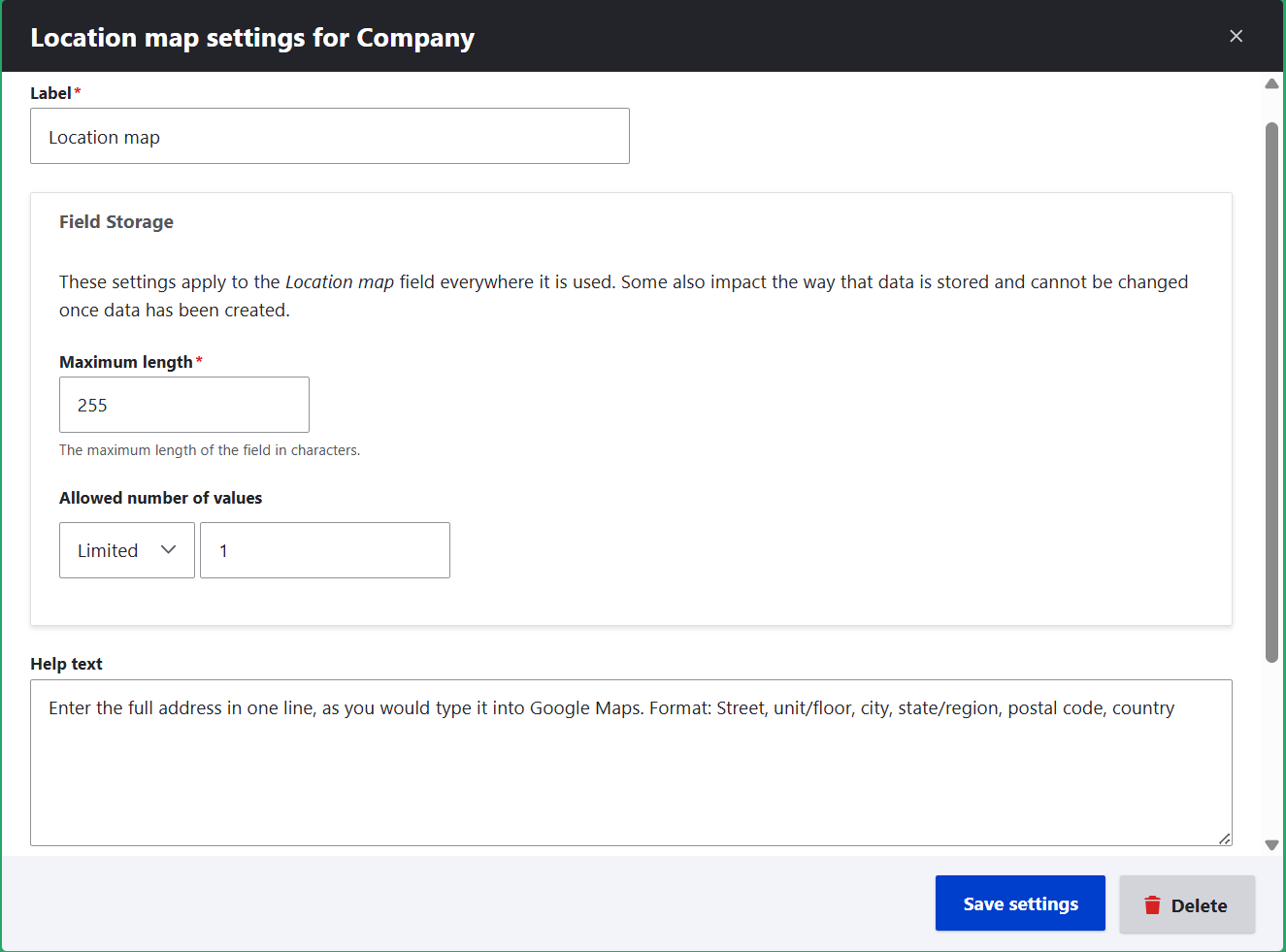
The Simple Google Maps module doesn’t “read” addresses from the Address module. Instead, it reads one-line address fields in plain text, which is why we are adding a field of the “Plain text” type. You can name it something like “Location map.”
Adding a help text with the expected format. When adding this field, you can create a help text for content editors so they know which format is expected, which will be easily interpreted by Google Maps:
“Enter the full address in one line, as you would type it into Google Maps. Format: Street, unit/floor, city, state/region, postal code, country.”
Configuring the field formatter. Now it’s time to enable Google Maps display for this field. This can be done at Structure > Content types > Company > Manage display. Next to the “Address for map display” field, under “Format,” select “Google Maps for one-line address” and save the settings.
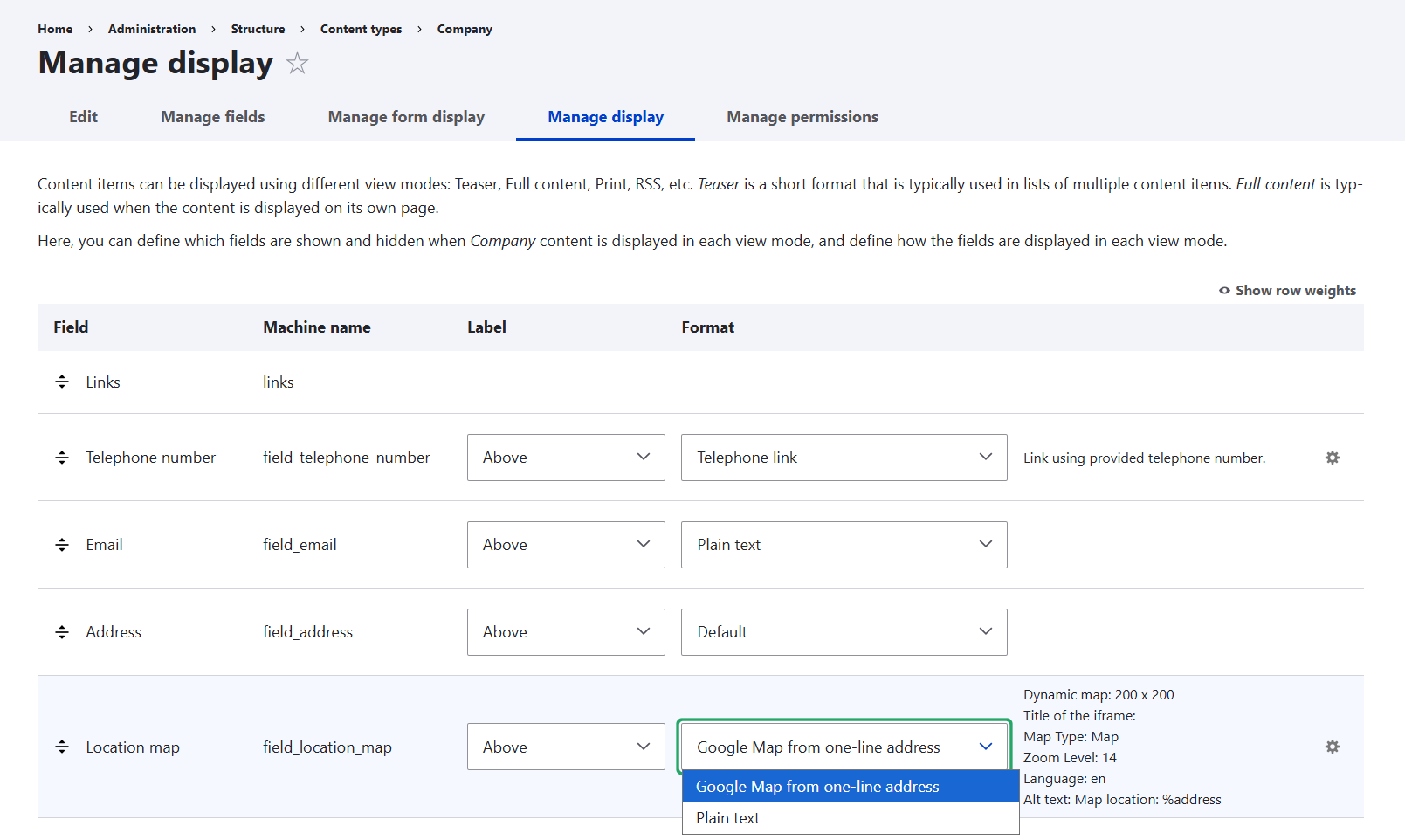
3. Fill out the company contact details
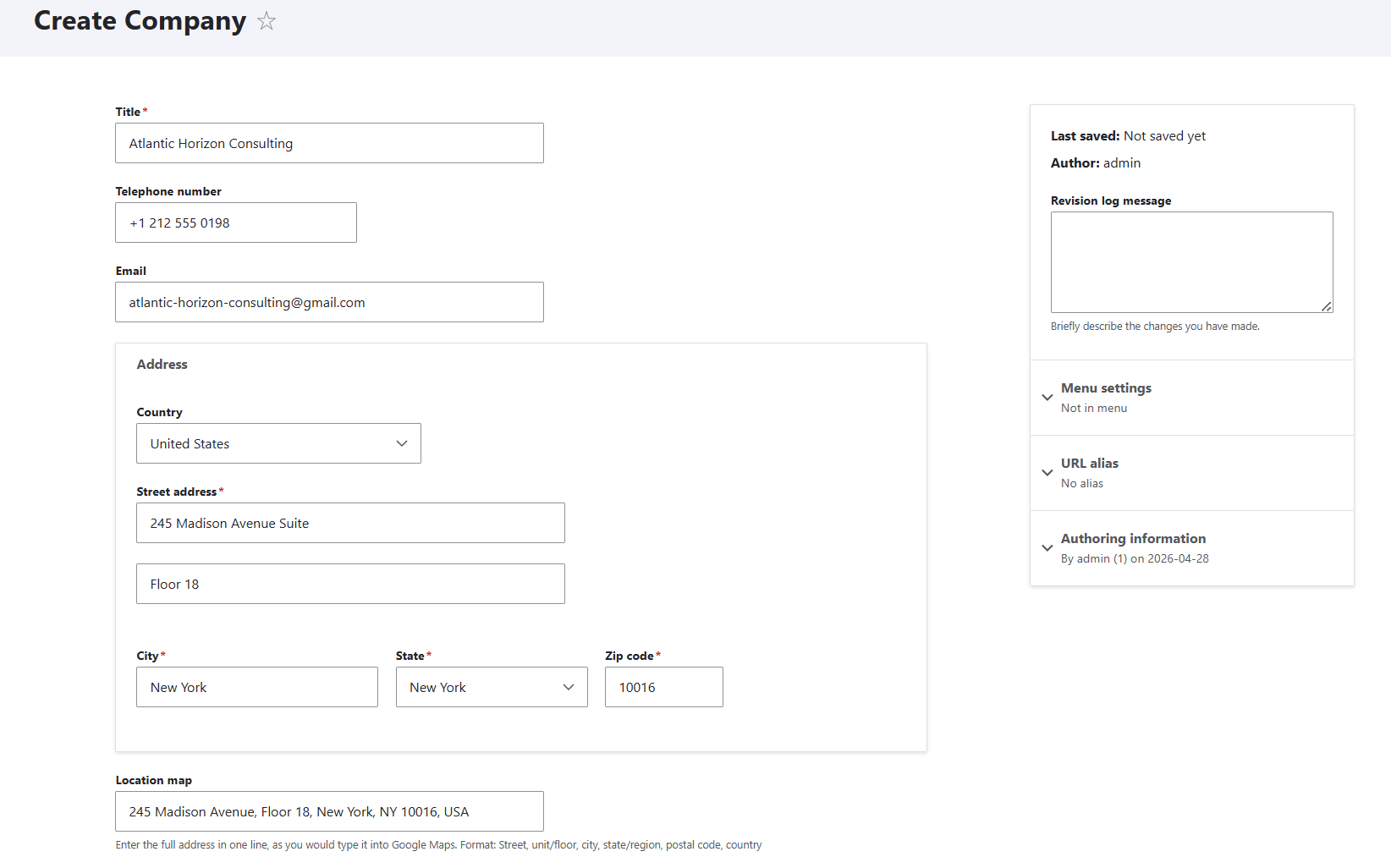
It’s time to check how our company contact card will be displayed with real contact information (or almost real, because we are using a dummy company for this demo). Let’s go to Content > Add content > Company and fill out all the contact details.
The Address field starts with the Country line, and after you fill it out, it expands to more lines depending on the selected country. This is because the Address module pulls additional country-specific data, like states or provinces:
- Title: Atlantic Horizon Consulting
- Telephone number: +1 212 555 0198
- Email: atlantic-horizon-consulting@gmail.com
- Country: United States
- Street address, line 1: 245 Madison Avenue Suite
- Street address, line 2: Floor 18
- City: New York
- State: NY
- Zip code: 10016
- Location map: 245 Madison Avenue, Floor 18, New York, NY 10016, USA
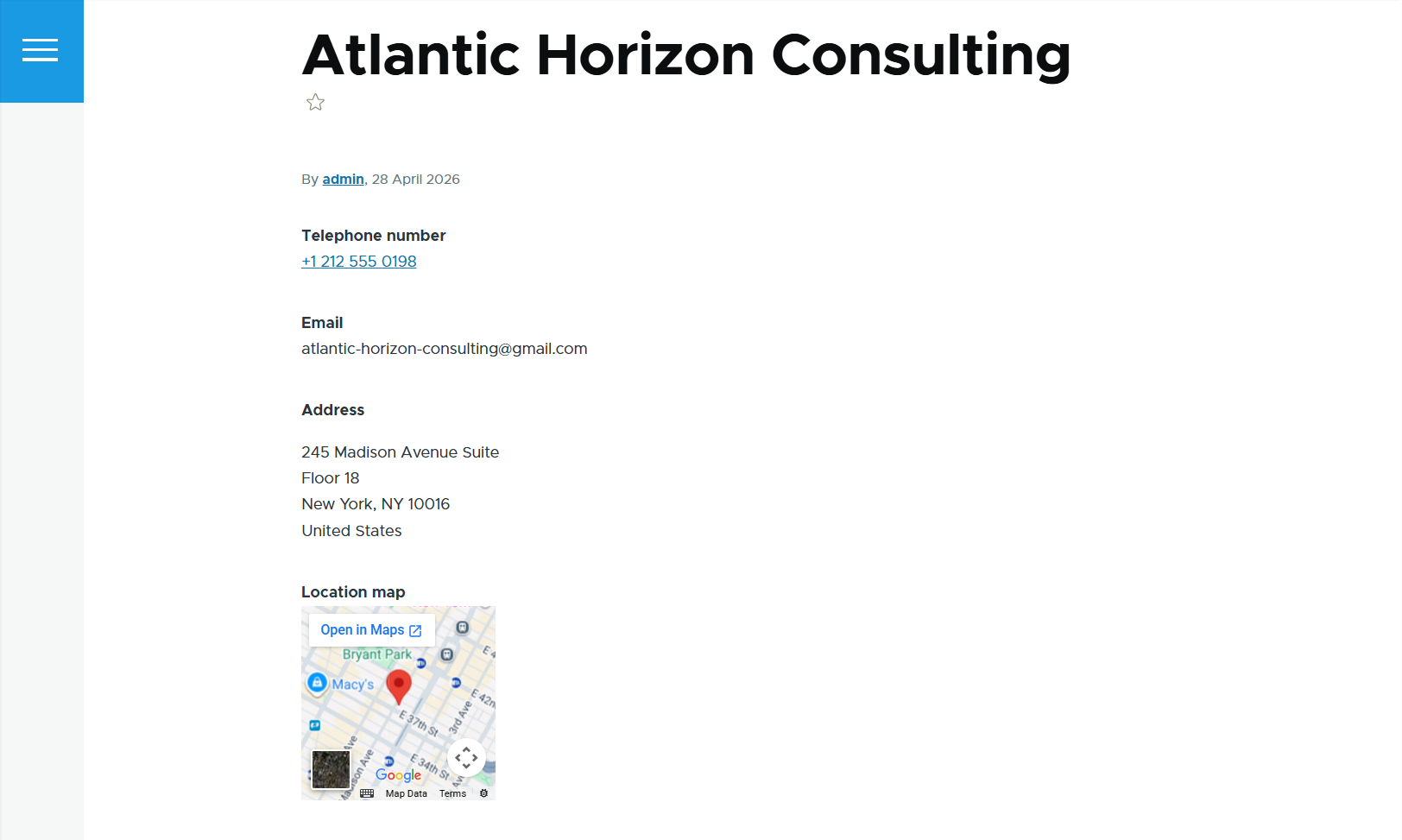
After saving the content item, you can see it displayed with all the contact details, including a small Google map automatically rendered from a one-line address.
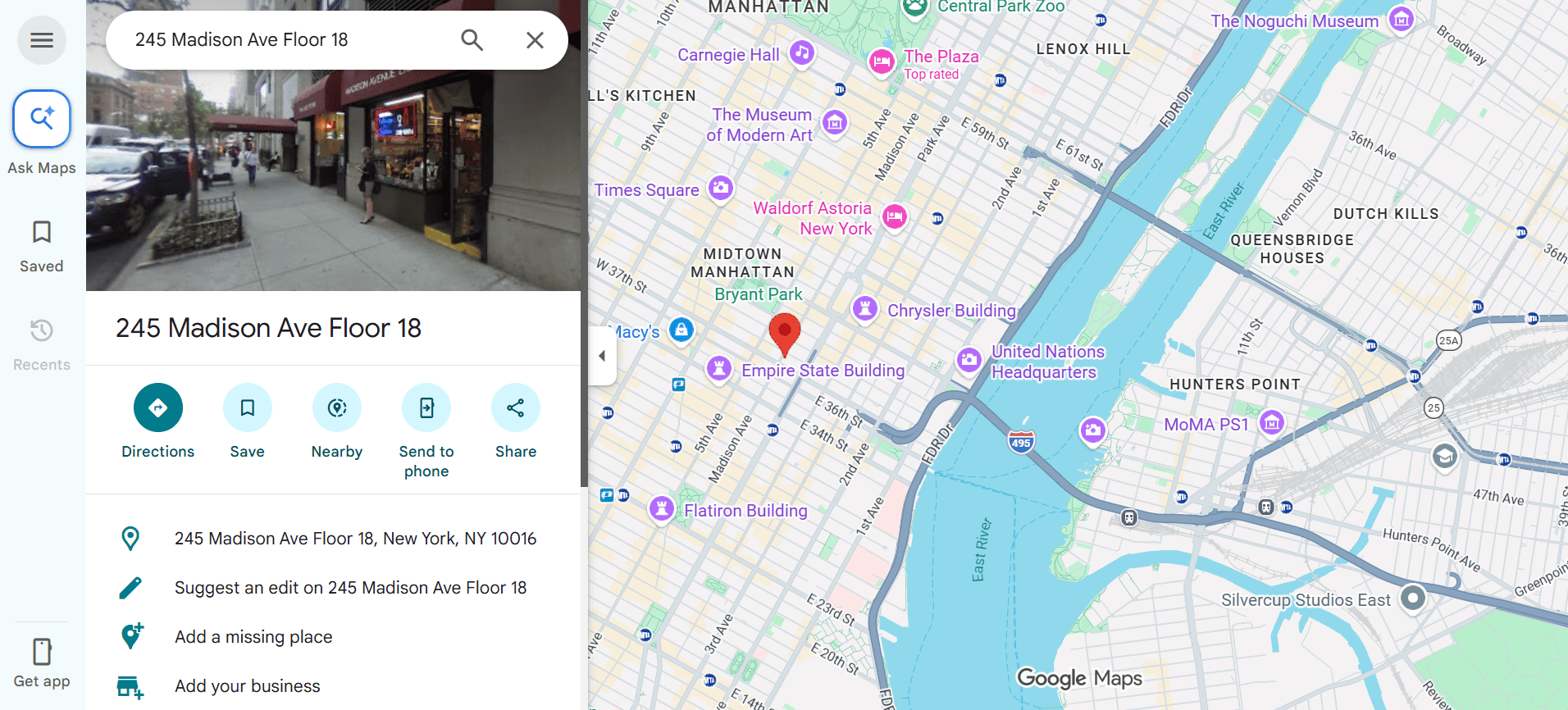
Clicking “Open in Maps” will lead you to the full Google Maps display.
Mapping alternatives
For simple projects, embedding a Google Map is often enough. The configuration is very straightforward, and the result looks great. But when you need to handle more advanced setups, Drupal offers powerful alternatives:
- Geofield. It stores latitude and longitude coordinates directly in fields.
- Leaflet. It renders maps with customizable behavior and styling.
- Geofield Map. It integrates tightly with Geofield for map rendering.
- Geolocation Field. It is an all‑in‑one solution that provides its own geolocation field type, integrates with Views and Search API, supports multiple map providers, and includes built-in geocoding support.
Drupal can also convert addresses into coordinates automatically by connecting to external geocoding services. This step typically requires additional configuration, such as an API key.
These tools can be combined in different ways, but they all support more advanced use cases, such as displaying multiple locations on a single map, configuring map behavior (zoom levels, clustering, popups), and more.
Final thoughts
Our simple setup shows how easily Drupal can display company contact details in a clear, structured way. By combining several essential contact information fields with a map integration, you create a practical starting point that works right away. Still, there is plenty of room to expand with richer details or more advanced mapping options if your project requires it.
That being said, if you’re planning a larger project or want to explore more complex solutions, consider reaching out to our experienced Drupal team. We can help tailor the right mix of Drupal modules and integrations to match your business goals.