Understanding Website Backups: Why They Matter and How They Work in Drupal

Peace of mind and confidence online start with knowing your website is safe. Still, the digital world comes with countless risks: a server glitch, a corrupted file, or a failed update can compromise your website’s data.
You stay protected when the best security practices have your back, and one of them is regular website backups. With them, every page, post, and setting has a secure copy ready to step in if needed. It works like a safety net you can count on. That’s why backups are often included in website maintenance plans.
World Backup Day, marked on March 31, is a timely reminder of this essential habit. In this guide, we’ll look at why backups matter and how they work, with a spotlight on Drupal’s approach. You’ll get a clear overview and a straightforward walkthrough of the Backup and Migrate module, a tool that makes protecting your Drupal site simple and reliable.
What is a website backup?
A website backup is a stored copy of the essential pieces that keep your site running. Backups can be broad or selective: you might capture the entire site in one sweep, or focus on specific layers, such as the database when content changes often, or the file system when themes or modules are updated. The right approach depends on how frequently your site evolves and which components are most critical.
The real value of backups comes from consistency. Scheduled copies, whether daily, weekly, or even in real time, ensure you’re prepared. In the sections ahead, we’ll break down the details and show how to make backups a reliable part of your site’s routine.
Why do you need website backups?
Backups preserve the data your site depends on, and that preservation is what makes quick recovery and uninterrupted service possible. Knowing the risks that make backups essential is what ensures resilience:
- Security incidents. Malware, ransomware, or unauthorized changes can compromise your content and data. A clean backup provides a safe restore point, helping you recover without long‑term damage.
- Human error. Deleted content, misconfigured permissions, overwritten themes, or broken layouts can happen during routine work. Backups give you a reliable way to undo those mistakes.
- Infrastructure and hosting issues. Servers can fail, and storage can become corrupted. Some hosting providers store backups on the same machine as your site, which limits their usefulness. Independent Drupal backups give you greater control and resilience.
- Operational disruption. When downtime is caused by corrupted data, failed updates, or compromised files, backups allow you to restore service quickly and minimize disruption.
Data loss in numbers: what the statistics reveal
Just for you to have an idea backed up by the numbers (pun intended), here are the results of the study held by Infrascale:
- 67.7% of businesses experience significant data loss. This is the strongest argument for backups: data loss is common, not rare.
- 85.6% of data loss incidents happen in cloud storage. This shows that even modern hosting platforms aren’t immune, making independent backups essential.
- Malware accounts for 31.2% of data loss incidents. Malware can corrupt or delete files, and backups are the recovery path.
- Ransomware causes 36.7% of data loss, where cyberattacks contributed to the loss. Restoring clean data avoids paying attackers.
The study also shows that off-site backup accounts for 48.5% of all backup storage strategies. This demonstrates how organizations prioritize resilience by keeping backups separate from production systems.
Essential data backup has been listed in the study as the #1 recommended safeguard for minimizing data loss, with a result of 30.2%.
Backups for your Drupal website: how they work
The anatomy of a Drupal backup
A Drupal site is a combination of content, files, and settings that work together to create your site’s unique experience. To fully protect your site, backups should cover three main areas:
- Database. It stores all dynamic content (articles, pages, user accounts, comments) and site configuration (menus, views, permissions, content types). Think of it as the “brain” of your site.
- Code. It includes the Drupal core, contributed modules, and themes. These files define how your site functions and provide the logic behind its features.
- Assets. It includes static files that support your site’s content and presentation — uploaded media (images, videos, documents), theme resources (CSS, JavaScript, fonts), and other file-based content.
Manual vs. automated backups
Manual backups give you precise control: you choose exactly what to save and when. Automated backups run quietly in the background, reducing the risk of forgetting or missing a critical backup. Combining both approaches often provides the best balance of control, convenience, and reliability.
Specific Drupal workflows that need backups
Beyond the general situations where backups are essential, Drupal has specific operations where creating a backup beforehand is considered best practice:
- Before a Drupal core update. Even well-tested updates can behave differently in production, especially on sites with custom code or integrations.
- Before installing, updating, or removing a Drupal module. Changes to functionality can affect database structure or configuration in unexpected ways.
- Before major configuration changes. Adjusting views, permissions, content types, or display settings can unintentionally alter how the site behaves.
- Before bulk content operations or migrations. Imports and batch edits may overwrite or duplicate data.
Who handles backups
Most hosting providers include automated backups as part of their service. For example, well‑known managed Drupal hosts, such as Pantheon, Acquia, and Upsun (previously Platform.sh), provide snapshots or backup systems that make recovery convenient. However, host backups are generally not accessible to clients and may not match a preferred schedule or retention duration of backups.
That’s why site owners and administrators are encouraged to maintain independent backups or delegate this to a maintenance team. Doing so adds flexibility: you decide how often to back up, where to store copies, and how to test restores. It also ensures you’re not relying solely on your host’s setup.
How often to back up your Drupal website
Regularity depends on site activity:
- High‑traffic or frequently updated sites: daily.
- Moderately active sites: weekly backups may suffice.
- Critical sites: always keep multiple restore points (versioning) to roll back safely.
Drupal’s backup options
Drupal core
Drupal core offers several ways to safeguard your site. You can export configuration (via the admin interface or the Drush command-line tool) to capture structure and settings, create database dumps to preserve content and user data, and copy file directories for public and private uploads.
In practice, a full manual backup combines database, code, and assets. Configuration is part of this picture too, but it’s not a separate backup category — it lives in the database once loaded, and can also be exported into code for version control. Covering all three areas ensures both your site’s framework and its dynamic content are protected.
Contributed modules
There are add-on modules that offer more functionalities for backups. Backup and Migrate is one of the most widely used Drupal contributed modules in this area. It enhances the process by:
- providing a user‑friendly interface for quick or advanced backups
- doing database and file backups
- offering flexible backup settings
- scheduling regular automated backups
- providing optional backup encryption
- integrating with the Drush command-line tool
- and more
A quick guide to using the Backup and Migrate module
On the Backup and Migrate module’s configuration page, there are several options for you to use.
Doing a quick backup
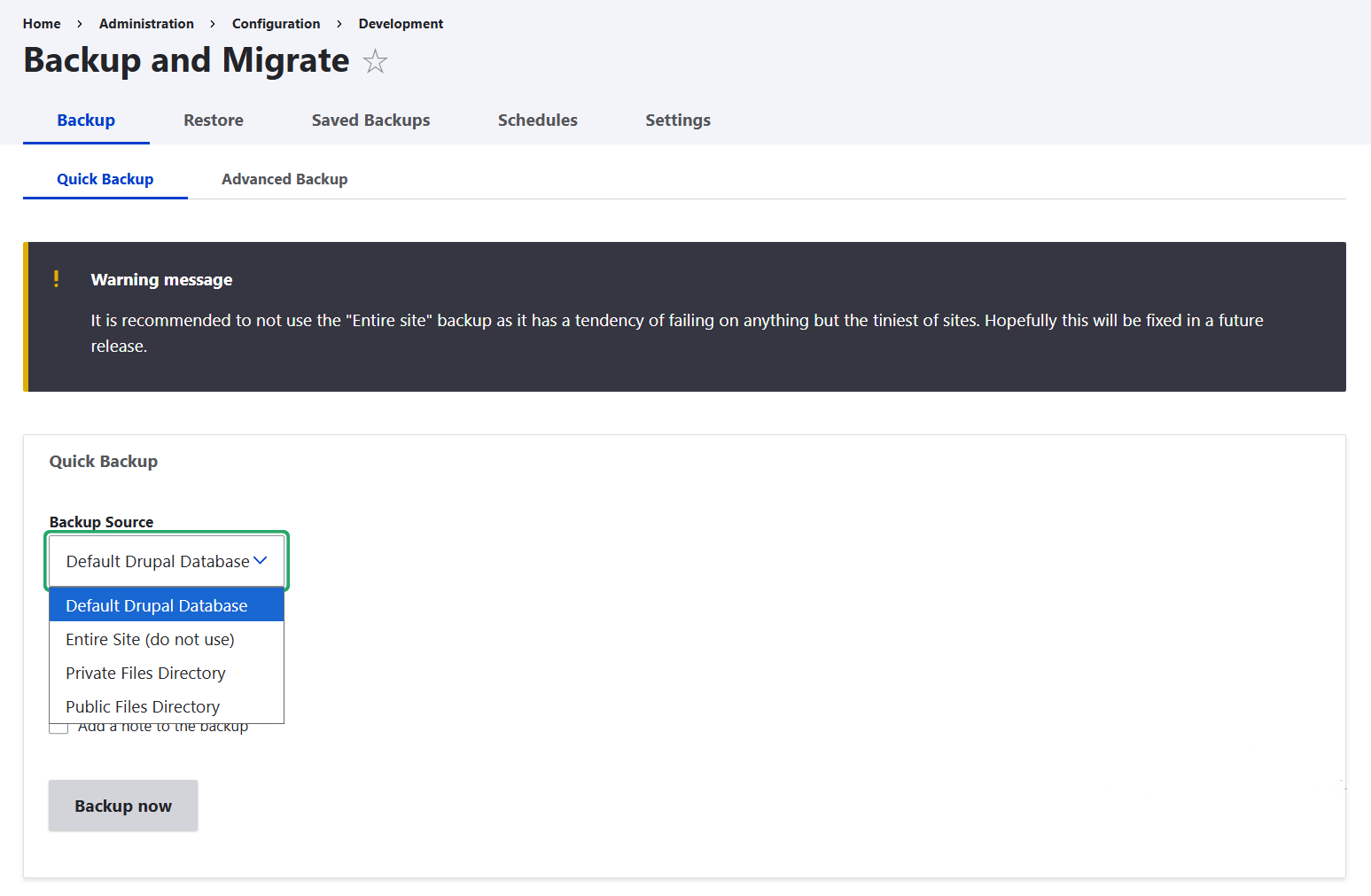
The Quick Backup tab lets you instantly back up key parts of your Drupal site without configuring advanced options. You can select the Backup Source from the dropdown:
- Database. Safest choice for quick protection of content and configuration.
- Public files. Useful if you’ve recently added or changed media files that are visible to site visitors.
- Private files. Important for backing up sensitive or restricted files stored outside public access.
- Entire site. Not recommended at the moment, as this option isn’t fully reliable.
You’ll also need to choose Backup Destination, which is where the backup should be stored. It can be downloaded to your computer or saved in Drupal’s Private Files directory.
You can also add a note to the backup. Finally, click the “Backup now” button.
It’s recommended to use Quick Backup when you need a fast, one‑off snapshot. For complete site protection, rely on Advanced Backup or scheduled backups instead.
Doing an advanced backup
The Advanced Backup tab gives you full control over how backups are created and stored. The Backup Source options are similar to those for quick backups, and there are more settings you can customize:
- File name and timestamp. Add a descriptive name for your backup, and a timestamp (like YYYY-MM-DD), so backups are easy to identify later. You can optionally use placeholder tokens for file names.
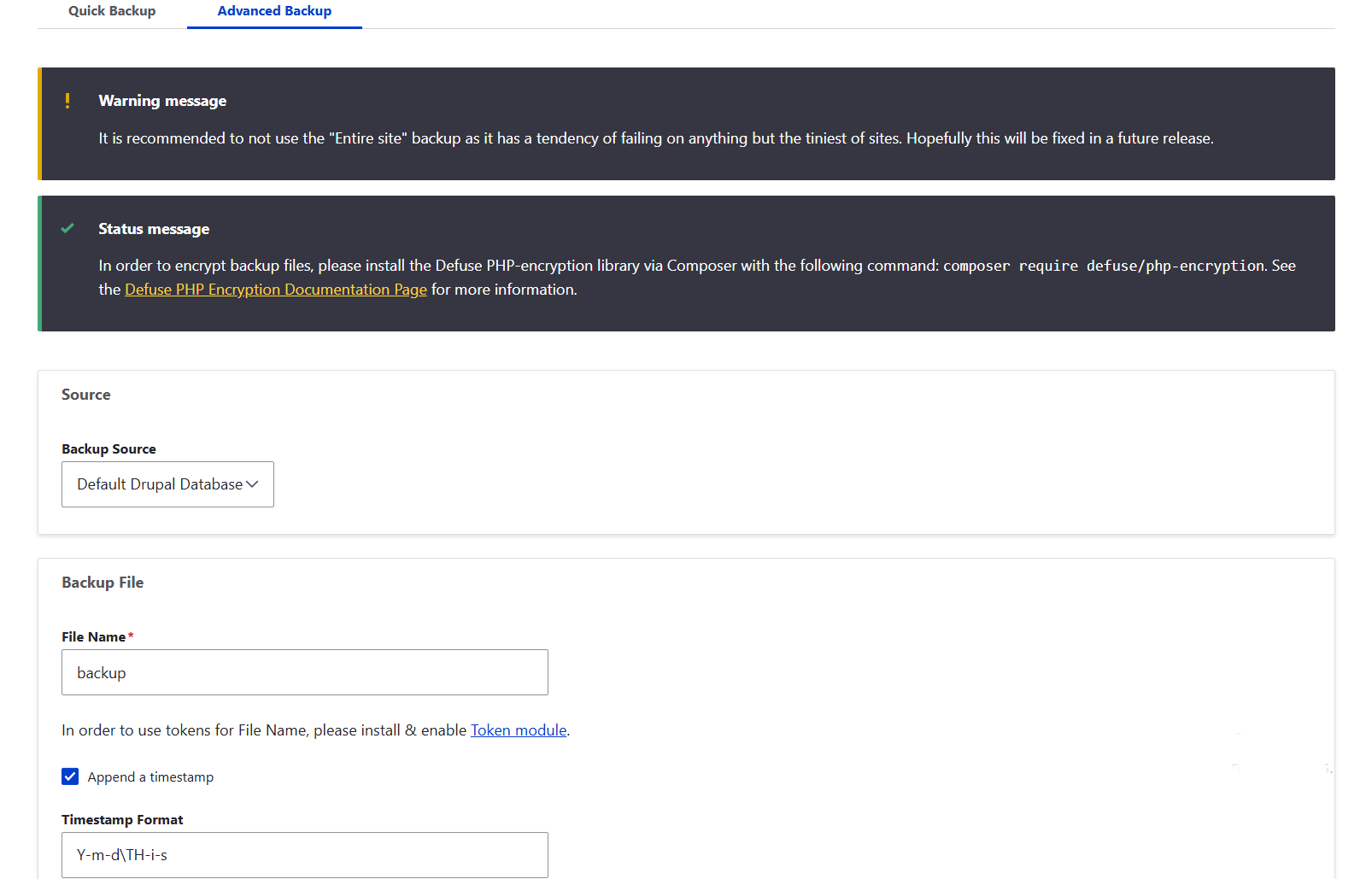
- Compression. Choose GZip to reduce file size and speed transfers, or no compression to keep files plain for easier inspection.
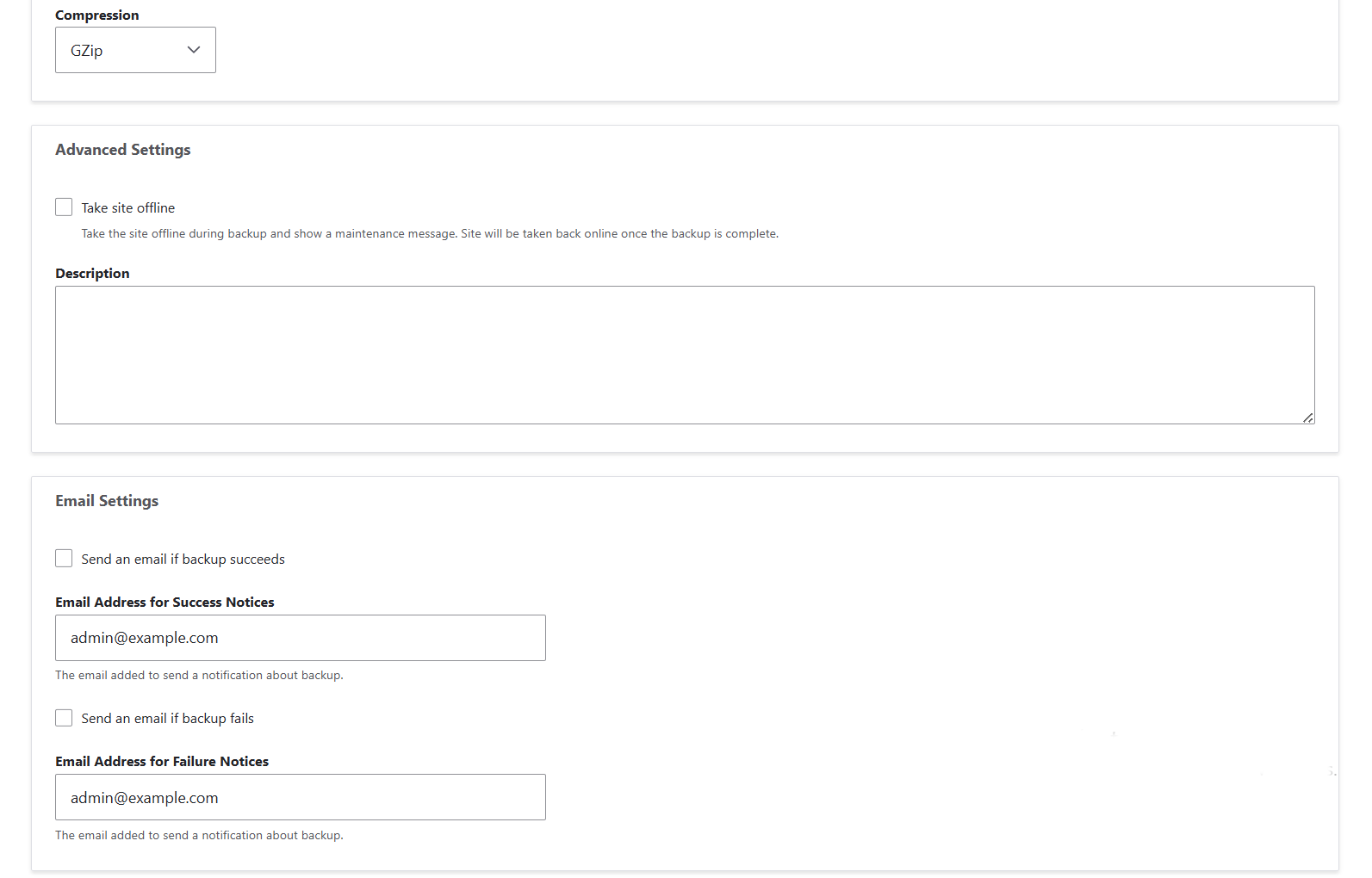
- Maintenance mode. Temporarily put the site offline during the backup to prevent changes and ensure consistency. It’s best to enable this on busy sites to avoid data conflicts.
- Email notifications. Send alerts to the admin if a backup succeeds, fails, or both. Enabling the alerts will improve the monitoring.
- Exclude files. There are very sensible out-of-the-box settings for skipping certain files during your backup. They include the backup_migrate file in the Private Files directory, and .js, .css, .php, .styles, config.*, and .htaccess files in the Public Files directory. This keeps backups leaner and avoids unnecessary or sensitive files that don’t need duplication.
Destination. In Advanced Backups, you have more options to save your backup. You can choose to download it to your computer, store it in Drupal’s Private Files directory, or upload it to a remote destination or a server directory (depending on what’s configured).
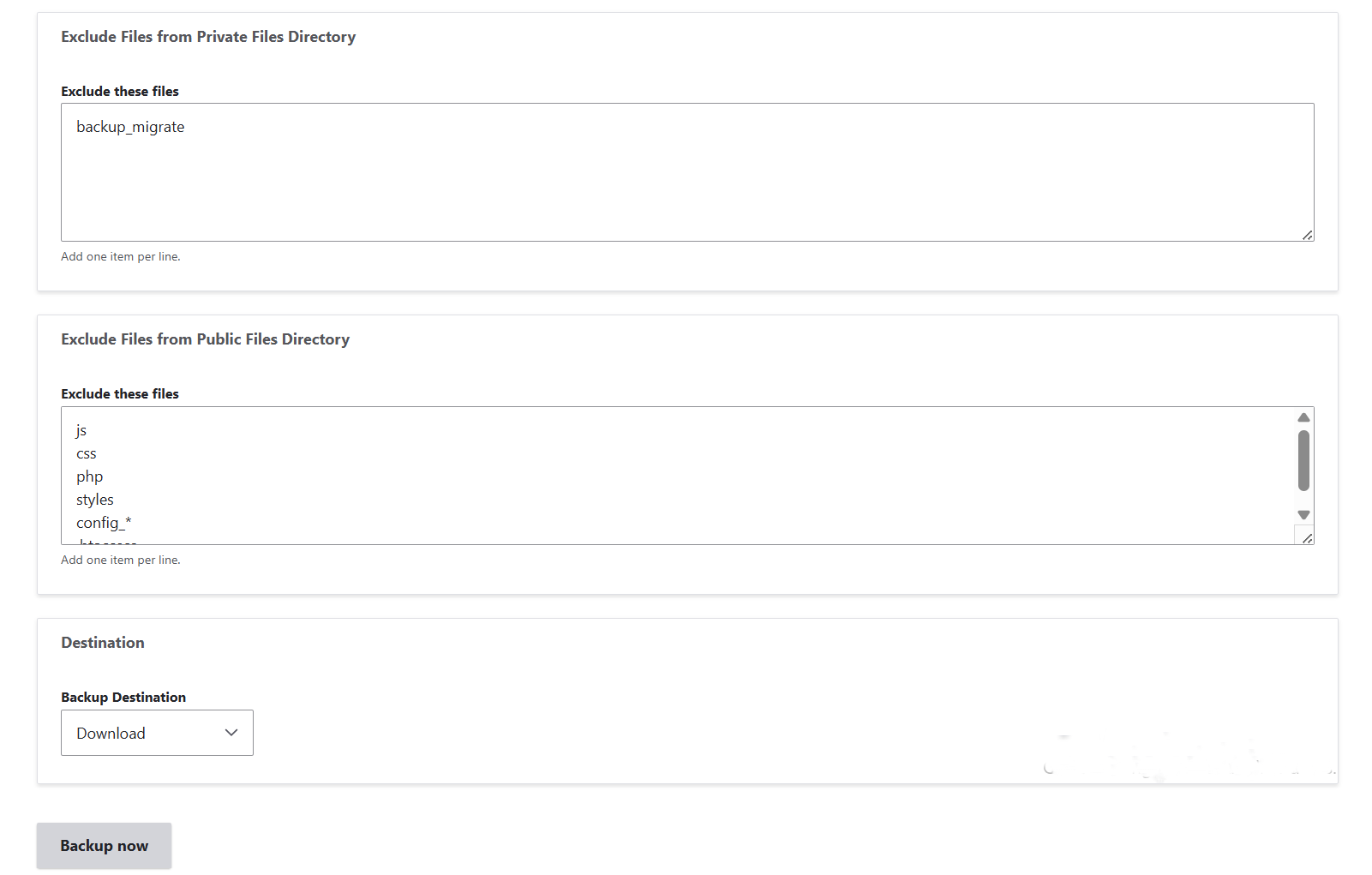
Configuring an advanced backup with the Backup and Migrate module in Drupal, part 3
Restoring data from a backup
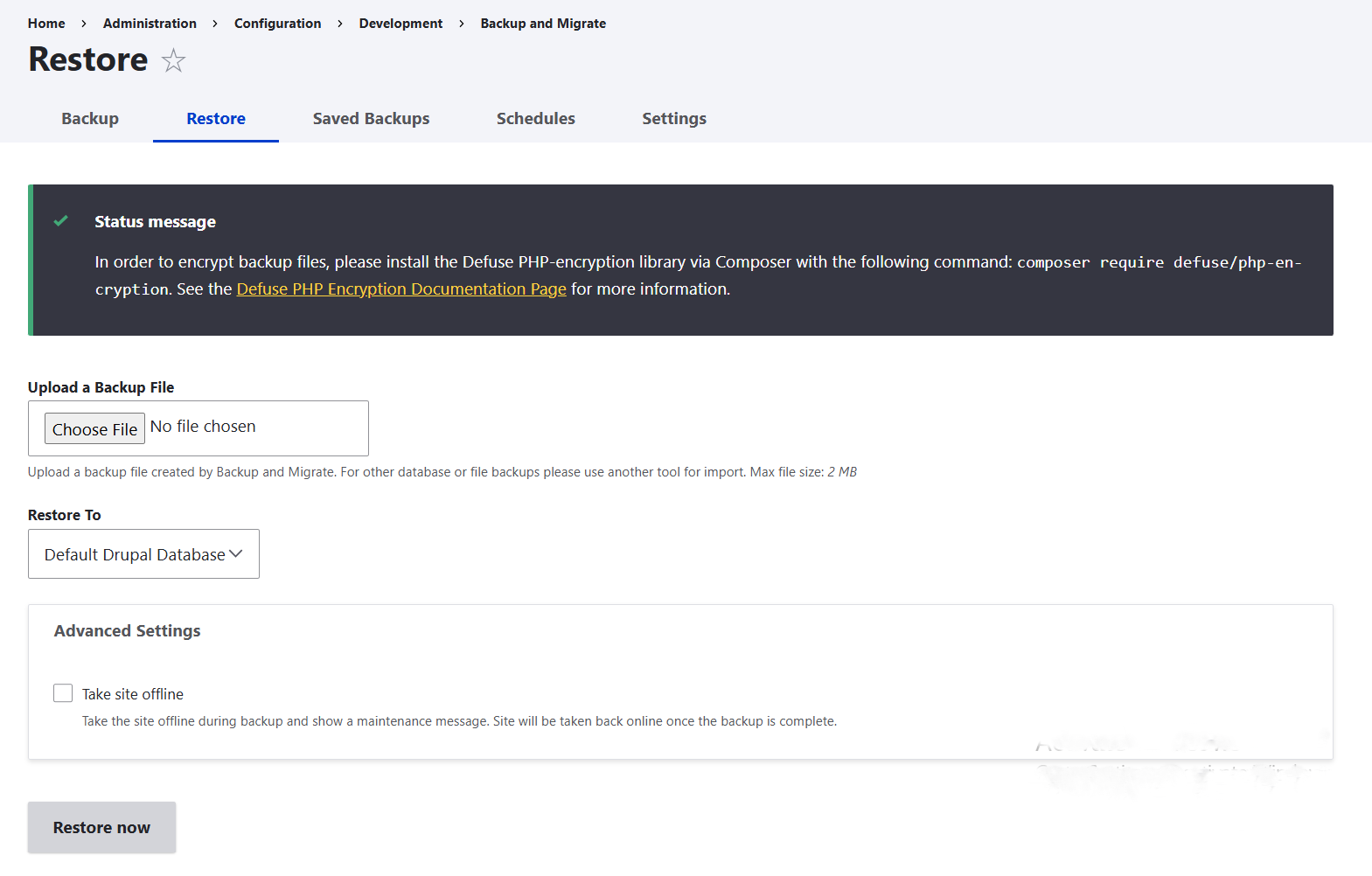
On the Restore tab, you can upload a backup file created by the Backup and Migrate module. Other types of backups (like server snapshots or phpMyAdmin exports) must be restored using their own tools.
You can restore backups to:
- Default Drupal Database. This restores the uploaded backup into your site’s active database.
- Public Files. This restores files into Drupal’s public file system, accessible to visitors (like images or documents).
- Private Files. This restores files into Drupal’s private file system, which is not publicly accessible.
You can also take the site offline during the restore, showing a maintenance message. This prevents new changes while the restore runs and automatically brings the site back online once complete.
Scheduling automated backups
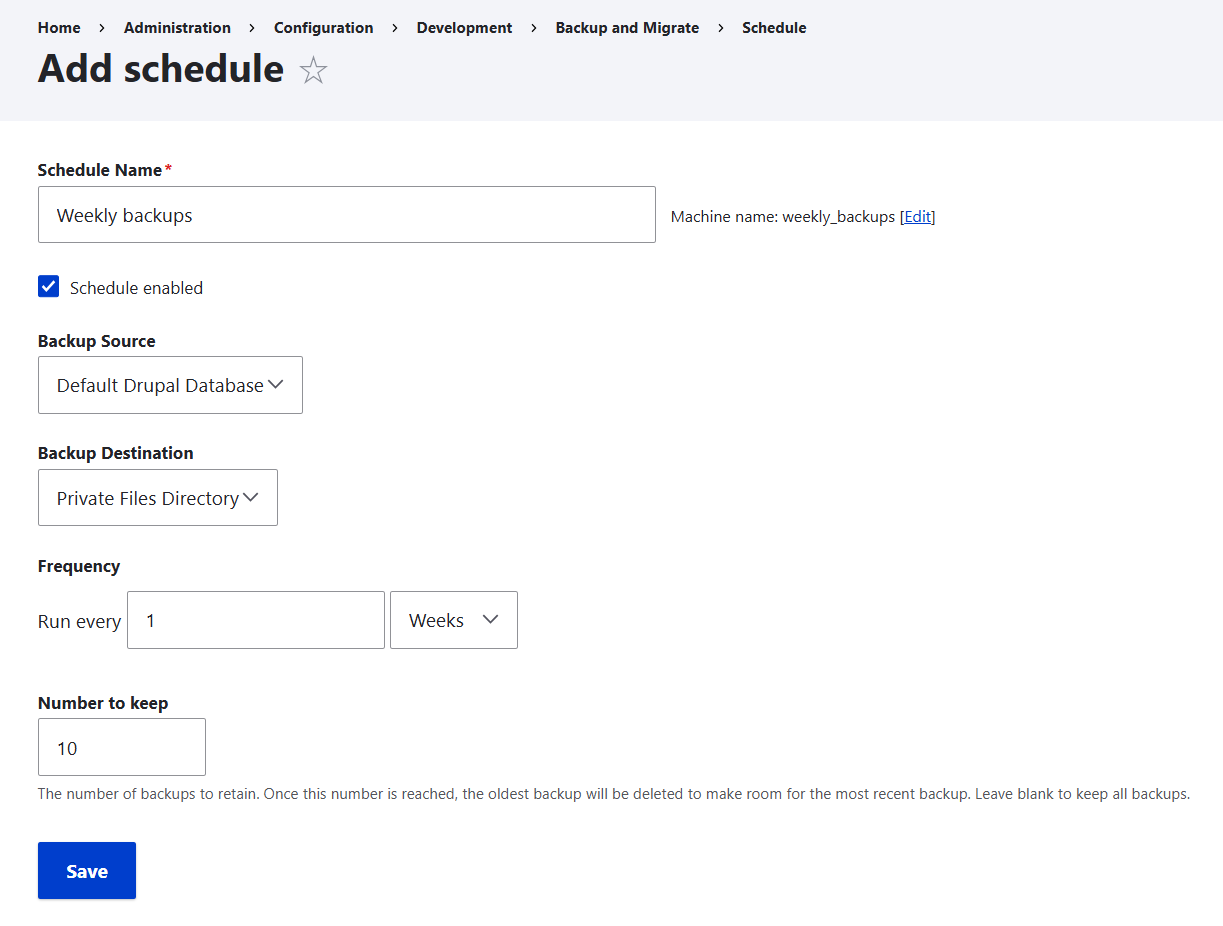
The Schedules tab is where you set up automatic backups that run through Drupal’s Cron system. Each schedule defines how often a backup should occur, what to back up, and how many past backups to keep before the oldest ones are deleted (leaving this field blank will keep all backups).
An example “Daily Schedule” is provided out of the box, but Cron won’t trigger it until the schedule is enabled and properly configured.
Final thoughts
For many site owners, the challenge is keeping backups consistent, secure, and tested. Furthermore, backups are just a piece of the big puzzle. They are like an insurance policy for your Drupal site: you want them ready at all times, but it’s better if you never actually have to restore your data from them. To prevent issues from happening in the first place, there are other techniques that should be combined with backups as part of ongoing website security and maintenance.
Doing regular updates, having strong access controls, using packaged security modules like Security Kit, adding spam protection with tools like CAPTCHA or reCAPTCHA and Honeypot, and other best practices keep your website resilient.
Drupal experts can design a backup routine tailored to your site’s activity and implement a comprehensive security plan. Letting professionals handle this gives you confidence that your website is protected day after day, so you can concentrate on building the future of your online presence.