Deciphering the Acronyms Behind Your Drupal Site: CDN, CTA, NID & More

If your Drupal website spoke in acronyms, it might sound like this: “DNS hands the request to the CDN, TLS encrypts the connection, and the CTA waits patiently at the end.”
These clusters of capital letters can feel like jargon and confuse non-technical users. Yet acronyms, words formed from the first letters of longer phrases, are everywhere because they make complex concepts quicker to say and easier to remember.
In the digital world, web-related acronyms pop up constantly, from security protocols to marketing shorthand. Their names may be short, but their impact is huge: each represents a tool or technology that helps your Drupal site run securely, load quickly, respect privacy, and guide visitors toward meaningful actions.
Understanding what’s behind these letters is the key to getting the most out of your digital experiences. Let’s unpack these acronyms and see how they shape your Drupal website. Some may feel familiar, while others might be new territory, either way, this article will help you see how every piece fits into the bigger picture.
Decoding top acronyms for your Drupal site
Interacting with the website
UI — User Interface
UI is the layer that lets you interact with Drupal’s deeper systems in a user-friendly way. It is often described as a collection of buttons, links, menus, forms, dashboards, text fields, and other elements that help you perform tasks.
The goal of a UI is to guide you step by step as you create content, configure modules, adjust settings, and manage your website.
You’ll often hear that a certain Drupal module has an intuitive UI or that something can be done via the Drupal admin UI. Some modules even include “UI” in their names, which usually signals that they provide a visual way to interact with powerful features through the administration screens.
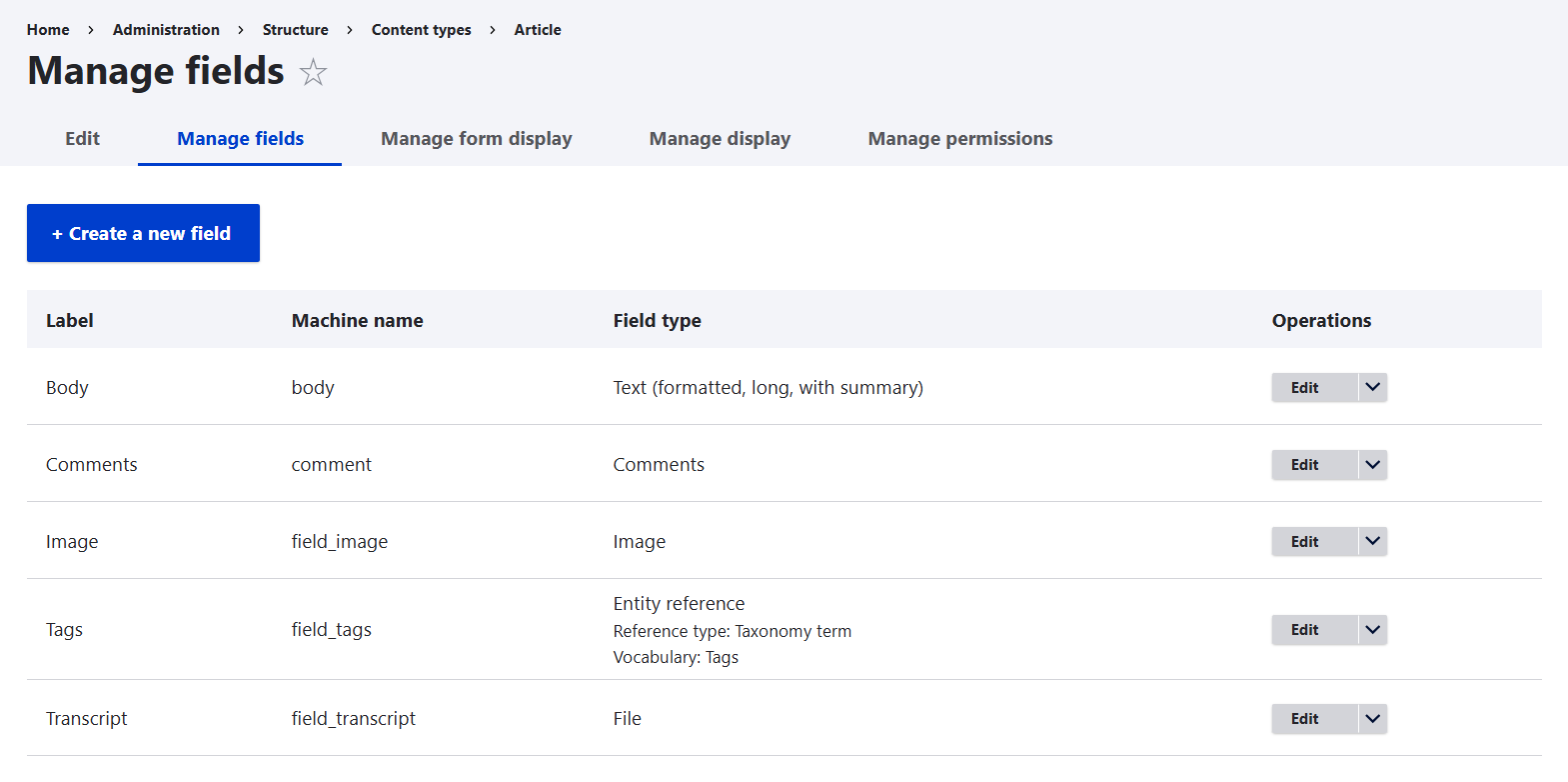
For example, Views UI gives site builders a point-and-click interface for creating and editing views, while Field UI, recently revamped for the best experiences, lets you easily manage the Drupal fields that shape your content structure.
CLI — Command-Line Interface
CLI works very differently from a UI. Instead of buttons and menus, you type commands directly into a terminal. Command-line interfaces often expose the full breadth of a system’s capabilities, sometimes beyond what graphical interfaces allow. This makes them powerful and efficient, but they also require more technical knowledge.
Drupal developers commonly work with command-line tools, the most famous of which is Drush, a CLI created specifically for Drupal. Its mission is to provide direct access to Drupal’s internal systems and automate common tasks.
Interestingly, Drush itself is not an acronym. The name comes from “Drupal + shell,” making it a portmanteau, a word formed by blending parts of two words.
Creating content on your Drupal site
WYSIWYG — What You See Is What You Get
One of the most colorful acronyms in web publishing is designed to make content creators’ lives easier. A WYSIWYG editor lets you format content exactly as it will appear on your website, bold text looks bold, links look clickable, and headings look like headings. In Drupal today, the default WYSIWYG editor is CKEditor 5.
Before WYSIWYG tools became common, site builders often had to edit raw code to make even simple formatting changes. Modern editors bridge the gap between code and content creation, which is exactly what the name promises: “What You See Is What You Get.”

Under the hood of your Drupal site
NID — Node Identifier
Let’s move on to some inherently Drupal acronyms that reveal how the system works behind the scenes. One of them is NID. Every piece of content (called a node in Drupal) receives a unique numeric identifier.
For example, if you create a new article, Drupal might assign it an NID like 78. This number is how Drupal keeps track of that content internally.
We have a detailed blog post explaining how the Linkit module lets you create links to other content directly by NID, helping you avoid potential broken links.
UID — User Identifier
Just like content, every Drupal user also receives a unique numeric identifier. You can think of it as a membership card number that Drupal uses to keep track of who’s who.
For example, UID 0 represents the anonymous user (visitors who are not logged in), while UID 1 is the famous superuser — the original creator of the site. Historically, this account has unlimited permissions, which has sometimes been criticized as a potential security risk. Fortunately, Drupal 11 introduced the option to disable the superuser account, allowing administrators to grant precise permissions to other roles instead.
API — Application Programming Interface
An API is like a translator that allows different systems to talk to each other.
In Drupal, APIs expose the deeper capabilities of the system — retrieving content, managing users, or connecting to external services.
APIs can work:
- externally, connecting Drupal to mobile apps or third-party services
- internally, providing structured sets of functions that modules and developers can use
Some well-known Drupal examples include Form API, which standardizes how forms are built, validated, and submitted, and Field API, which allows modules to attach fields to entities in a consistent way.
Some modules even include “API” in their names to signal that they act as foundational building blocks. They often don’t do much on their own, but they provide the connections that other modules rely on.
For example, the Crop API module doesn’t perform image cropping itself, instead, it provides the framework that allows other Drupal image optimization modules to plug in and handle cropping consistently.
Outstanding Drupal modules
ECA — Event–Condition–Action
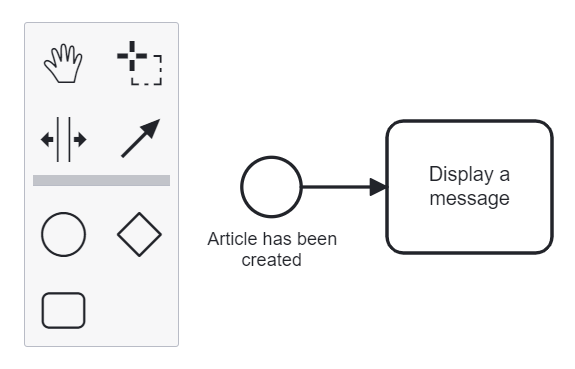
The ECA principle isn’t unique to Drupal, but the ECA (Event–Condition–Action) module has become one of the most powerful modern tools in the Drupal ecosystem, and a perfect acronym.
It enables no-code automation, giving site builders the flexibility to design workflows without writing custom code.
The logic follows a simple pattern:
- Event. Something happens in Drupal. Examples: a content item is created, a user logs in, or a field value changes.
- Condition (optional). A requirement must be met. Examples: the content type must be Article, or the user role must be Editor.
- Action. Drupal responds accordingly. Examples: display a message, send an email, or update a field.
By combining events, conditions, and actions, site builders can create powerful automated workflows that react dynamically to what happens on the website.
Marketing and engagement
CTA — Call to Action
Marketing thrives on acronyms, and CTA is one of the most important. A Call to Action is the gentle push that guides visitors toward the next step, clicking a button, signing up for a newsletter, or making a purchase.
CTAs often appear as styled buttons or links, strategically placed to turn casual browsing into meaningful engagement.
UX — User Experience
UX describes the overall feeling people have when using your website. Is it easy to navigate? Does it load quickly? Can visitors find what they need without frustration?
Good UX is the result of many elements working together, clear content, intuitive interfaces, fast performance, and well-placed CTAs that guide users smoothly through the site.
SEO — Search Engine Optimization (and more)
SEO is one of the most widely known acronyms in the digital world, and it still deserves a quick explanation. It refers to a set of best practices that help your website appear higher in search engine results. Many Drupal modules help you implement these practices, including the creation of well-structured URLs, content optimization, and other great SEO techniques.
In recent years, the world of search marketing has started producing even more acronyms. You might come across terms like AIO, AEO, GEO, or SXO, which reflect how search engines and AI assistants are evolving. If you're curious about this growing alphabet, check out our team’s article, which details some of the latest SEO acronyms marketers should know.
SERP — Search Engine Results Page
A SERP is the page of results you see after typing a question or phrase into a search engine.
You can think of it as a digital stage where websites line up to answer your query. The higher a page appears, the easier it is for people to discover it.
For a Drupal site, good SEO helps your content earn a visible spot on that stage, so when someone searches for a topic you cover, your pages have a better chance of being noticed and clicked.
CRM — Customer Relationship Management
A CRM is the system businesses use to organize and manage their interactions with customers. It gathers details like contact information, past purchases, and communication history into one place, making it easier for teams to stay coordinated.
It acts as a central hub: sales teams track leads, marketing teams send targeted campaigns, and support teams resolve issues more efficiently.
For a Drupal site, integrating a CRM means customer data is not scattered but structured and accessible. This helps ensure that every interaction feels consistent and informed, whether someone is visiting for the first time or returning as a loyal client.
Speed and delivery: making your site fast
DNS — Domain Name System
DNS translates human-friendly domain names (like example.com) into the numerical IP addresses computers use to find each other.
You can think of it as the internet’s phone book, when someone types your site’s name, DNS looks up the number and connects the call.
If you use a domain registrar or hosting provider, your DNS is usually managed through them, so you rarely need to configure it yourself. What you can do is choose a reliable provider to ensure your site stays reachable and responsive.
But DNS isn’t only about websites. The same system also underpins email, using additional records to keep messages flowing securely. So there are more acronyms that form part of the broader DNS theme, showing that it’s also a foundation for reliable, authenticated email:
- MX (Mail Exchange): directs email to the right server.
- SPF (Sender Policy Framework): lists which servers are allowed to send mail for the domain.
- DKIM (DomainKeys Identified Mail): adds a digital signature to confirm an email hasn’t been altered.
DMARC (Domain‑based Message Authentication, Reporting & Conformance): ties SPF and DKIM together, telling mail servers how to handle suspicious messages.
CDN — Content Delivery Network
A CDN helps your website load faster by storing copies of your site’s files on servers around the world. When someone visits your site, the content is delivered from the server closest to them. It’s like setting up mini-warehouses across the globe, so visitors don’t have to wait for shipping from a single far-away location.
If you’re using a modern Drupal hosting platform, a CDN is often already included. If not, services like Cloudflare make it easy to connect your site and start benefiting from global content delivery.
Security: protecting your Drupal website
HTTPS — Hypertext Transfer Protocol Secure
HTTPS is the secure way your website communicates with visitors’ browsers. It encrypts the connection so that pages, forms, and login details travel privately across the internet, preventing others from intercepting the data along the way.
Most modern hosts and CDNs include HTTPS automatically, often through free services like Let’s Encrypt. If not, you’ll need a security certificate (commonly called an “SSL certificate”) to enable it. Once installed, your Drupal site can serve pages securely over HTTPS.
TLS — Transport Layer Security
TLS is the modern technology that makes HTTPS possible. It acts as a strong lock on your connection, keeping data safe as it travels between your site and its visitors.
Every time someone opens a Drupal page over HTTPS, TLS is quietly working behind the scenes to protect the information being exchanged.
SSL — Secure Sockets Layer
SSL was the original predecessor of TLS. You can think of it as the early version of the technology that encrypted the connection between a browser and a website.
Today SSL itself is mostly outdated, but the term “SSL certificate” is still widely used. In practice, when you enable HTTPS on your site, you’re actually using TLS, just under the familiar old name.
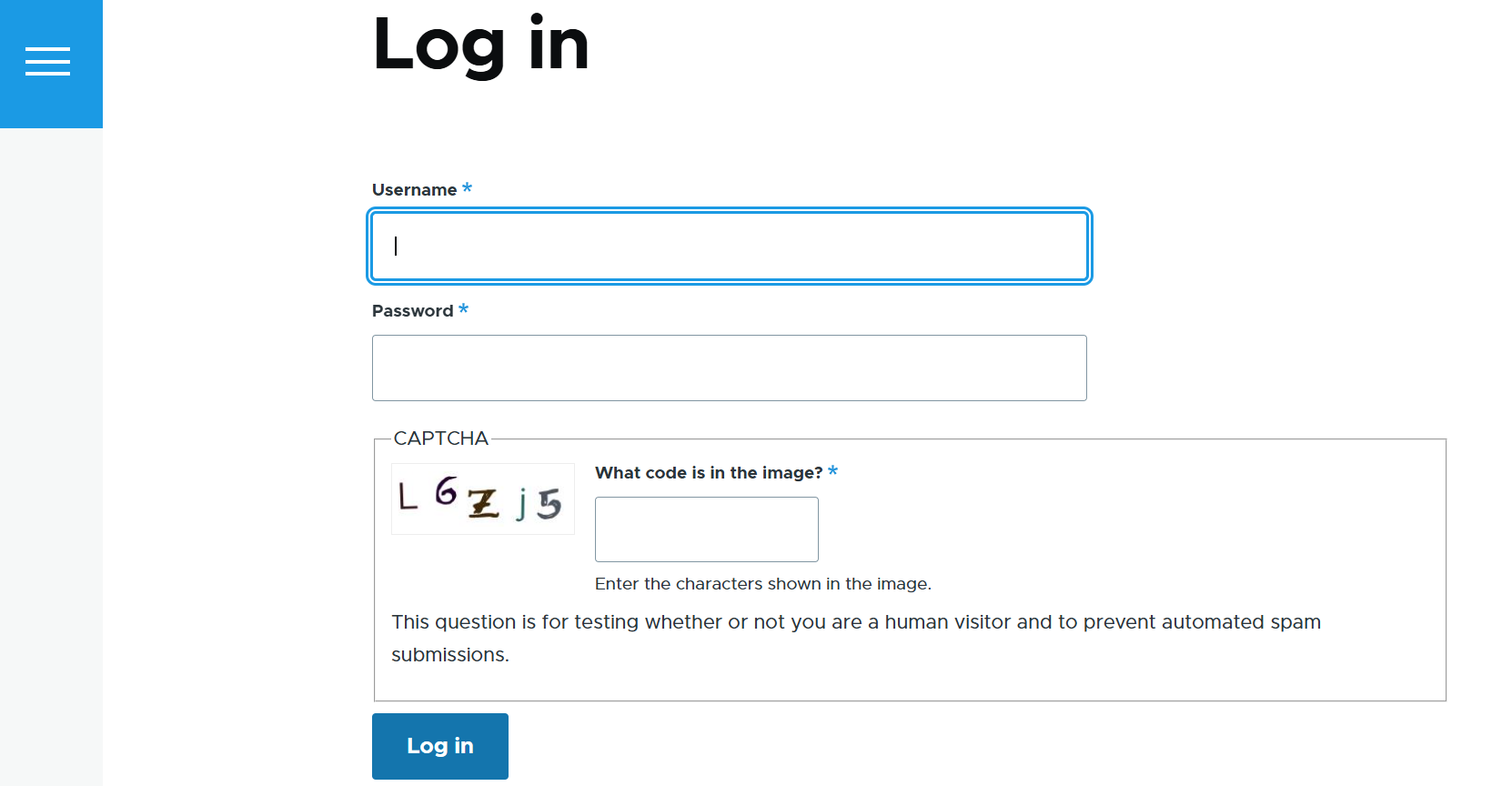
CAPTCHA — Completely Automated Public Turing test to tell Computers and Humans Apart
CAPTCHA helps protect your website from spam bots by introducing small tests that are easy for humans but difficult for automated programs to pass. Visitors might be asked to click certain images, solve a simple puzzle, type distorted letters, or sometimes do nothing at all while the check happens invisibly in the background.
You can check out our dedicated article about CAPTCHA and reCAPTCHA to learn more about the difference between them, and how they work on Drupal websites.
Privacy and compliance: respecting your visitors’ data
GDPR — General Data Protection Regulation
GDPR is Europe’s landmark privacy law that sets standards for how organizations handle personal data. It acts as a rulebook reminding businesses to be transparent, respect people’s rights, and protect their information.
For Drupal site owners, this often means building trust by giving visitors clear choices about what data is collected and how it is used.
CMP — Consent Management Platform
A CMP is a friendly tool that helps websites manage cookie banners and consent preferences. It’s like a digital handshake: it asks visitors what they’re comfortable with, remembers their choices, and ensures those preferences are respected across the site. Many Drupal websites integrate CMPs such as Cookiebot, OneTrust, or Klaro to manage this process.
Final thoughts
Of course, this list of acronyms that shape your Drupal website isn’t exhaustive, there are always more tools, techniques, and letters to explore.
And remember: if you want your site to truly shine, don’t hesitate to reach out to talk through your needs. We know how to orchestrate all the tools and techniques behind the most important acronyms and make the best out of your website, turning letters into results.