Improve User Experience By Creating a Fast Sign-Up & Login Flow in Drupal

The authentication screen can have a significant impact on both first impressions and user retention. Manual credential management can create friction that actively drives users away. That being said, simplifying authentication is one of the ways UX design can increase conversions on your Drupal website.
It all comes down to choice and simplicity: keep manual registration as painless as possible or let users use an existing account on a platform like Google. Today, we’ll explore a couple of great modules that address these two approaches: Email Registration, Social Auth, and Social Auth Google. You can use them separately or combine them to improve the login and sign-up experience. Below, we’ll tell you more about them and walk you through their configuration step by step.
The Email Registration module: no need to think of a username
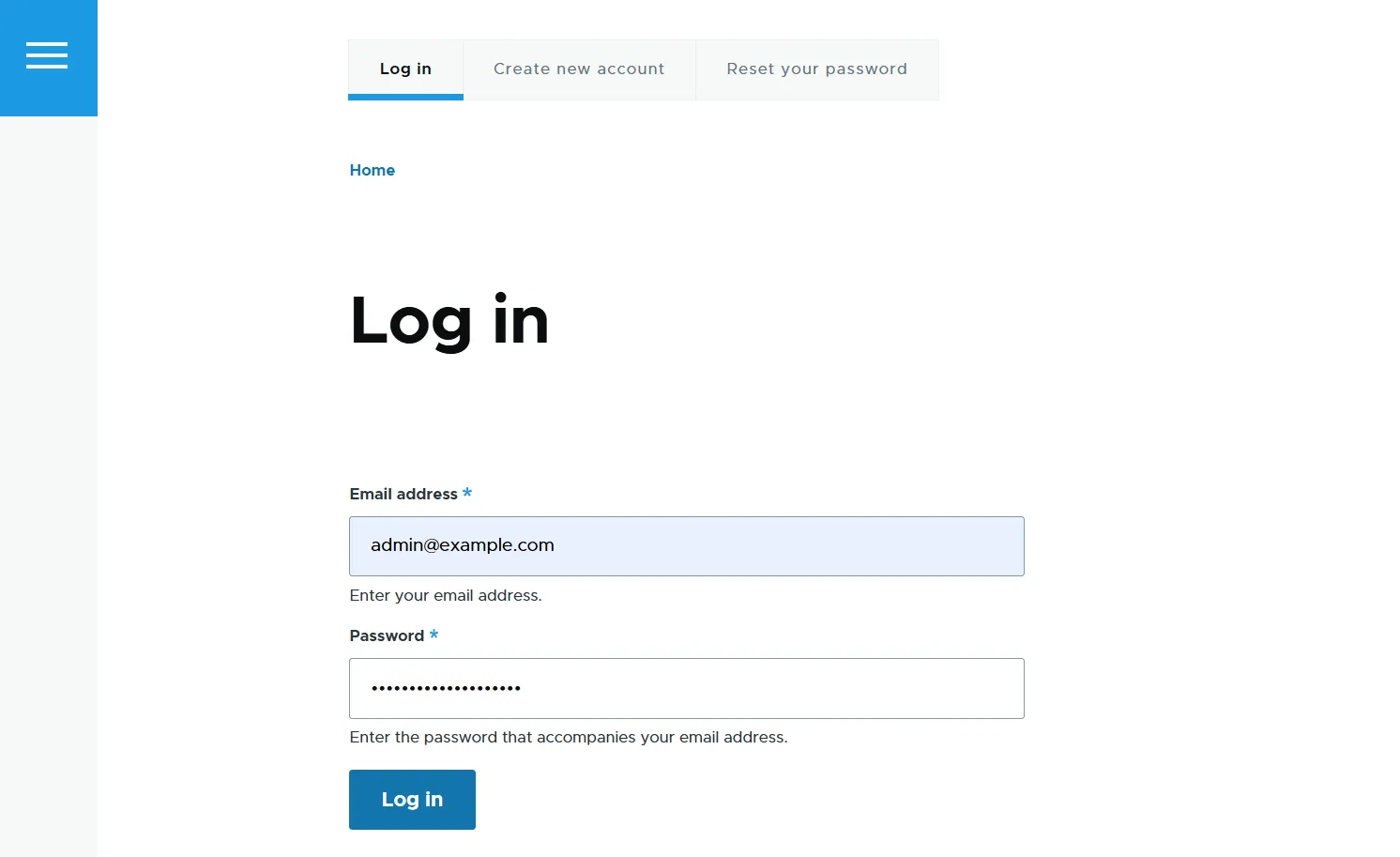
Many websites don’t really need usernames. The Email Registration module lets users use their email address instead of a separate username. It removes an unnecessary step from Drupal’s registration and login experiences and makes the familiar email-and-password flow feel more natural. Users have one less thing to think about and fewer fields to complete.
The option to keep usernames
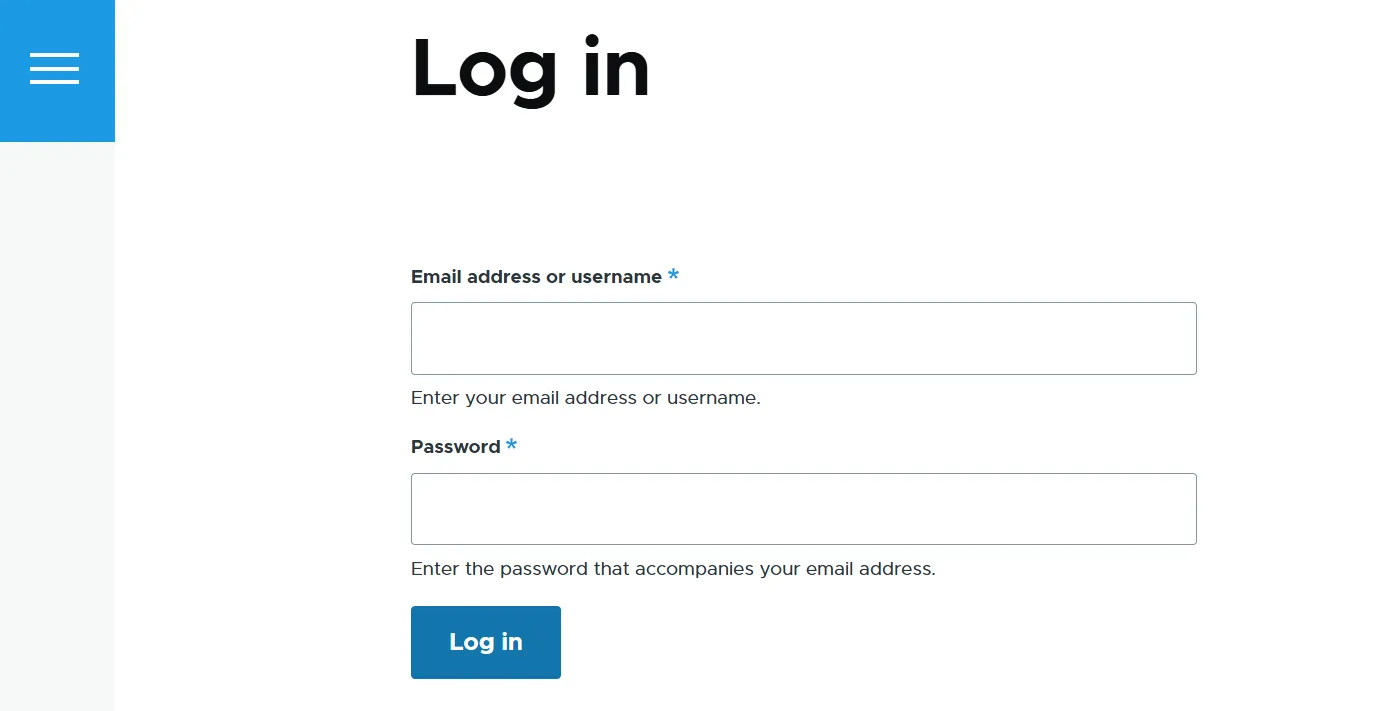
If your site needs usernames, the module can also be configured to keep them. Users will have a choice: to log in either with their email address or with their username.
By default, the module automatically creates a username from the part of the user’s email address before the @ symbol, combined with their user ID. Developers can use a hook if they need to customize the way usernames are generated.
The Email Registration Username submodule
The module comes packed with the Email Registration Username submodule. The submodule uses the email address itself as the username, keeping the email and username fields in sync when the user updates their account. Users with the appropriate permissions can still choose a different username when needed.
For comparison, the main module creates a backend username using the sanitized email prefix + unique ID (like john_829). The submodule forces the username to strictly match the exact email address (like john@example.com).
How to use the Email Registration module: step-by-step guide
Main settings
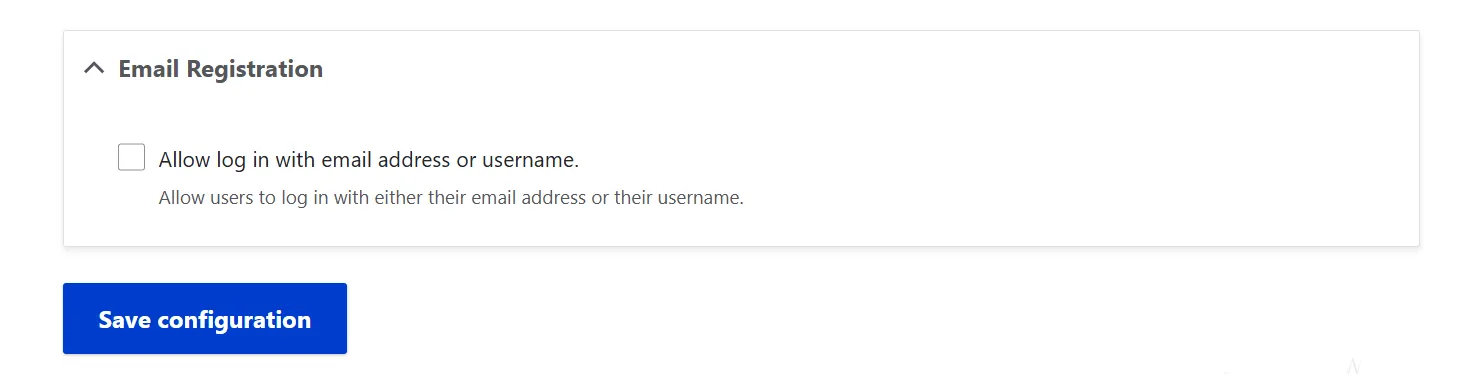
The module’s settings are straightforward. Go to Configuration > People > Account settings and find the “Email Registration” section at the very bottom of the page.
There is a box you can check to allow users to choose between using either their email address or their username. Alternatively, leave this option unchecked if you want users to log in with their email address only.
Allowing visitors to register
Check the account registration setting before proceeding. Go to Configuration > People > Account settings and look for “Who can register accounts?”. To allow visitors to create accounts, select “Visitors” or “Visitors, but administrator approval is required.”
The Social Auth module: let users use other platforms’ accounts
In Zuko’s study, password fields had the highest average abandonment rate among the fields analyzed. The Social Auth module helps eliminate password fatigue, facilitate onboarding, and reduce form abandonment. It lets users register and log in to your Drupal site using an account they already have with an external platform.
A variety of integrations
Various platforms such as Google, Apple, Facebook, GitHub, LinkedIn, and Microsoft are supported. For this purpose, there are additional modules in the Social Auth ecosystem, each responsible for a specific platform integration. The Social Auth module acts as the parent engine for all provider modules, while they handle the API keys and secrets.
For this tutorial, we’ll pair the Social Auth module with the Social Auth Google module as an example. This gives visitors a familiar sign-up or login option and lets them get through registration without creating another password.
How to use the Social Auth module: step-by-step guide
Install the modules
You’ll need the Social Auth, Social API, and an integration module (in this example, Social Auth Google). If you install the Social Auth Google module via Composer, the other two modules should be installed automatically as its dependencies.
Create a Google Cloud OAuth client
Before configuring Drupal, register your site with Google to get the authentication credentials. To do it, go to the Google Cloud Console and open Google Auth Platform.
If Google asks you to configure the platform, register your application. Select “External” if you want to allow users with any Google account to authenticate. If the site is for a Google Workspace organization and should be limited to users within that organization, select “Internal.” Enter the basic app details, such as the app name and contact email.
Next, go to Clients > Create client. Select “Web application” as the application type.
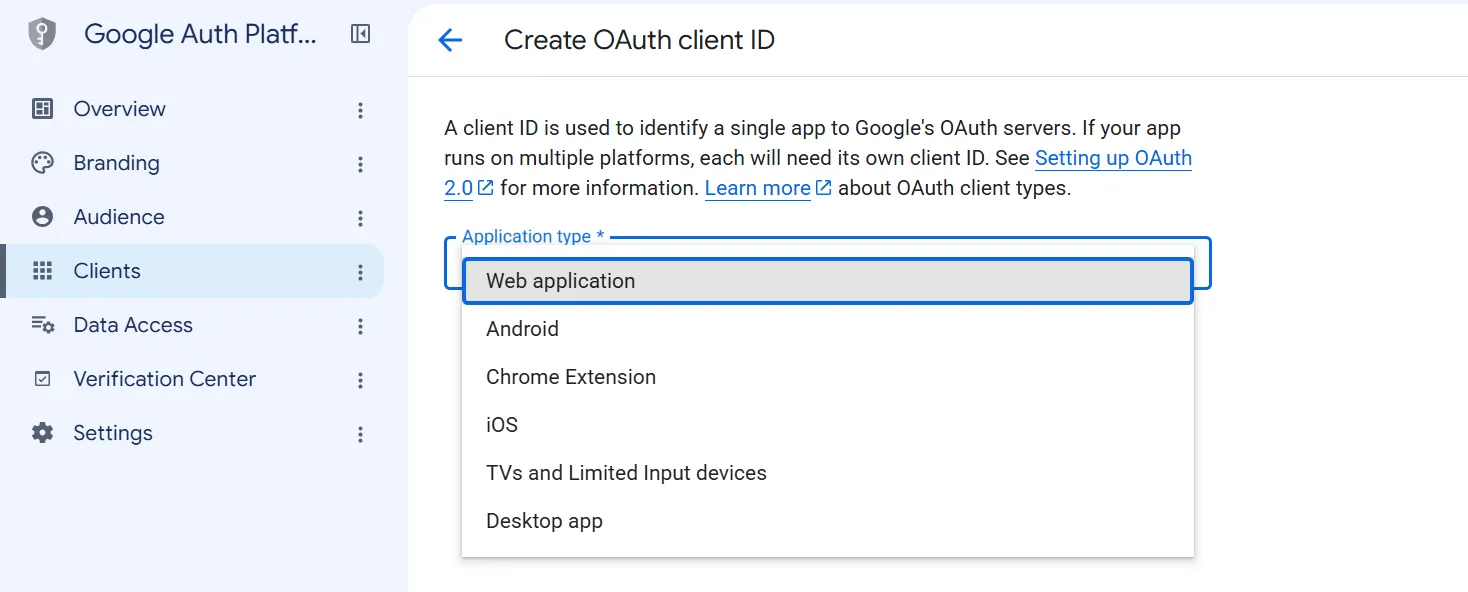
Under “Authorized redirect URIs,” click “Add URI” and paste your Drupal callback URL:
https://[your-website.com]/user/login/google/callback
The callback URL is the Drupal address Google uses to send the authentication response back to your site. You can find the exact callback URL in Drupal under Configuration > Social API settings > User authentication > Google > Authorized redirect URL. The URL should end in /user/login/google/callback.
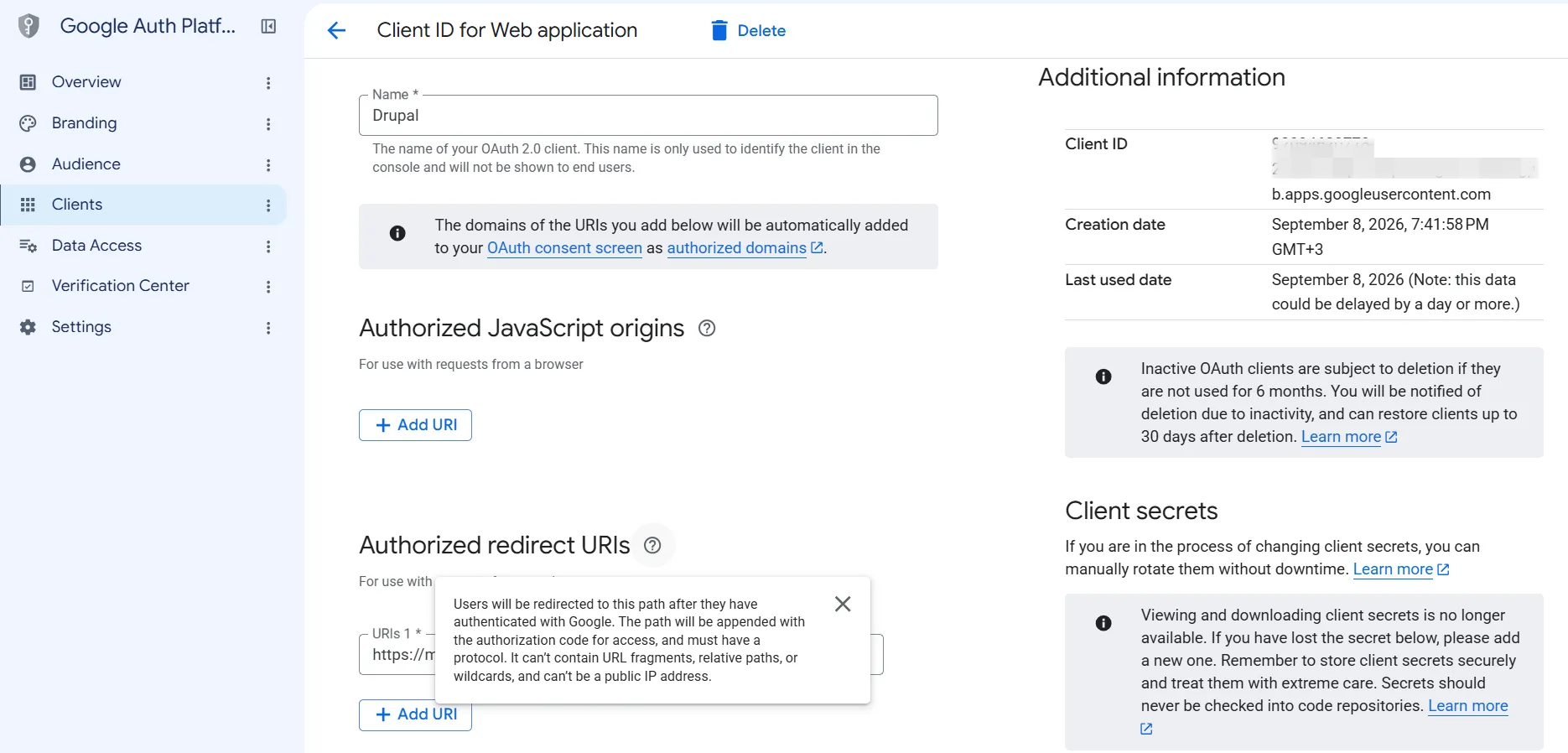
After creating the client, Google provides a Client ID and Client Secret. Copy these credentials because you’ll need them in the Social Auth Google settings in Drupal. Google notes that the client secret is only shown after the client is created, so save it securely.
Paste Google credentials on your Drupal site
Come back to the Drupal site and navigate to Configuration > Social API settings > User authentication > Google. Paste the Client ID and Client Secret, and save the result.
The Google Client Secret is sensitive credential data. Avoid committing it to version-controlled configuration exports or exposing it in publicly accessible files. For production sites, consider using Drupal’s configuration override mechanisms or a suitable secrets/key-management solution to keep the Client Secret outside exported configuration.
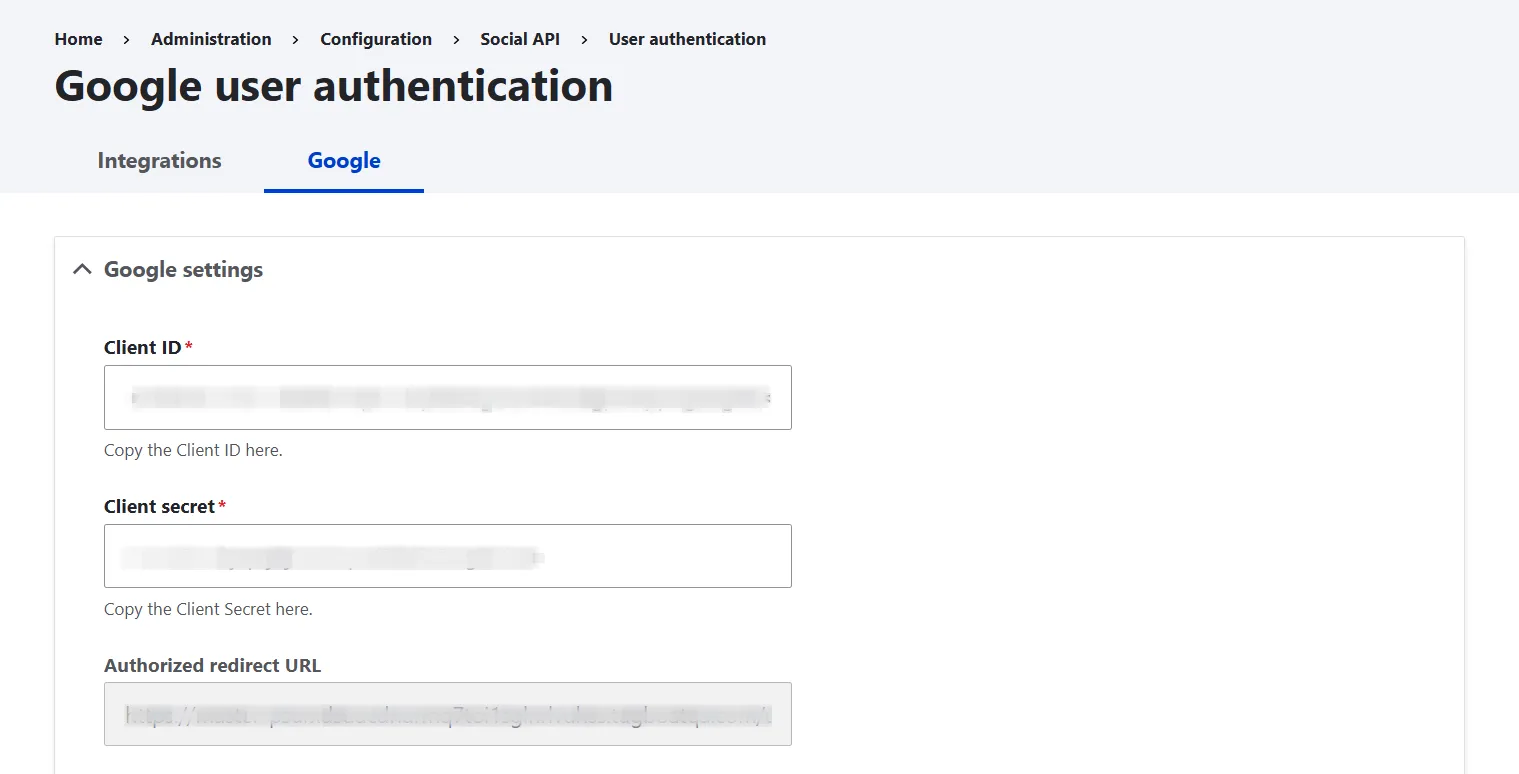
Next on this page are the general Social Auth settings that are not specific to any platform. You can also configure several aspects of the integration, including:
- whether users can both log in and register or only log in
- where to redirect users after a successful authentication
- whether to allow social login for user 1 (the super admin)
- and whether to enable or disable social login for specific user roles
Review these settings and adjust them according to your site’s authentication and access requirements. In particular, check which user roles can use social login and whether user 1 should be allowed to authenticate through a social provider. By default, social login is disabled for user 1.
Place the Google login link on the Drupal website
With the credentials added, the integration is basically ready. However, you also need to give users a way to access the Google login option.
With the credentials added, the integration is basically ready. However, you also need to give users a way to access the Google login option.
You can use the Social Auth Login block provided by the module, or create a link or button. In this example, we’ll create a custom link labeled “Continue with Google.” This link takes users to a page with a “Log in or sign up with Google” option.
When creating a custom link or button, follow Google’s branding and accessibility requirements. Google recommends labels such as “Sign in with Google,” “Sign up with Google,” or “Continue with Google.” You can adapt the wording to fit the terminology used throughout your site’s interface: in this example, “Log in with Google” matches the site’s use of “log in” for authentication.
Go to Content > Blocks and create a basic block. Add a link to the block with the URL “/user/login/google” and the text “Log in or sign up with Google.”
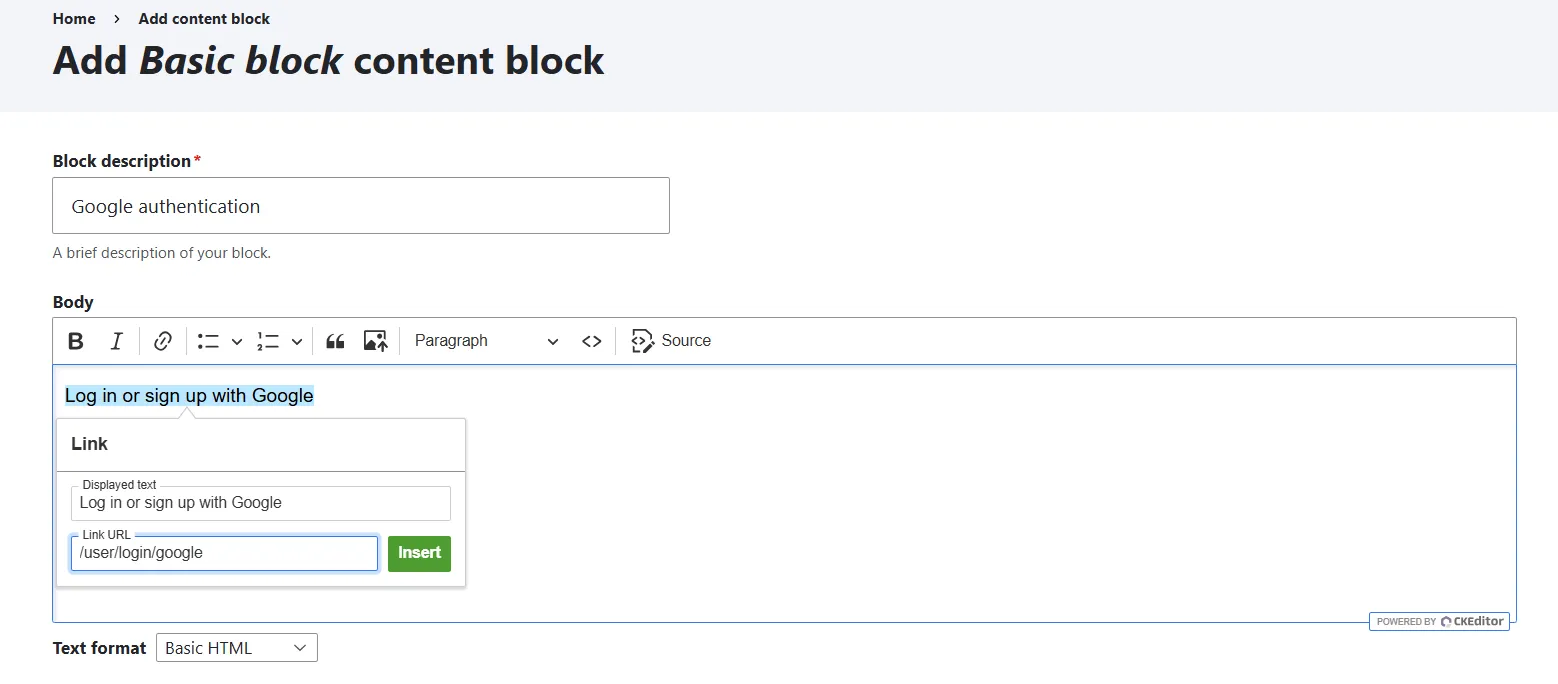
Next, go to Structure > Block layout, select the region where you want to position the block (for example, Content), click “Place block,” find your newly created block, and click “Place block” again.
Configure the block settings. The Title (for example, “Have a Google account?” or “Continue with Google”) will be displayed to users above the link. Under “Pages,” configure the block to appear only on the /user/login page.
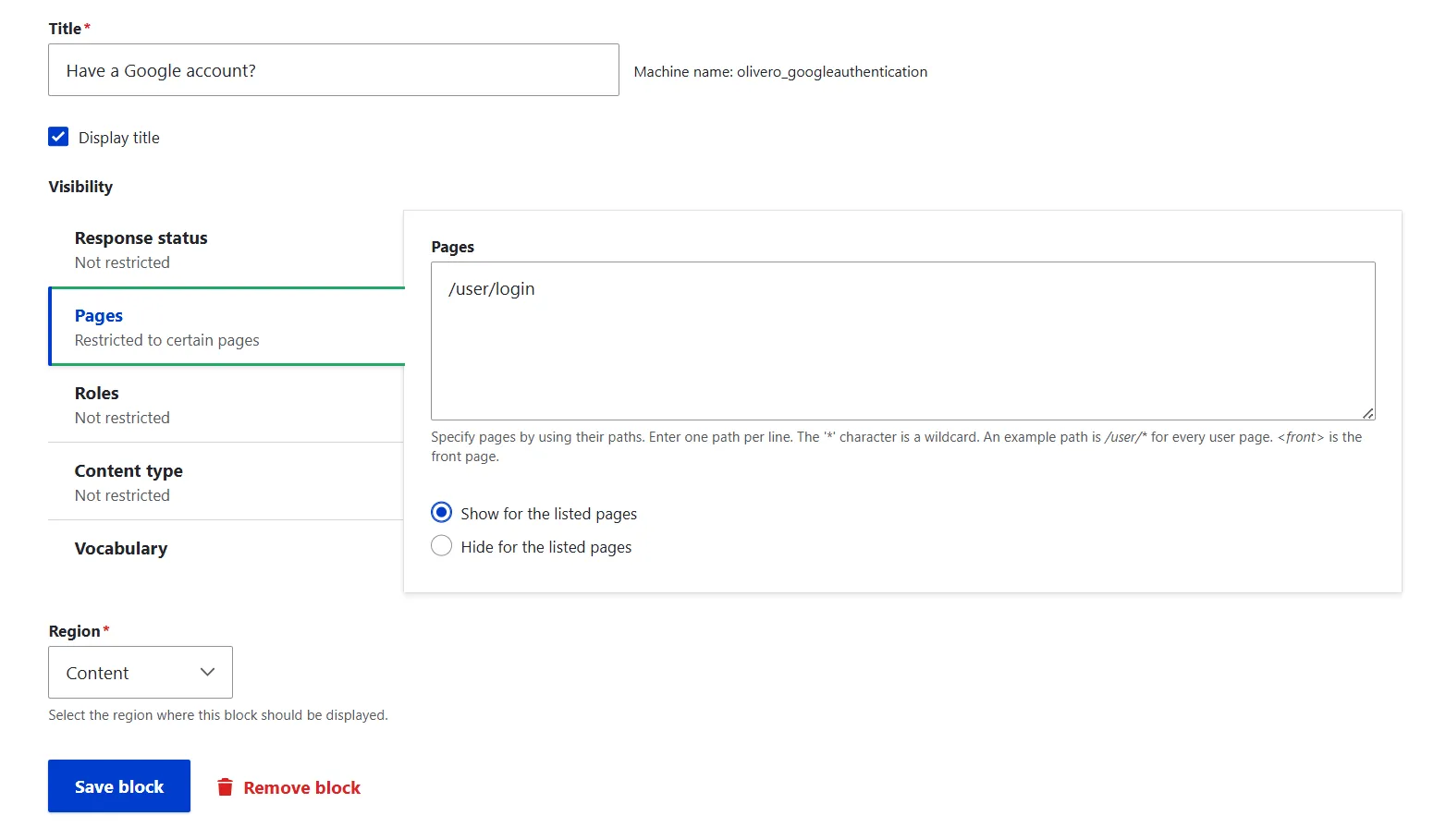
Finally, save the result on the “Block layout” page.
Test Google login
Log out and try to log back in. The page now displays the newly configured option to log in or sign up with Google. Below it, there are standard Drupal login options. If you also use the Email Sign-Up module, the form can also offer users the option to log in with email.
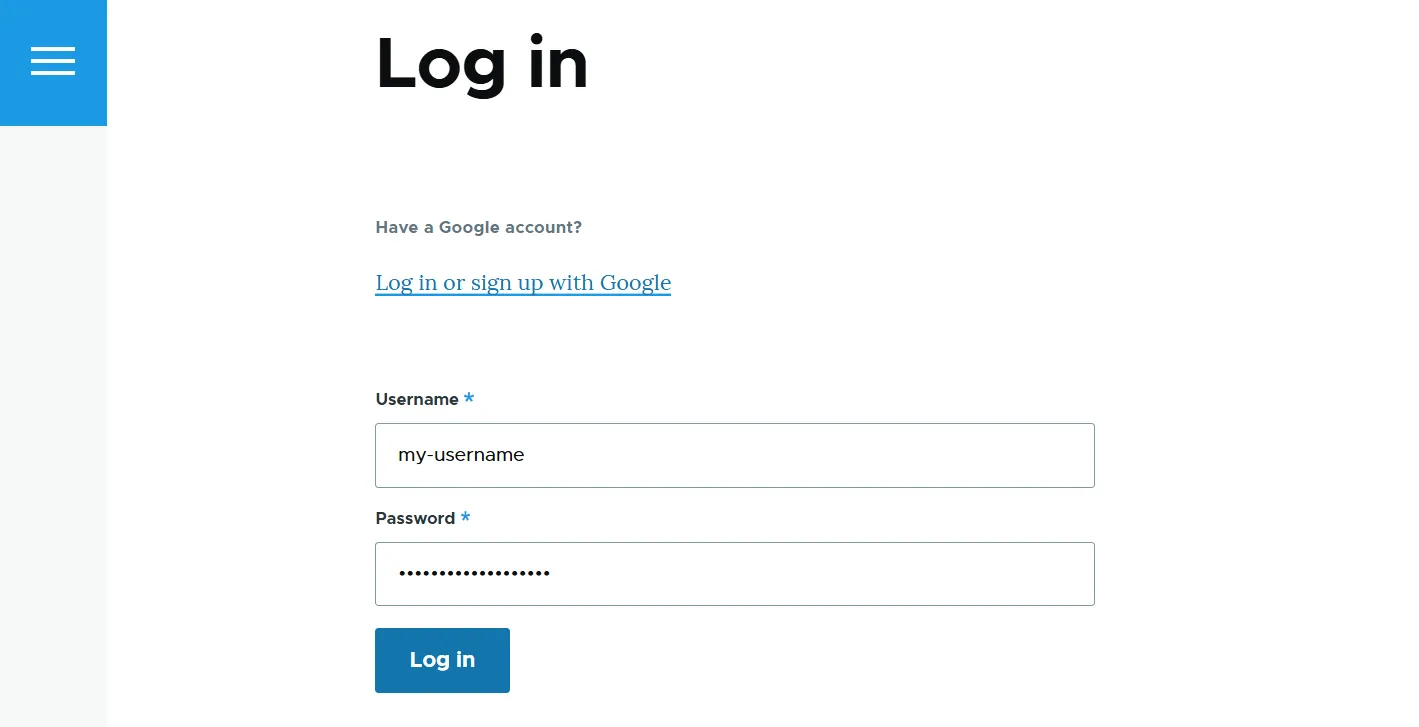
As you click the Google authentication link, you’re taken to the standard Google login screen. There, you can select one of your listed Google accounts and authenticate to your Drupal website. If you’re using a Google account that isn’t yet associated with a Drupal account, Social Auth can create a Drupal account for you and log you in automatically.
Final thoughts
By using the Email Registration and Social Auth Google modules, you give your visitors the fast access they expect while keeping traditional account creation straightforward for everyone else. This creates an easier and more seamless authentication experience and sets your conversion rates up for long-term success.