Drupal User Session Control: Balancing Security and User Experience

To make sure your Drupal website security is as comprehensive as possible, you need to address a critical potential vulnerability: inactive or abandoned user sessions. Leaving them open may quietly create a back door for unauthorized access.
The solution is active user session management. It gives you precise control over how long user sessions remain active and how many devices can log into a single account at the same time. However, you need to apply it strategically to keep the experience smooth and encouraging for day-to-day users.
In this post, we will explore how to manage active user sessions in Drupal: more details about why it’s needed, key UX considerations, and the best modules such as Automated Logout and Session Limit to help you set it up.
Why unattended user sessions can be a risk for your Drupal site
When someone logs into your website, Drupal creates an active session. It’s an open digital key that allows them to interact with the site without having to re-type their password on every page. But if that session remains active, it can become a security risk in several ways:
- The walk-away scenario. An editor or administrator can leave their workstation unattended in a shared office, coffee shop, or library without logging out. Anyone with physical access to the device may then be able to use the account and its privileges without knowing the password.
- Sessions that outlive the device. Users often stay logged in across multiple devices, such as laptops, phones, and home computers. These sessions can remain active long after a device is no longer regularly used. If an old device is lost, stolen, shared with someone else, or compromised, an active session could give an unauthorized person access to the account.
Session hijacking. An attacker who obtains a user’s active session credentials may be able to impersonate that user without knowing their password. Session credentials can potentially be exposed through compromised devices, malicious browser extensions, application vulnerabilities, or other security weaknesses. This is especially concerning for accounts with elevated permissions.
Finding the balance: session security vs. user experience
Active session management is especially important for high-security environments such as healthcare portals, medical providers, e-commerce, and financial platforms. But it matters for any modern enterprise website. For example, if you manage an enterprise site, a university portal, or a non-profit database, you have probably encountered session timeouts yourself (for example, when a work account requires you to re-authenticate after a period of inactivity).
Stricter session controls can improve security, but they can also disrupt users who are actively working. The goal is not simply to make sessions as short as possible, but to make session management proportionate, predictable, and unobtrusive. Here are best practices for doing that successfully.
Match session policies to the risk
Shared workstations and high-privilege accounts generally call for stricter timeouts, while staff working on their own devices may need longer sessions to avoid unnecessary interruptions. The right balance depends on both the sensitivity of the account and the environment in which it is used.
Warn users in advance
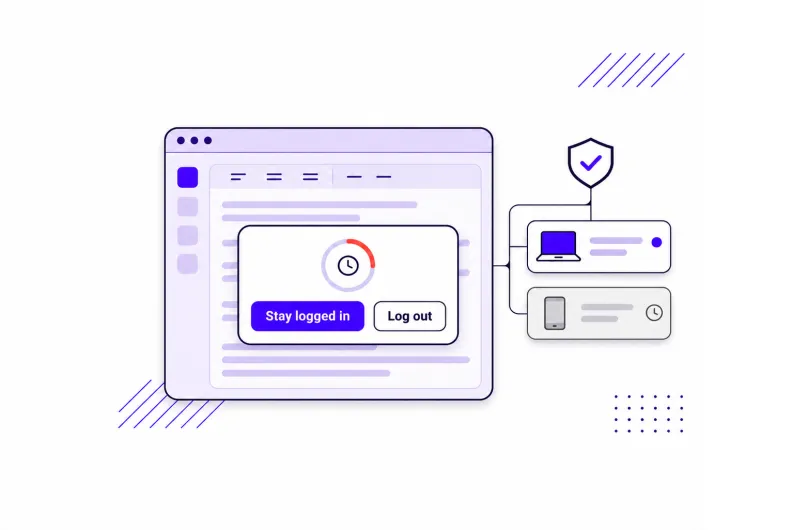
A timeout should not come as a surprise or cause users to lose unsaved work. Give users a clear warning before their session expires and, where appropriate, let them extend the session without leaving the page.
Control multiple devices and concurrent sessions
Organizations may also need to control how many active sessions a user can maintain at once. If a session expires or a concurrent-session limit is reached, users should understand what happened and what they need to do next.
Putting it into practice: managing sessions in Drupal
How Drupal core handles sessions
Out of the box, Drupal core manages sessions using two default parameters in its configuration files:
- Cookie expiration (cookie_lifetime). Set to 23 days (2,000,000 seconds), controlling how long the browser retains the login cookie.
- Idle server timeout (gc_maxlifetime). Set to 2.3 days (200,000 seconds), determining how long an idle session sits on the server before PHP garbage collection purges it.
Why this default setup is problematic:
- The “Monday morning” problem. Because the server timeout (2.3 days) is drastically shorter than the cookie expiration (23 days), an editor who leaves a tab open over the weekend will find their server session purged by Monday morning, even though their browser cookie says they should still be logged in.
- No granular control. These parameters apply globally across all users and roles.
- No session warnings. Users are logged out without notice. Because typing in a text field doesn’t trigger a server request, a 45-minute draft can be wiped out mid-sentence unless the user manually saves or previews their work or features like autosave are enabled.
Here is where some great contributed Drupal modules come in, helping you implement best practices in user session management.
The Automated Logout module: overview and key features
The Automated Logout module offers flexible, role-aware, and user-friendly session controls. It has extensive customization options.
Customizable autologout time
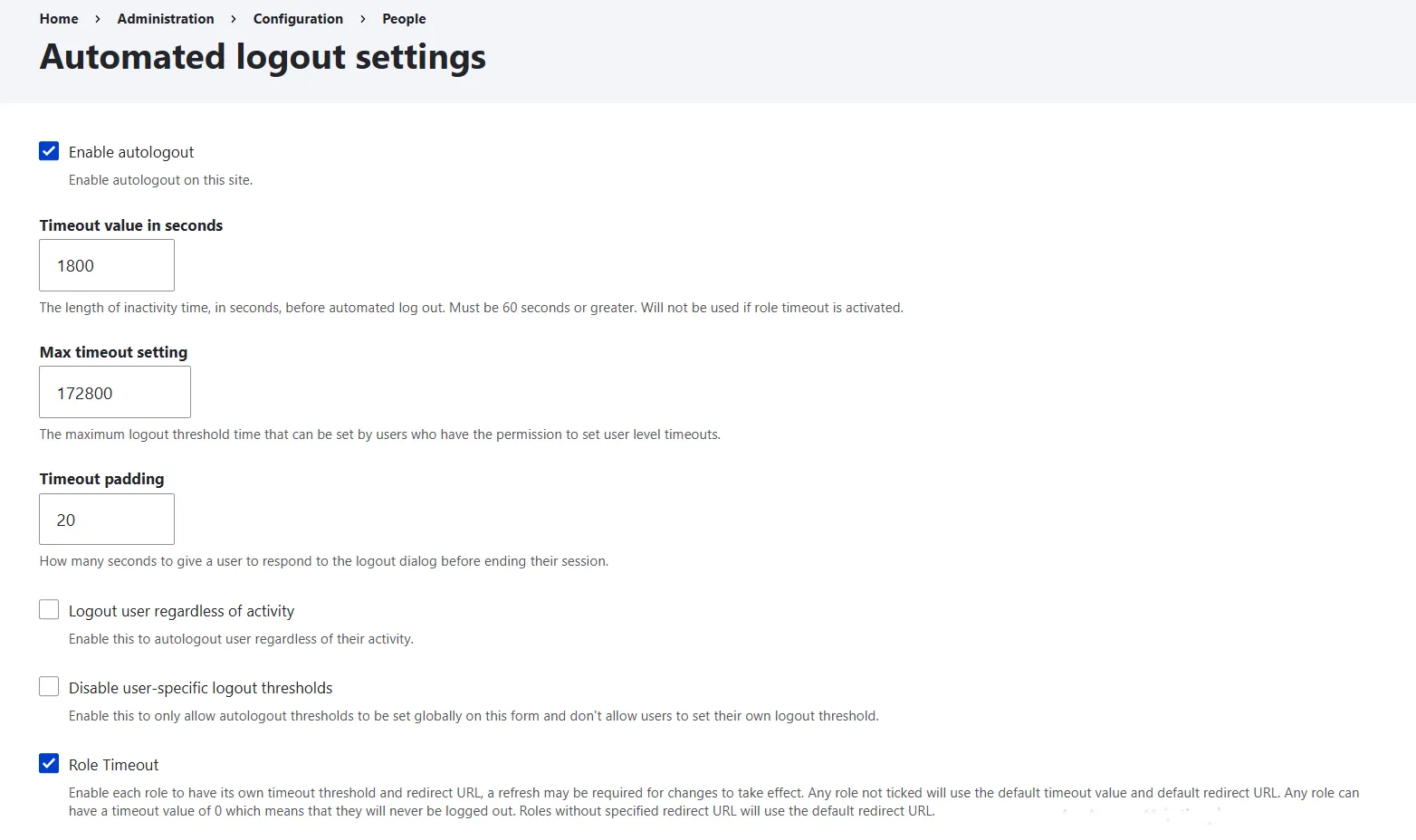
You can define the site’s global inactivity threshold (“Timeout value in seconds”). If a user remains completely idle and sends no server requests (such as clicking a link, submitting a form, or saving a draft) during this window, their session is safely terminated.
To prevent accidental data loss, the module triggers an interactive warning popup prior to session termination. You can customize how long this warning remains on screen before forcing a logout in the “Timeout padding” field.
Role-based granularity and user personalization
For greater control, the module allows you to customize inactivity windows by user role. Once you check “Enable role timeouts,” a role matrix appears where you can set distinct thresholds (like enforcing a strict 15-minute window for Administrators and granting Content Editors an 8-hour buffer to draft long-form content).
You can also customize where users are redirected after their session ends. Beyond setting a global site-wide redirect URL, it’s possible to define specific role-based redirect destinations.
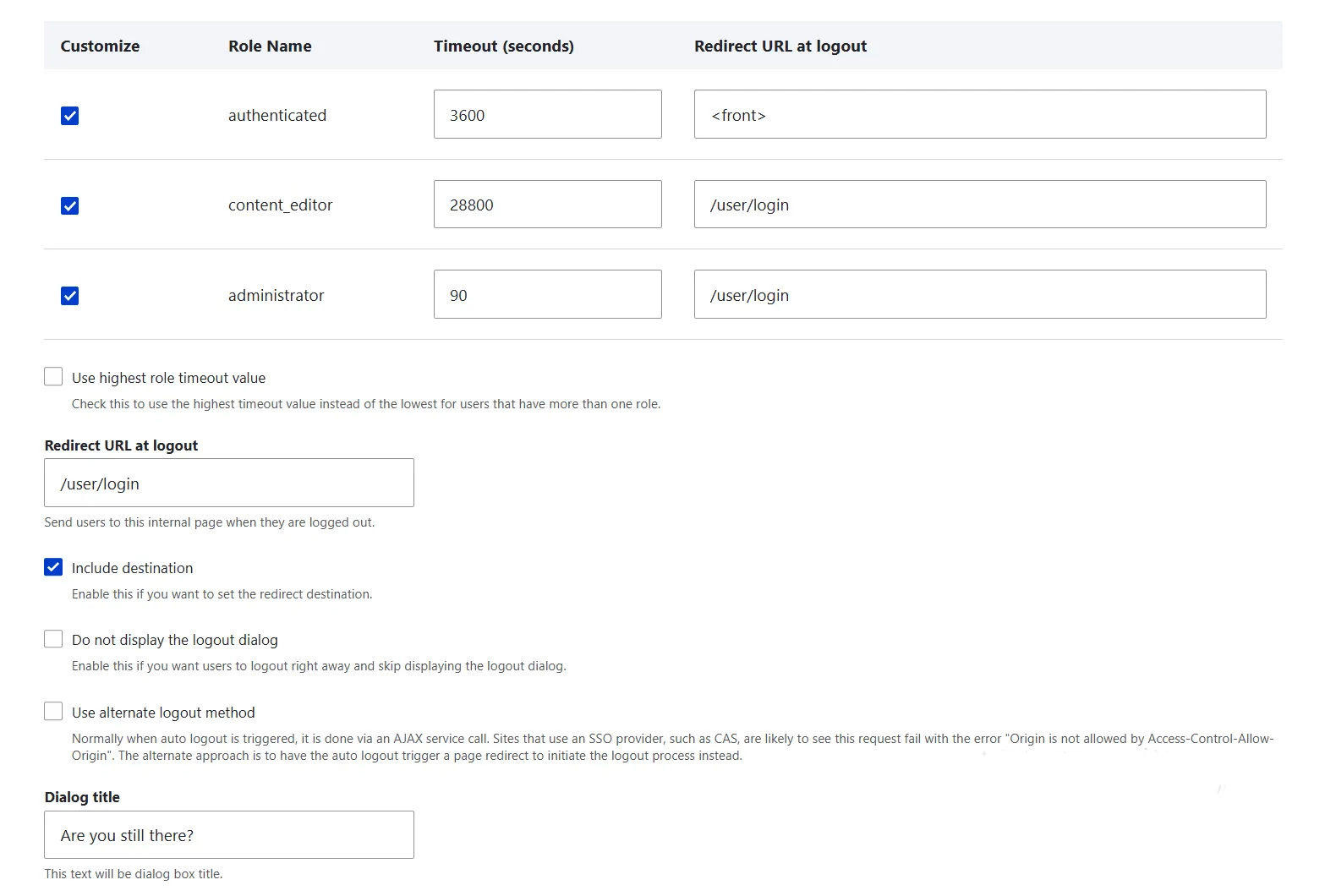
Finally, for organizations with flexible work policies, the module can delegate timer control to individual staff members, allowing them to adjust their personal autologout time on their profile page. To maintain strict compliance across the site, administrators can check “Disable user-specific logout thresholds” to turn this off completely.
Full customization of the warning popup
The module lets you fully customize the notice that alerts users before their session expires:
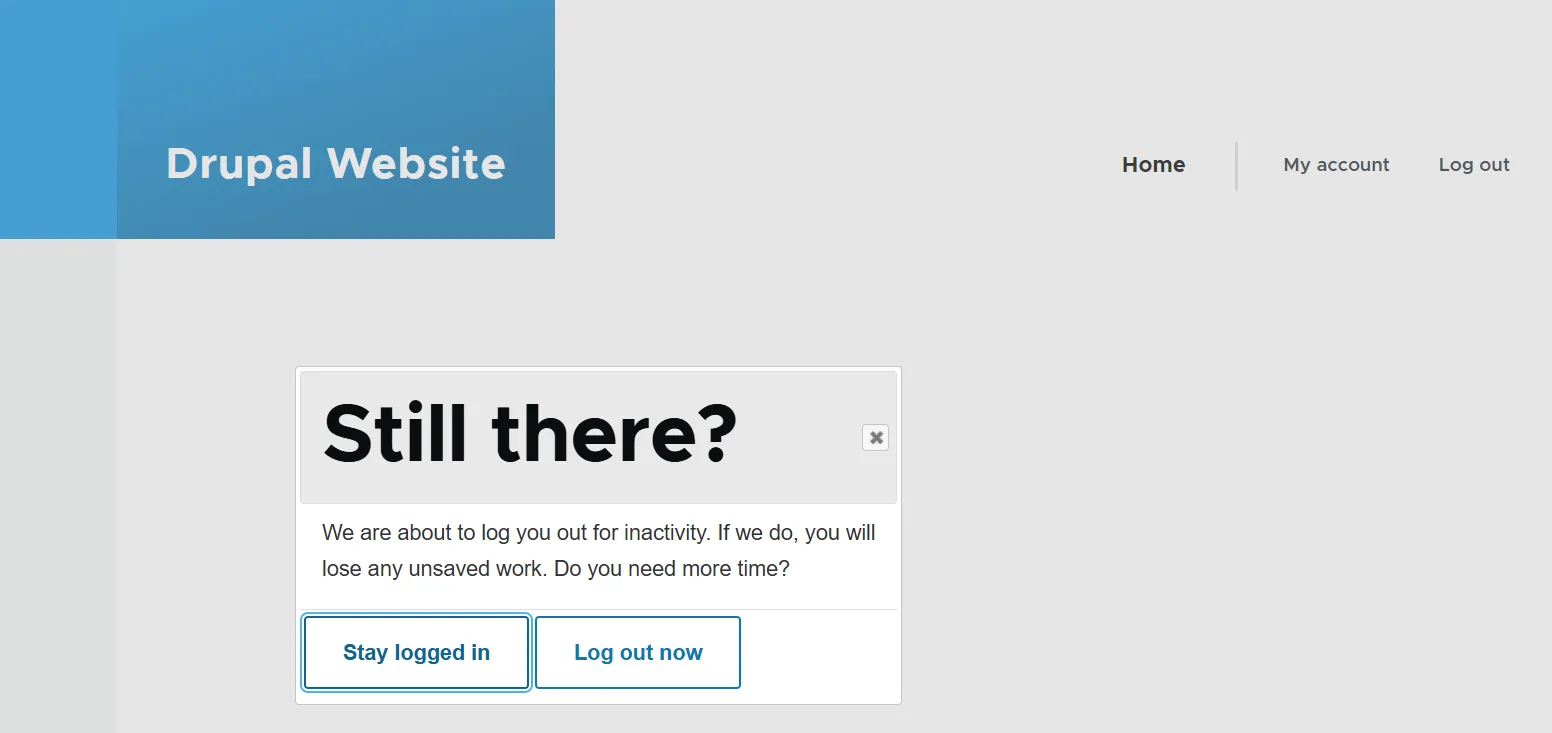
- Dialog title (a short, direct prompt like “Are you still there?”)
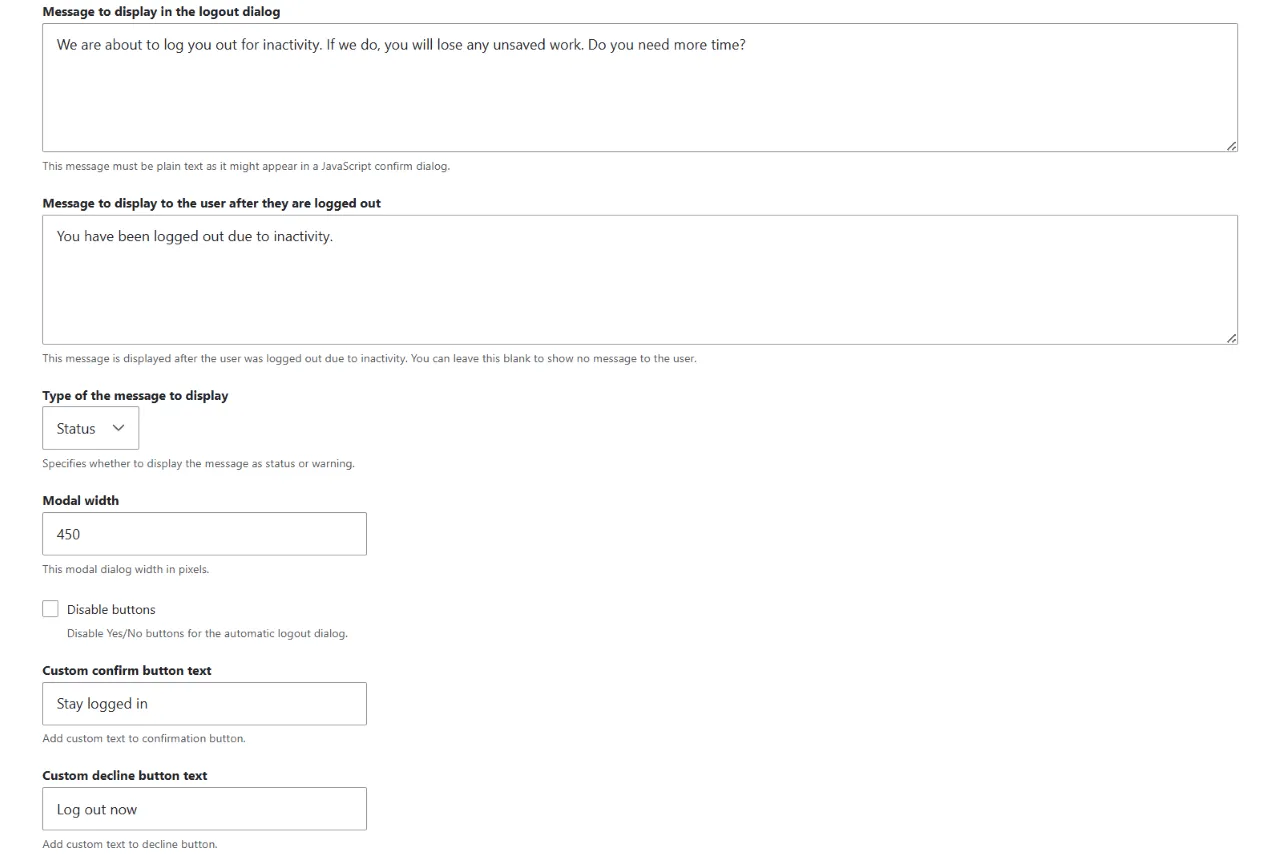
- Message to display in the logout dialog (a clear warning text so users know the session is about to be ended)
- Action button labels (like “Stay Logged In” and “Log Out Now”)
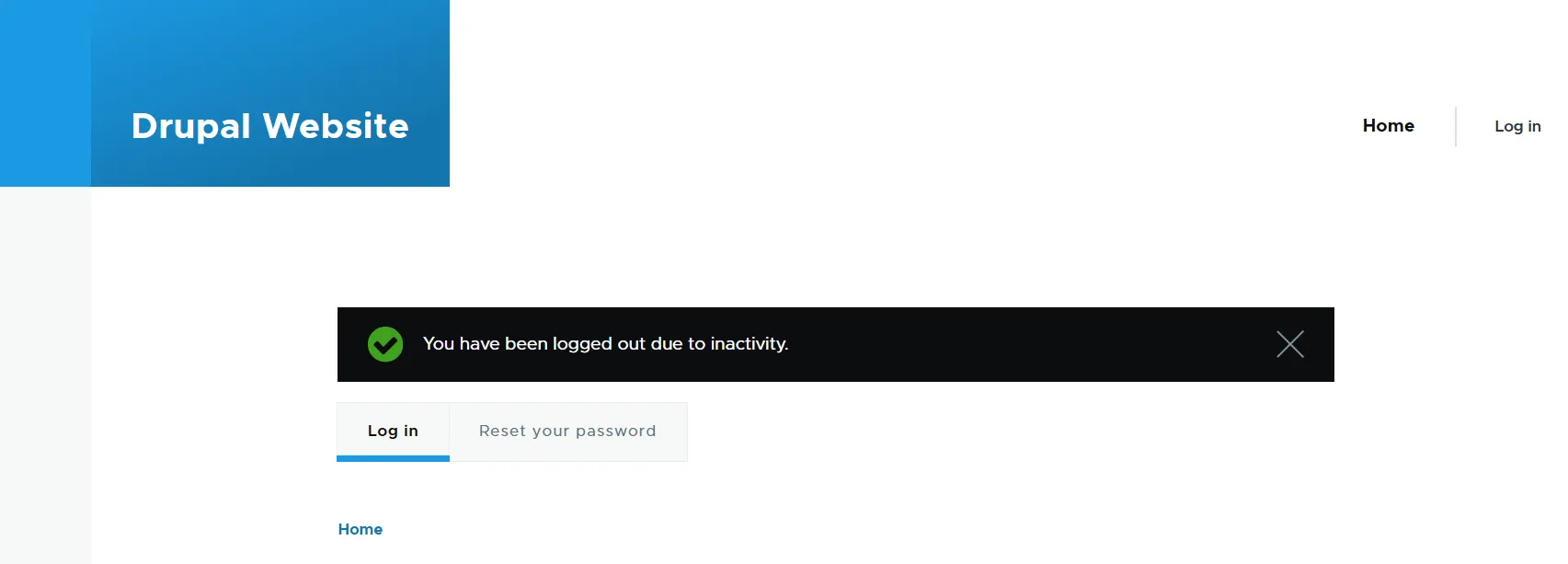
- Message to display to the user after they are logged out (a post-session banner message shown upon the redirect)
Modal width (the popup container size in pixels (like 450 or 500) that fits your layout and prevents cramped text)
For high-security environments, you can also bypass this popup entirely by checking “Do not display the logout dialog,” which forces an immediate, silent logout as soon as the inactivity threshold is reached.
Admin page security and system logging
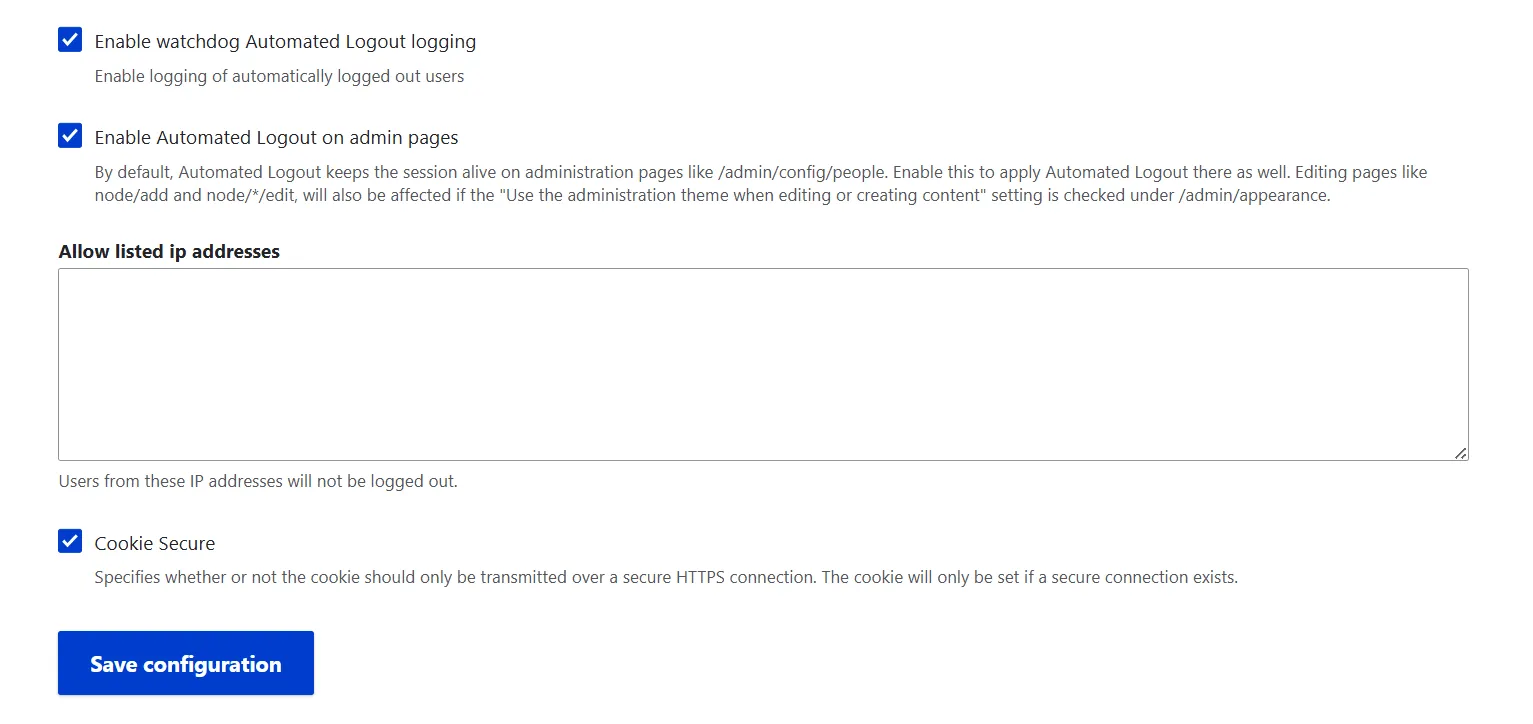
To maintain audit trails, you can check “Enable automated logout logging,” allowing Drupal to record every inactivity termination event in the database logs.
By default, Drupal keeps sessions alive indefinitely on administrative forms to prevent work loss during complex tasks. Checking “Enable Automated Logout” on admin pages enforces your inactivity policy even on node edit screens.
Network allowlisting and HTTPS hardening
To support internal office environments, the module lets you enter trusted IP addresses under the allow list of IP addresses. Any user accessing the site from these IPs will bypass automatic logouts entirely.
Additionally, checking “Cookie Secure” ensures session management cookies are transmitted exclusively over encrypted HTTPS connections, preventing session hijacking on public or unencrypted networks.
Cross-tab synchronization
The module also automatically syncs inactivity timers across open tabs using JS mechanisms. This ensures users stay logged in if they have multiple tabs open but are actively working in one of them.
The Session Limit module: overview and key features
Next up is the Session Limit module that helps you control how many simultaneous logins a single account can maintain across different browsers or devices. It can successfully cooperate with the Automated Logout module.
Custom max-session rules
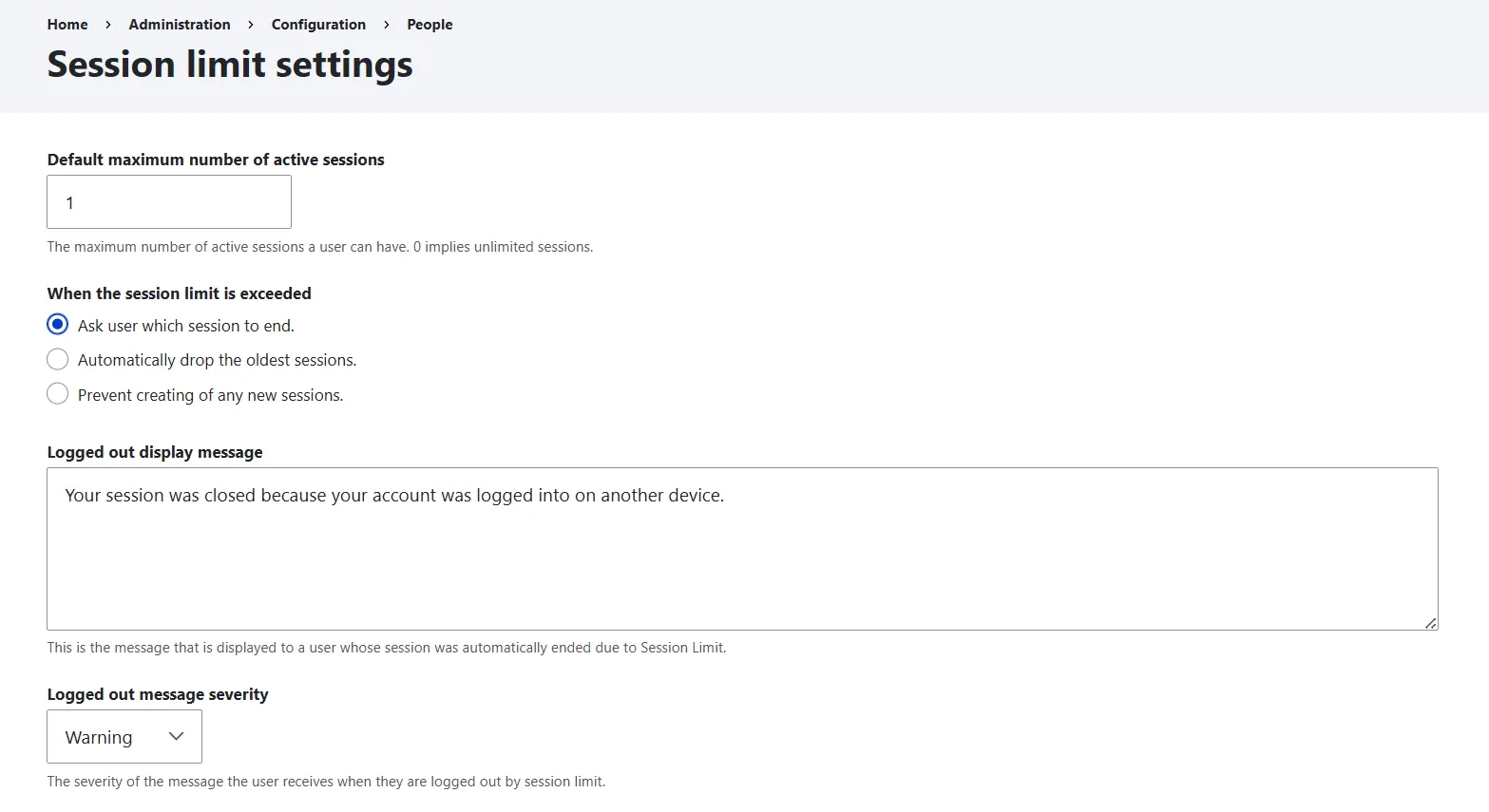
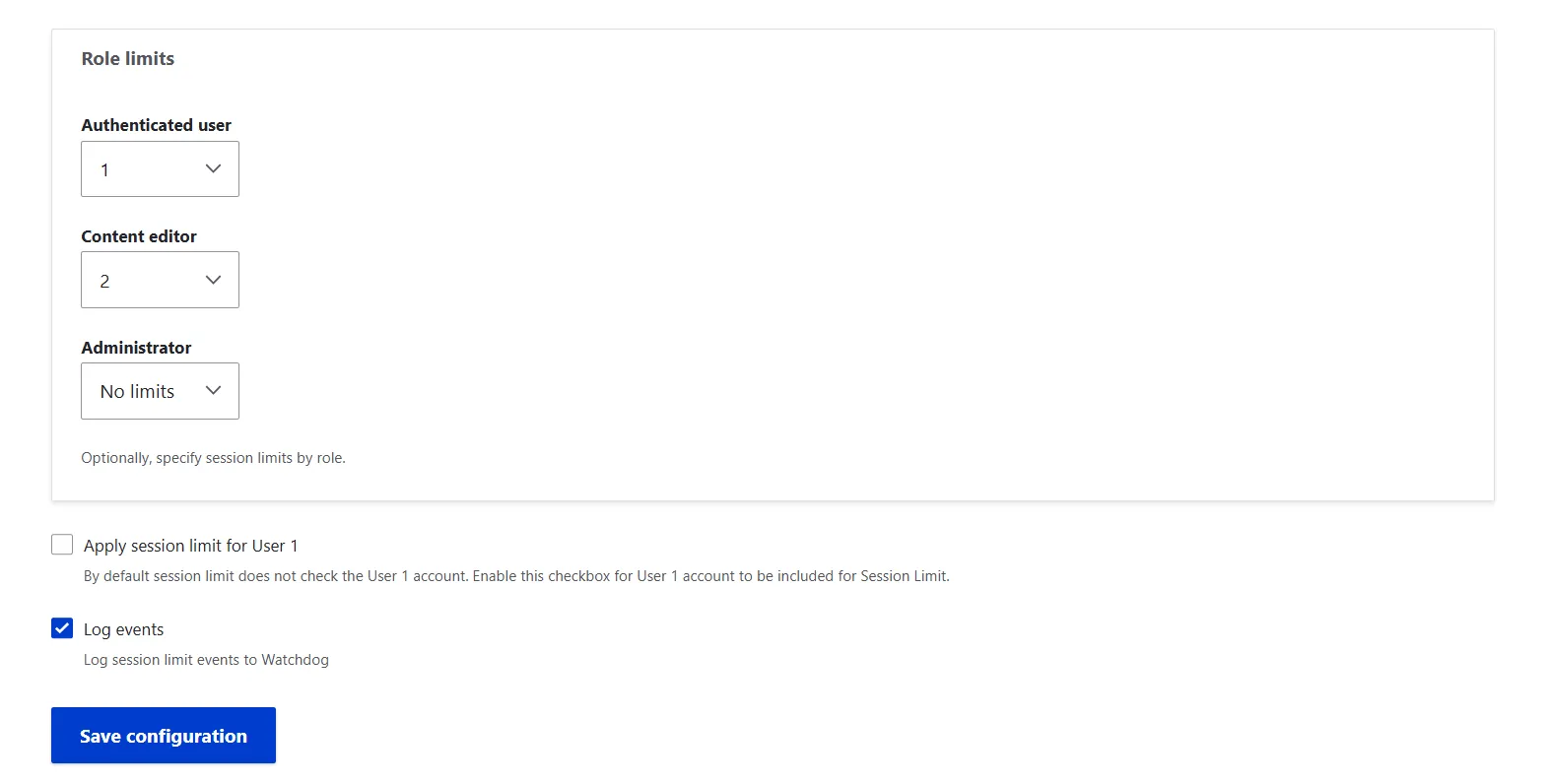
You can define allowed session counts globally under “Maximum simultaneous sessions” or customize thresholds per user role: for instance, restricting standard users to 1 active session and granting Administrators 2 or 3 to accommodate multi-device workflows.
Please note that unless you also check the “Apply session limit for user 1” checkbox, the super admin’s sessions will be unlimited.
Flexible handling of multiple sessions
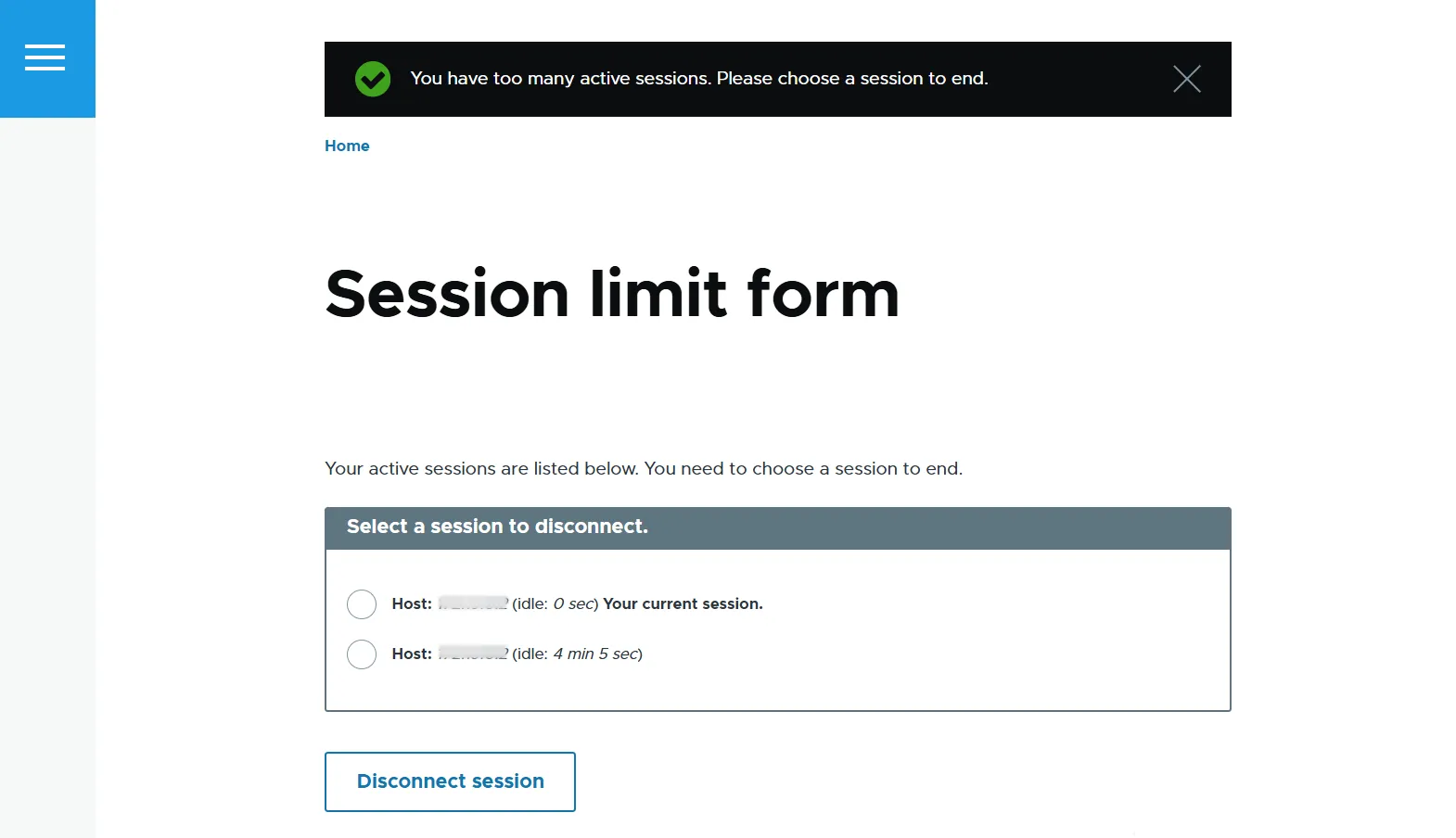
When a user attempts to log in beyond their allowed limit, you can configure how the module handles the conflict under “When session limit is exceeded”:
- automatically disconnect the oldest session without interrupting the new login (smoothest UX)
- ask the user which session to end
- prevent new sessions, which means blocking the new login attempt until an older session is closed manually (strictest security)
User-specific exclusions
While role-based limits are configured globally on the main settings page, you can grant custom limits or complete exclusions to individual accounts by visiting a user’s profile edit page.
Masquerade compatibility
If your site uses the Masquerade module, Session Limit does not count masqueraded sessions toward a user’s session limit, making it easier for administrators to troubleshoot user accounts.
Final thoughts
By pairing clear, role-based controls with user-first notifications, you turn standard session management into an intuitive, secure, and frustration-free experience for your users. Keep your Drupal site hardened against unauthorized access without getting in the way of daily editorial work!