
A Powerhouse for Your Content-Rich Website: Drupal’s Search API

Search functionality on your Drupal website directly affects customer satisfaction, user experience, and conversion rate. You’ve likely experienced firsthand how satisfying it is to use a search bar and instantly find what you’re looking for — fast, convenient, and frustration-free.
Although Drupal comes with a built-in search feature, it’s best suited for smaller sites with basic requirements. Websites with hundreds or thousands of content pages will need something more powerful.
That’s where the Search API module comes in, turning Drupal into a real search powerhouse. Let’s explore the main capabilities of this robust tool that transforms your site’s search experience and handles even the most demanding search workflows.
Search API and its key features for advanced Drupal search
The Search API module provides a flexible framework for creating and managing site-wide search capabilities within a Drupal website. It is designed to easily create searches for any Drupal entities (content, media, users, taxonomy terms, and so on) and use various search engines. We’ll unfold more details right next.
Powering giants like the drupal.org website
Search API powers drupal.org — the Drupal community’s website that hosts all contributed modules, themes, documentation pages, issue queues, and so on. It is considered one of the most content-intensive Drupal websites.
Integration with Views
Search API works seamlessly with Drupal Views, allowing you to display search results in flexible formats like lists, grids, or tables. You can also use familiar Views features such as filters (to narrow down the results), sorting (to control the order), and contextual filters (to adjust results based on the current page or user).
Deciding what should go into your search index
Before content can appear in search results, it needs to be indexed — that means collected, analyzed, and stored in a format the configured search server can process. With Search API, you decide exactly what gets indexed.
You can choose which Drupal entity types to include (such as articles, users, or files) and even narrow it down to specific fields within those entities. For example, you might index just the title and body of an article, while excluding images or tags.
The concept of “servers” and “indexes”
Search API separates the system into two key components:
- Index: defines the content you want to be searchable.
- Server (also called backend or search server): the storage and query engine where the indexed data is stored and searched — by default, this is your Drupal database, but it could also be an external service like Apache Solr or Elasticsearch.
This separation makes Search API flexible — you can change or upgrade the server without modifying your index definitions, and vice versa.
Multiple indexes
Search API allows you to create multiple indexes to handle different content types or search needs separately. For example, you could have:
- one index for articles
- another for users
- and a third for files
Each index can have its own fields, filters, and search settings. Think of each index as a separate search catalog tailored to a specific type of content, giving you fine-grained control over how different content is searched and displayed.
A flexible “middle layer”
Search API functions as a smart middle layer between your Drupal content and the search server.
- It collects data from Drupal entities (articles, users, files, and so on).
- It processes and sends this data to the index, whose data is stored on the configured server (database or external engine).
- It then handles querying and displaying search results according to your settings.
Think of Search API as both a translator and traffic controller: it organizes your site’s diverse content into a format optimized for searching, and manages communication with whichever search engine you use.
Choosing your search backend
By default, you can use the built-in database backend — ideal for smaller sites or quick setups. As your content grows or performance needs a boost, switching to a more powerful engine like Solr or Elasticsearch is just a few clicks away.
Thanks to the module’s modular architecture, you don’t need to rebuild your search configuration from scratch. Simply swap out the backend — your indexing logic and Views-based search pages stay intact. This makes scaling your site’s search experience smooth and hassle-free.
Harnessing various search engines
Let’s go into a little more detail about one of the greatest strengths of the Search API module — its ability to connect to third-party search engines, which bring speed, intelligence, and scalability to your site’s search experience.
By using contributed modules that extend Search API, you can integrate advanced engines like:
- Apache Solr via the Search API Solr module — ideal for high-performance, faceted search with large datasets
- Elasticsearch via Elastic Search Connector — a powerful and flexible full-text search engine
- Algolia via Search API Algolia, Meilisearch via Search API Meilisearch, or Typesense via Search API Typesense — lightweight, hosted options known for blazing-fast results and intuitive interfaces
By moving search processing outside of your Drupal database, these engines unlock a range of advanced features — especially beneficial for large or content-heavy websites. They excel at:
- fast autocomplete, often available out of the box
- spell correction and fuzzy matching (like “Did you mean...?”)
- synonyms and language-specific analysis for better query understanding
- advanced stemming and lemmatization to match variations of words
- partial matching for broader results
- real-time faceted navigation that scales with large result sets
- custom ranking algorithms to fine-tune result relevance
- deep multilingual tuning, including per-language analyzers
- faster query handling, especially as your content grows
Faceted search
Faceted search adds filters that let users narrow down search results based on specific criteria — think of how Amazon lets you filter by brand, price range, category, rating, and more. These filters usually appear as checkboxes, dropdowns, sliders, or links, typically in a sidebar or above the search results.
While the Search API module itself doesn’t handle facets directly, it works seamlessly with the Facets module, which provides this powerful filtering functionality.
Together, Search API and the Facets module let you easily add rich filters — such as categories, authors, price ranges, or dates — enhancing navigation and helping users quickly find exactly what they’re looking for. This familiar and intuitive interface is especially useful on content-rich or e-commerce sites.
Autocomplete and search suggestions
With modules like Search API Autocomplete, you can add a live dropdown that shows search suggestions as users type. This feature helps guide users toward relevant content faster and reduces typing errors, improving the overall search experience. Autocompletion can be enabled and customized for each search individually — across views and pages — giving you fine-grained control over where it's available and who can access it.
Attachment and file search
Using the Search API attachments module, you can index the contents of uploaded files such as PDFs, Word documents, and more. This means users can find information inside documents — not just by file name — making it ideal for document-heavy sites.
Multilingual support
Search API integrates smoothly with Drupal’s multilingual system. It can index content in different languages and tailor search results based on users’ language preferences. This ensures that visitors get accurate, relevant results in the language they are browsing — an essential feature for global or multilingual websites.
Better performance
When paired with external search engines like Solr or Elasticsearch, Search API can handle large amounts of content and complex searches efficiently. Instead of placing the search workload on your site’s main database, it sends queries to specialized search servers optimized for speed — making your site faster and reducing server strain.
Customization options for developers
For developers, Search API offers methods to customize and extend search functionality. Developers can adapt how searches are constructed, how content is indexed, and how results are processed. This is achieved through Drupal’s flexible system of event subscriptions, which allow custom logic to be introduced without altering core code. These extension points make it possible to integrate with other systems, adjust indexing rules, or create dynamic search behaviors.
The basics of installing and configuring Search API
Although Search API can be used in various complex setups and it’s not possible to show all the details in one article, we can definitely walk you through the basics. We’ll show its interface and main configuration settings.
How to install Search API
Install the Search API module per normal on your Drupal website. The recommended way is by using Composer:
composer require drupal/search_api
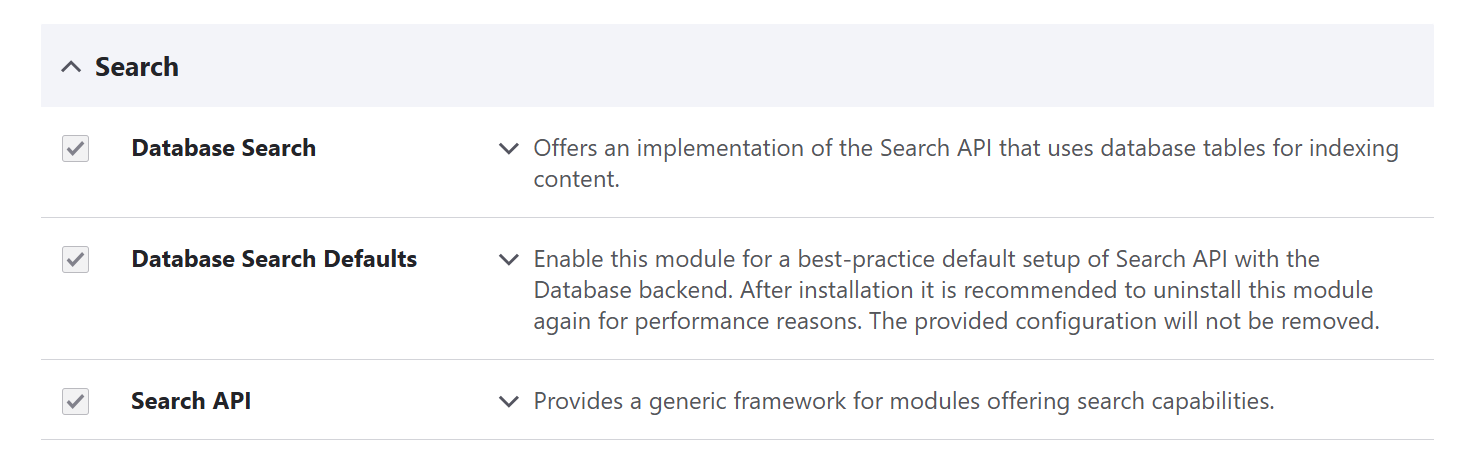
You’ll see three submodules on the Extend page, which you can enable based on your needs:
- Search API. The main Search API module provides a generic framework for modules offering search capabilities
- Database Search. This submodule enables you to use database tables with Search API.
- Database Search Defaults. It provides a ready-made configuration using the database backend, making it easier to get started with Search API.
How to configure Search API
At Configuration > Search and metadata > Search API, you’ll find the main settings page for Search API. It lists all servers and all indexes that are associated with those servers.
There are also buttons to add new servers and indexes:
- The “Add server” button lets you create a new backend connection — for example, to an external search engine.
- The “Add index” button allows you to create additional indexes — for example, one for users, another for files, or a custom content type — each with its own fields and settings.
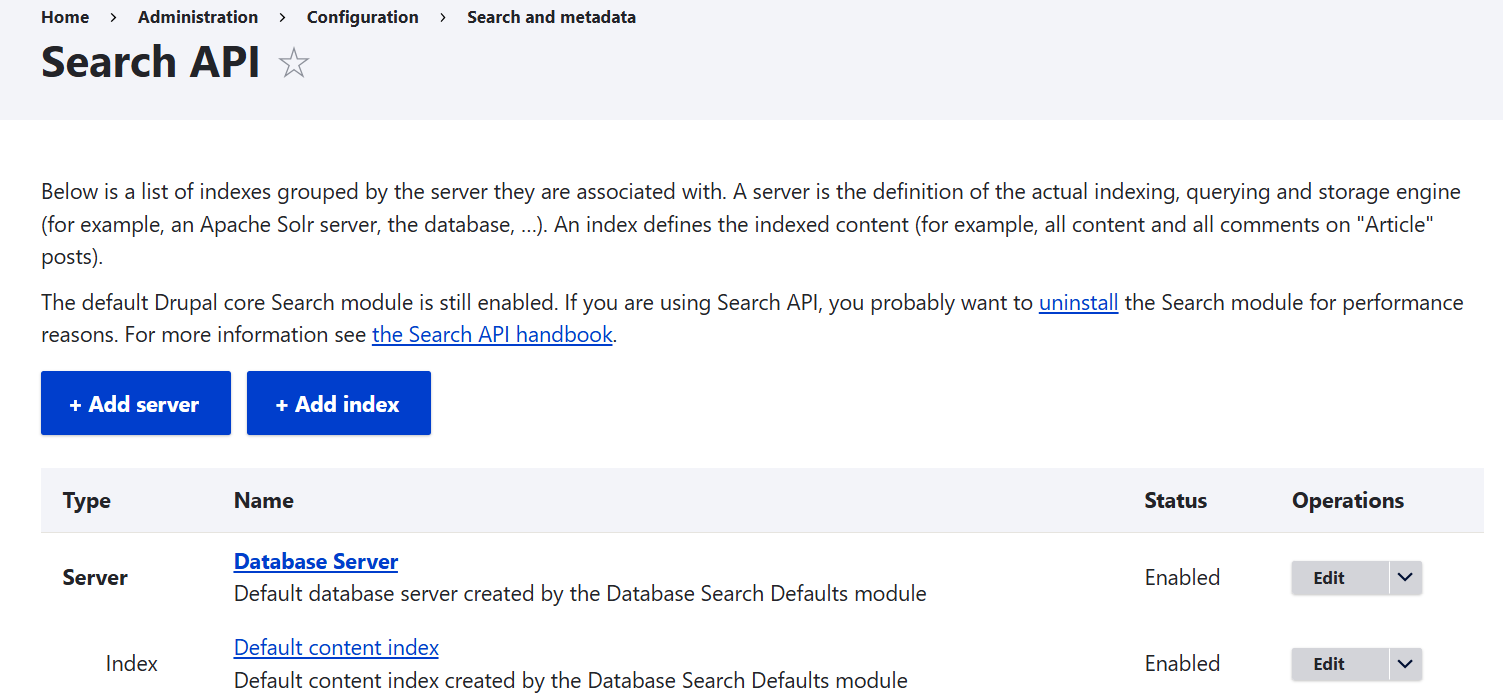
If you have the Database Search Defaults submodule enabled, you’ll have the database server and the default content index set up out of the box.
The default settings will have you up and running. However, you can improve search relevance by fine-tuning to your site’s unique content and users’ needs, for example:
- Not all fields are equally important — for example, a product name might matter more than its description.
- You might want to exclude fields that add noise (like internal content or long legal text) to avoid cluttering results.
- You can boost certain fields or content types, so the most relevant or recent content ranks higher.
- If your site is multilingual, tweaking lets you prioritize content in the user’s language.
So let’s take a brief look at some of the key settings based on the example of the database server and the default content index.
1. The main settings for a search server
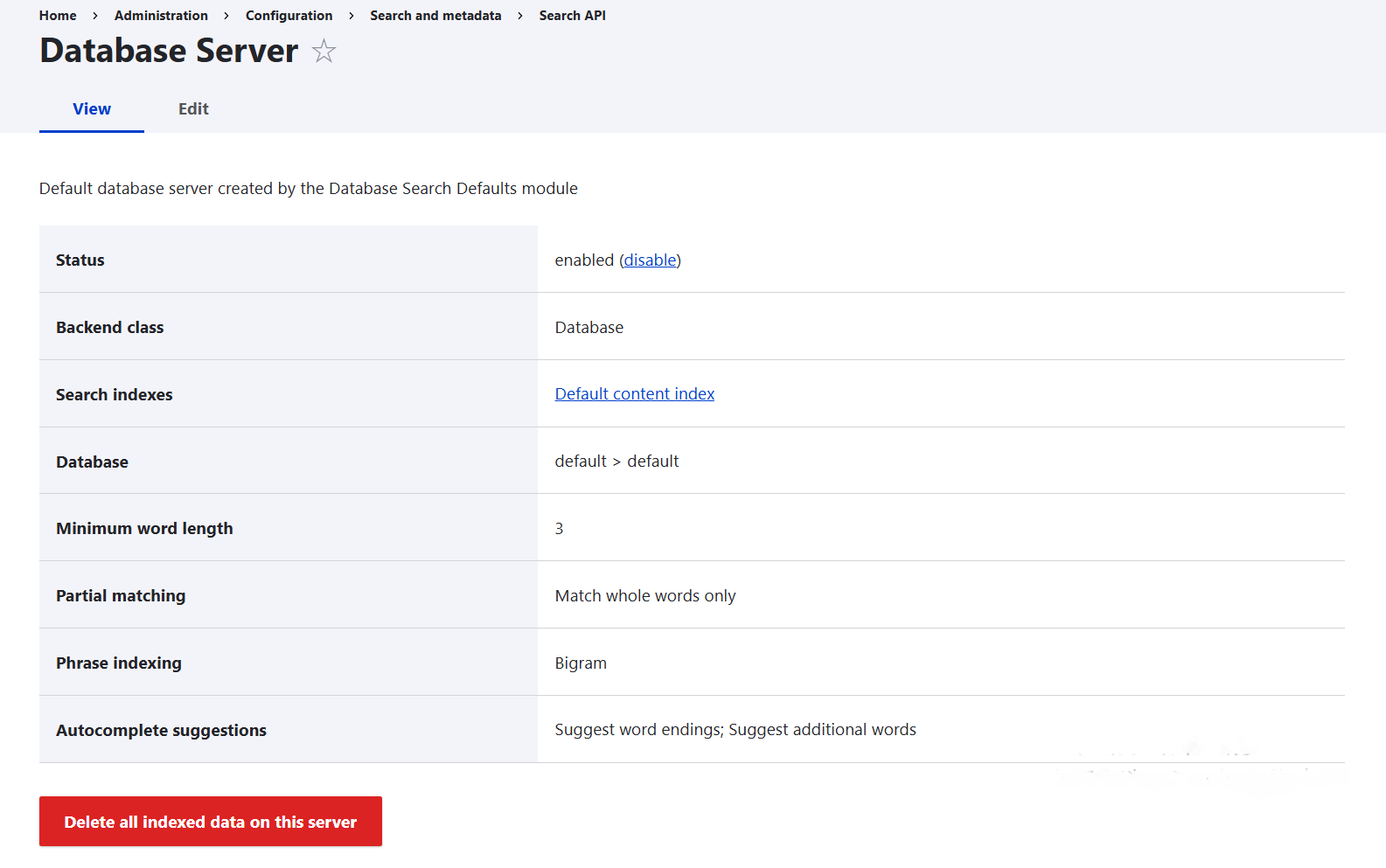
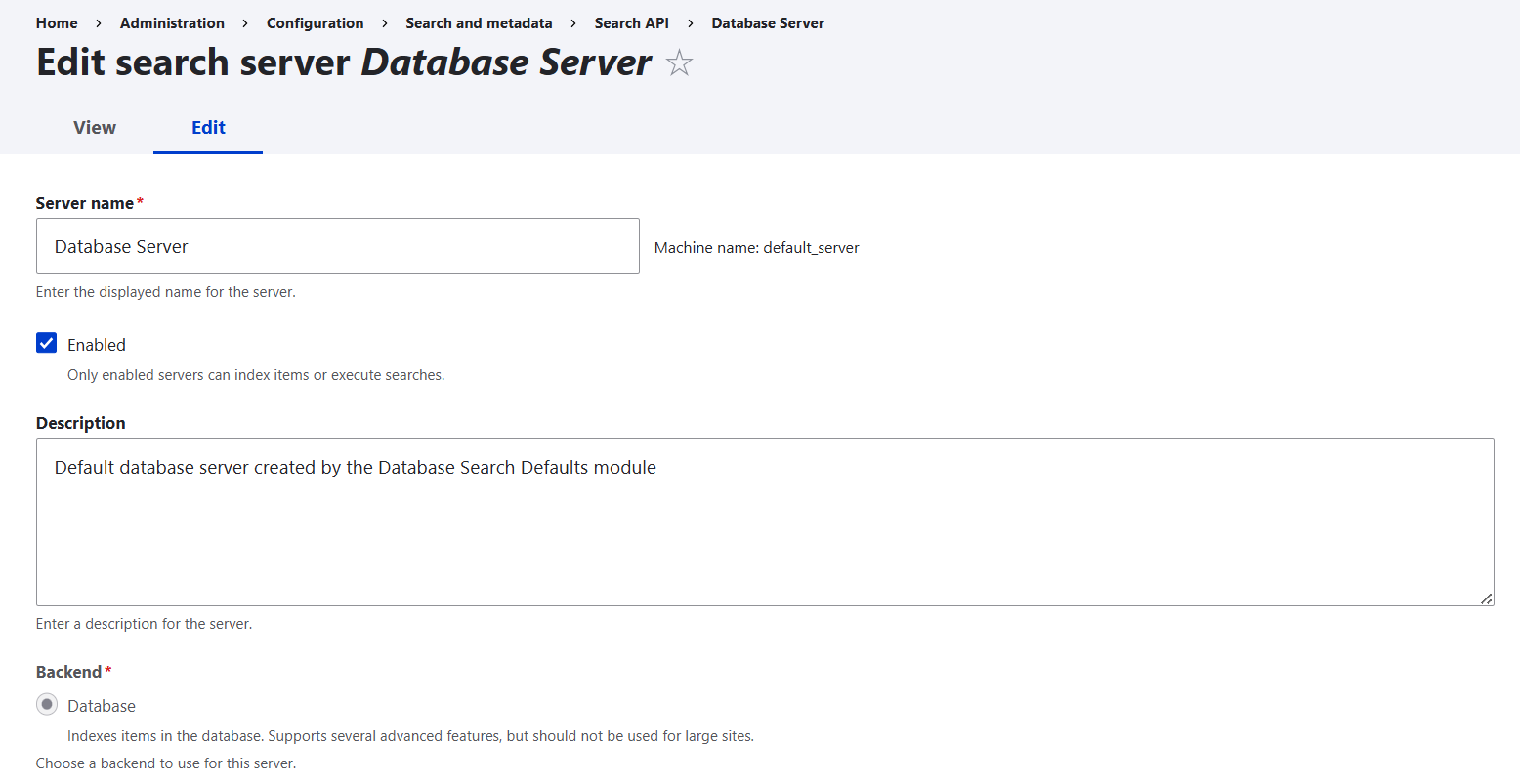
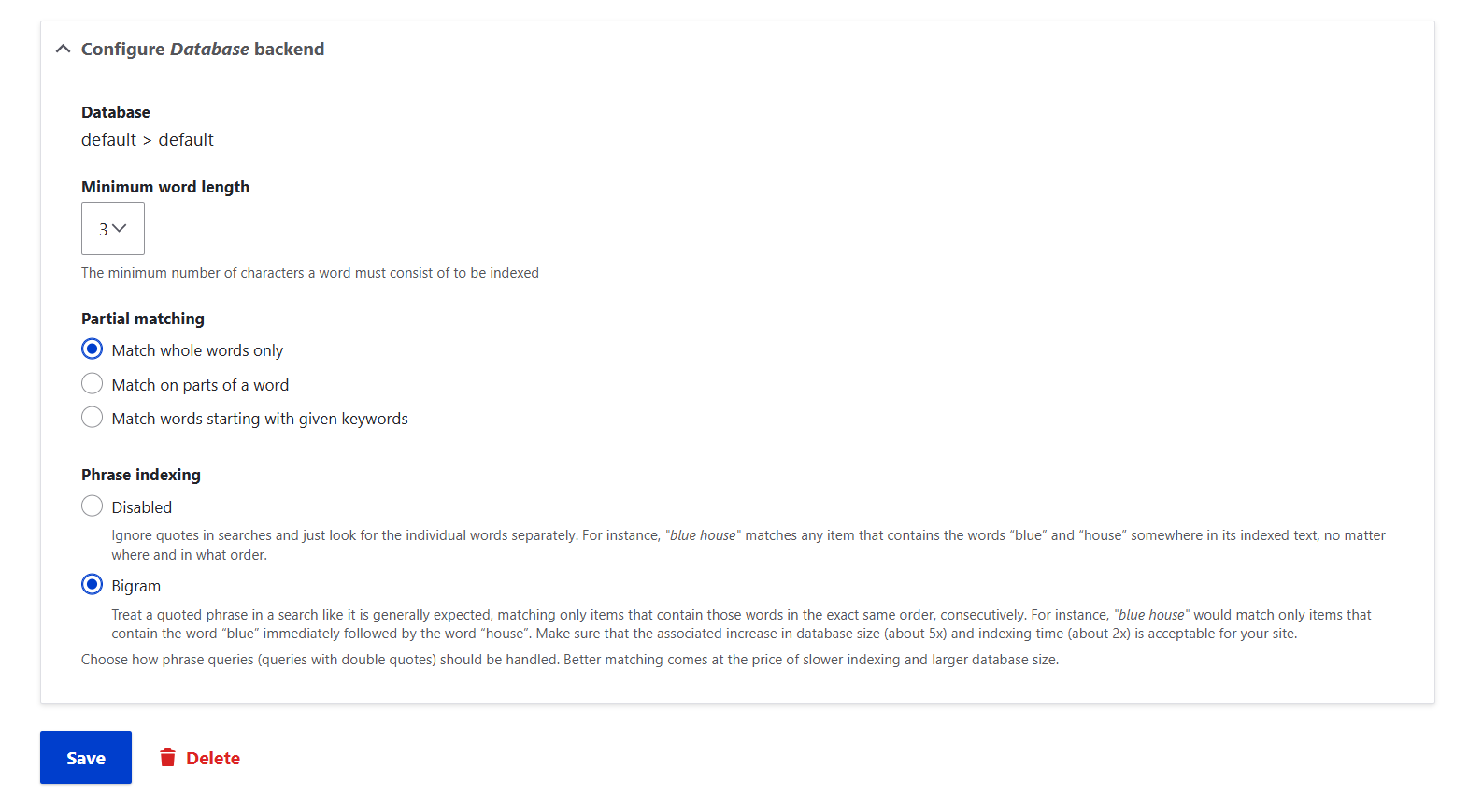
By clicking on a server name from the list (in this case, “Database server”), you’ll be able to view the details about it, as well as change the settings by clicking “Edit”:
- the server’s status: enabled or disabled
- Its backend class (in this case, database)
- the server’s name
- the database that is used
- minimum word length
- partial matching: whether only whole words, parts of words, or words starting with given keywords should be matched)
- phrase indexing: disabled or Bigram (a search indexing technique where the system breaks down text into consecutive pairs of words called bigrams)
2. The main settings for a search index
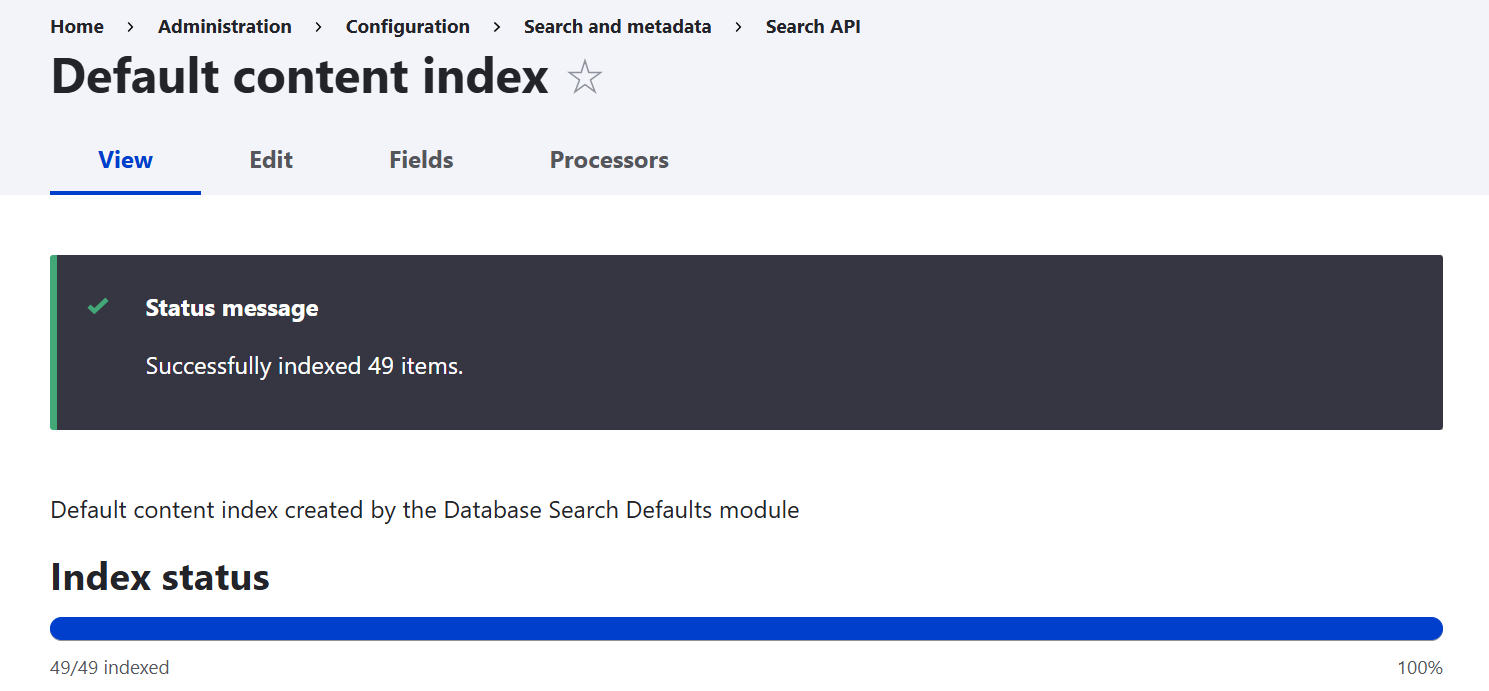
By clicking on an index name from the list (in this case, “Default content index”), you go to its settings page.
The overview tab
This is the main dashboard of your search index setup. It gives you a quick snapshot of how everything is working:
- what content is being indexed (like articles, pages, users, files, media, and so on)
- how many items are already indexed
- which server is used to store indexed data (by default, that’s the database — unless you’ve connected something like Solr)
- how many items are processed per batch during a scheduled run of Drupal’s automated task runner — Cron
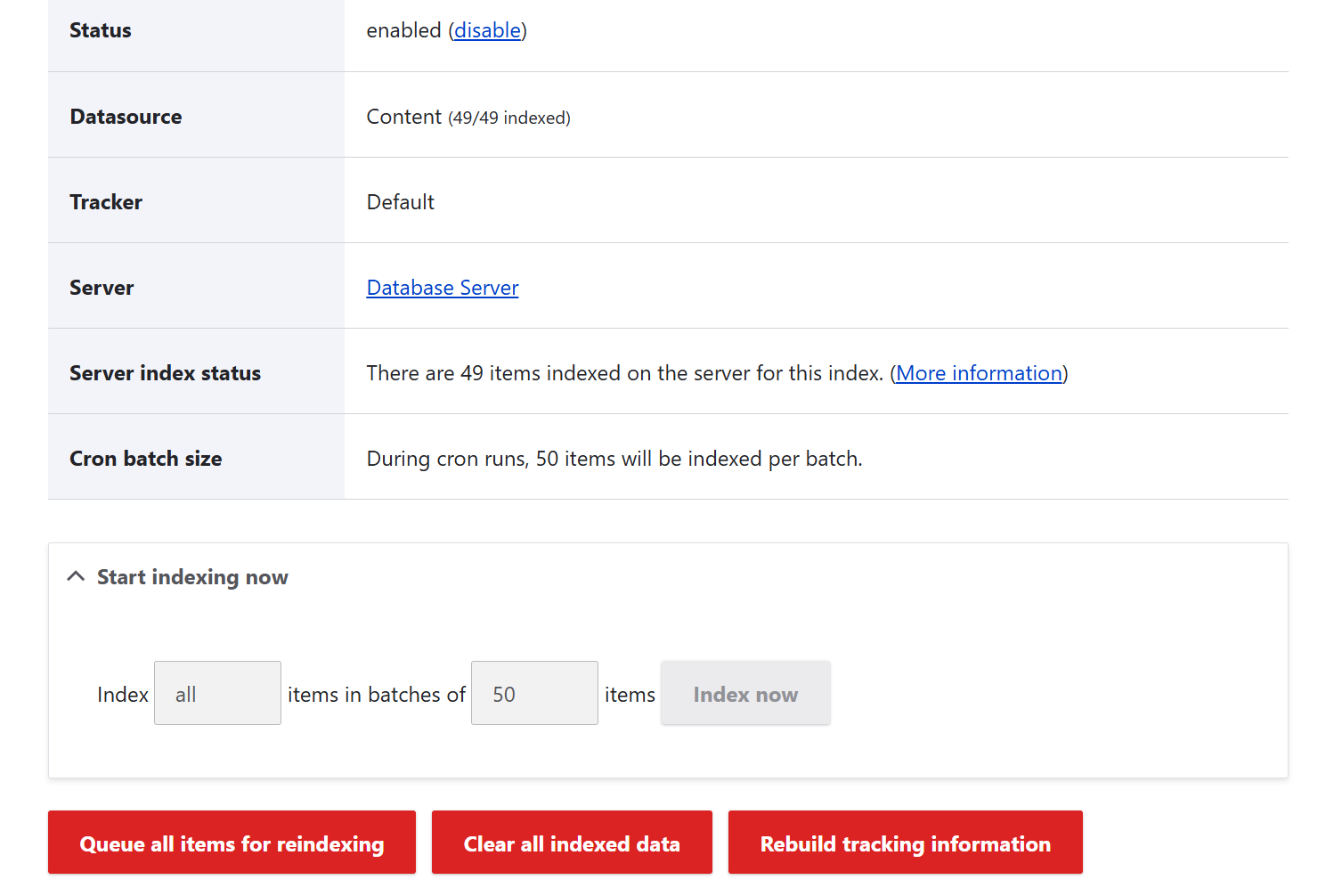
You can also apply manual actions:
- queue everything for reindexing (useful after big content changes)
- clear all indexed data (like starting fresh)
- rebuild tracking information (helps fix sync issues between content and the index)
- run indexing immediately (triggers the processing of any pending items right away)
The Edit tab
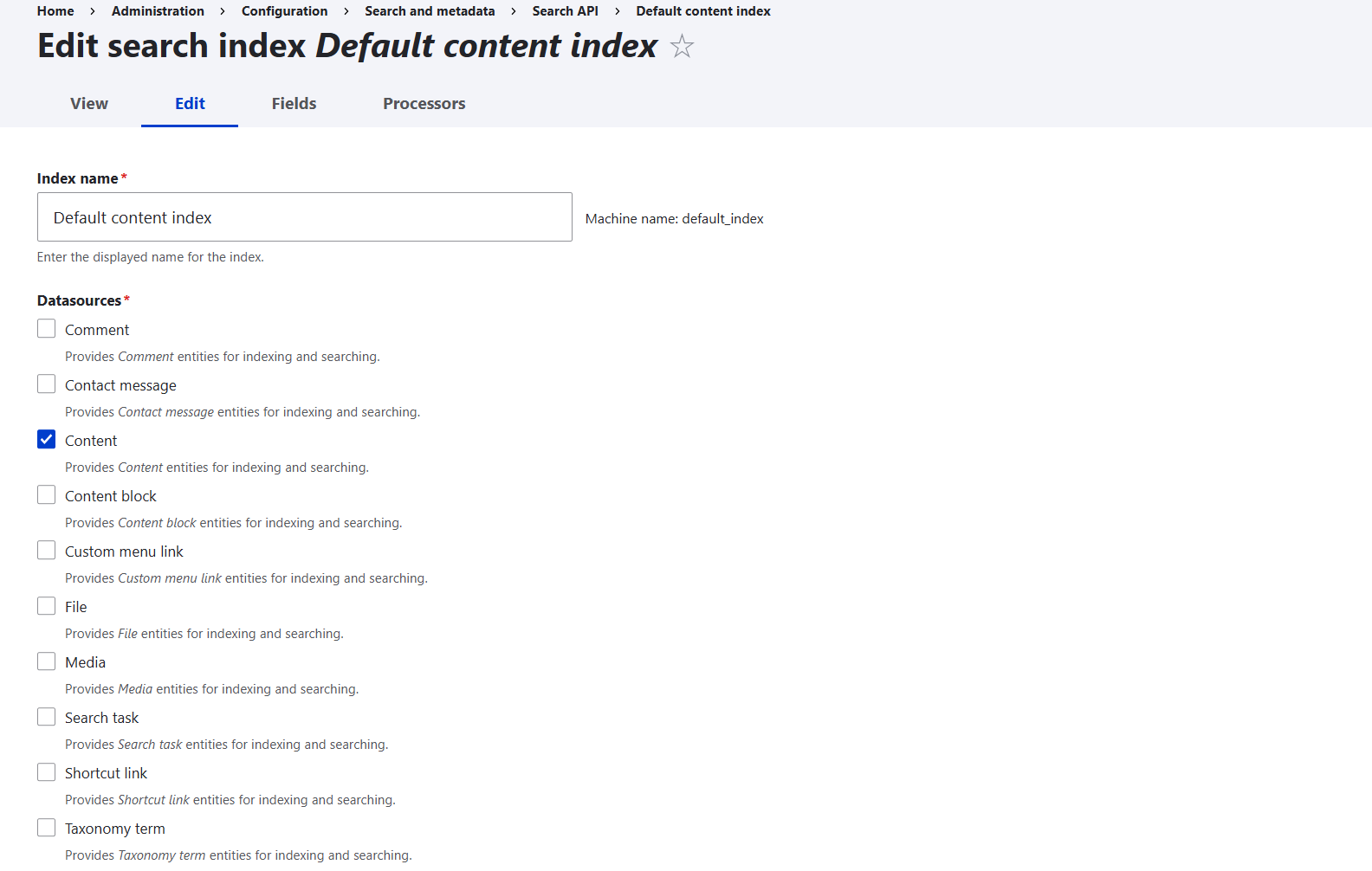
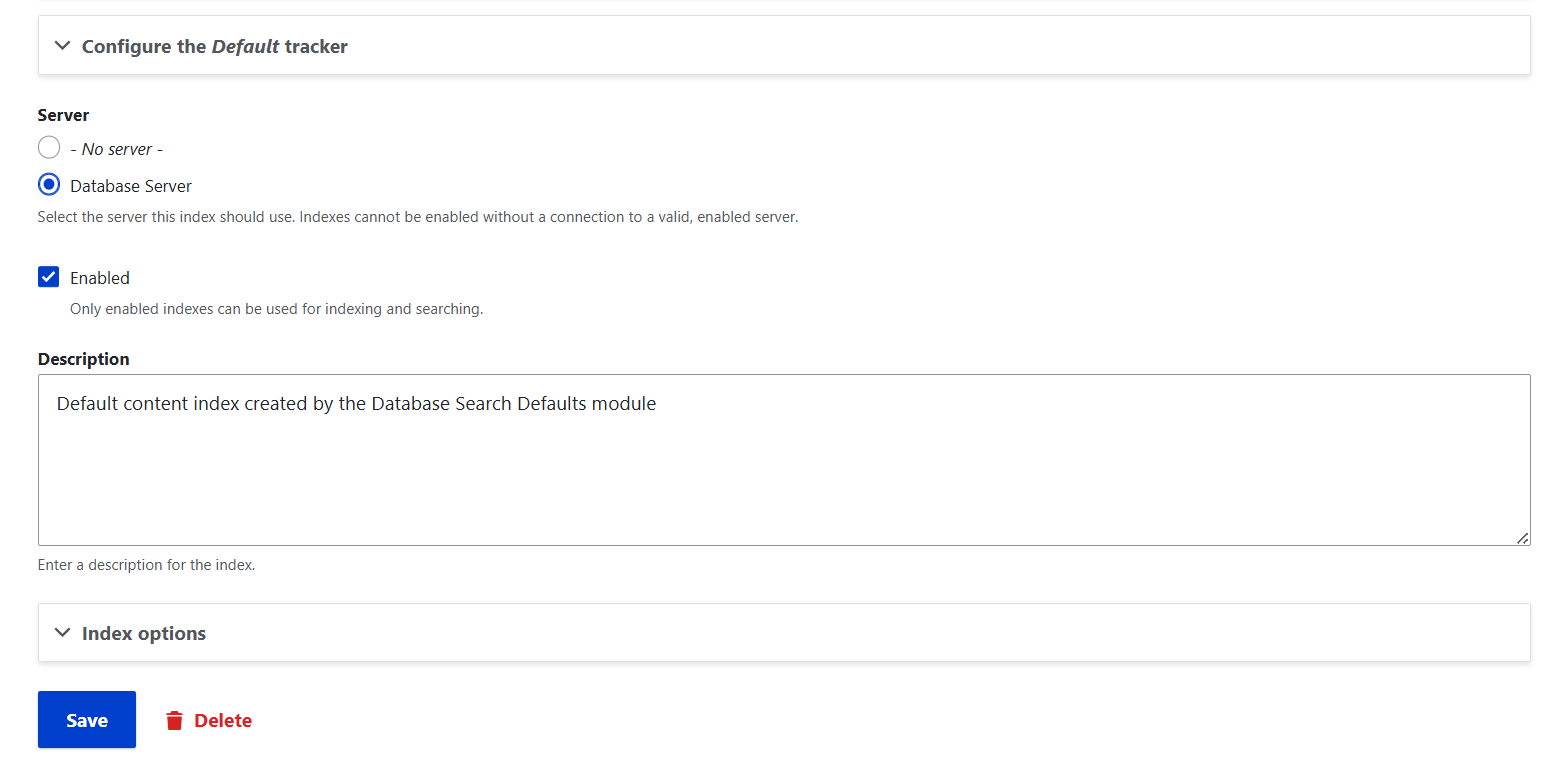
Here you can configure the index using settings like:
- Index name: it’s a label like “Default content index.”
- Datasources: what kind of content to include (like content, user, file, media, comment, and so on).
- You can also configure a specific datasource (for example, if it is Content, specify which content types should be indexed — by default, this includes all of them).
- Server: where the indexed data is stored.
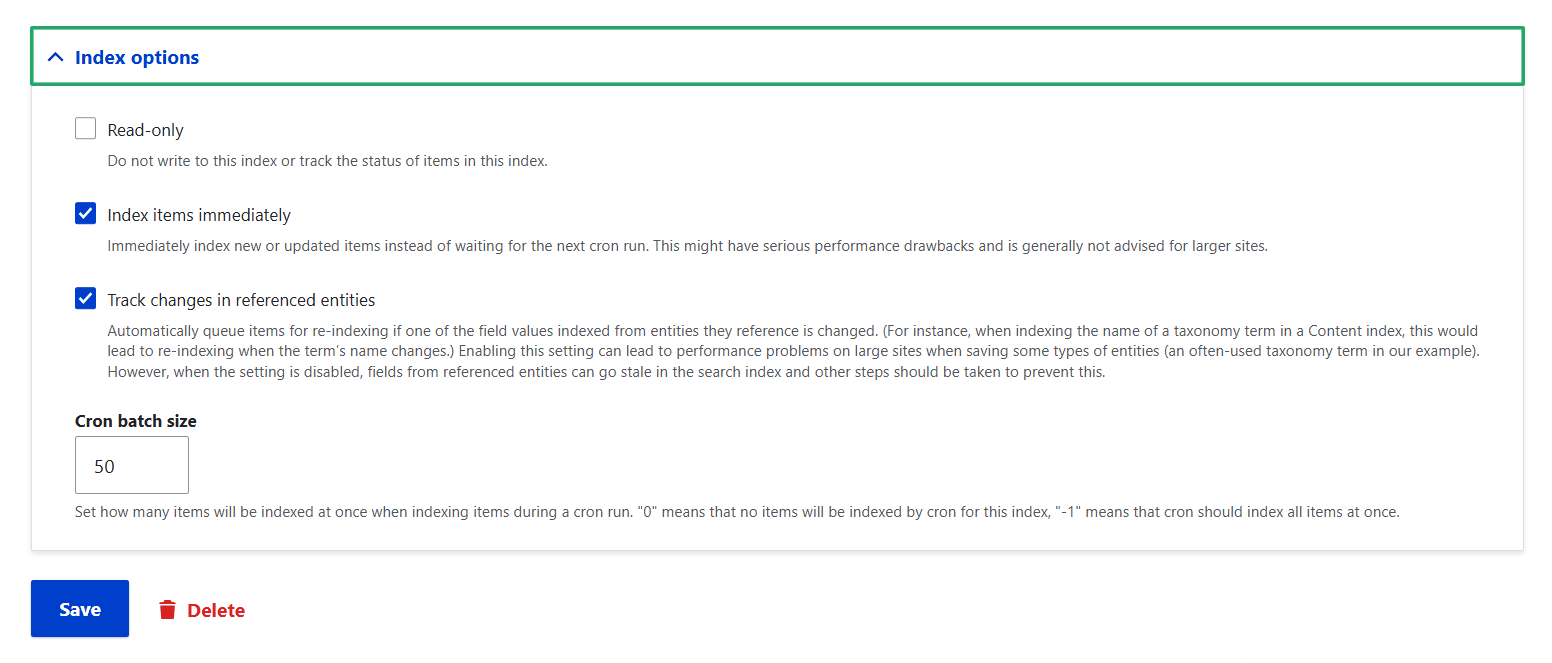
- Index options: you can control when indexing happens (like during Cron runs), whether it’s read-only, how items are tracked or updated, and more.

The Fields tab
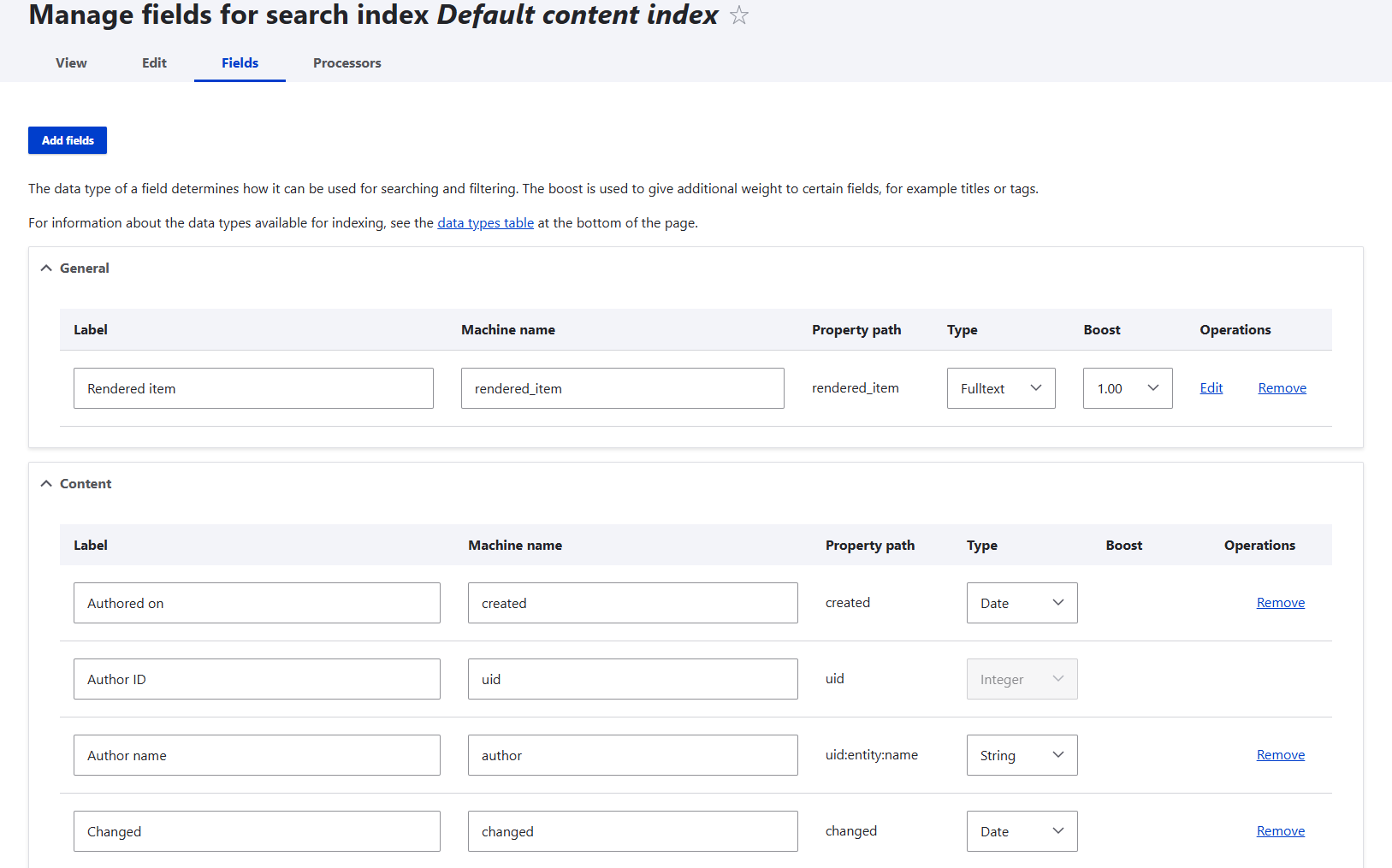
This is where you choose which fields from your content get included in the search index — like:
- title
- body
- tags
- author name
- and more
You can also set what each field is used for:
- fulltext — searchable in the search box
- sort — sortable in Views (like by date)
- facets — usable as filters (like filter by author or topic)
It’s also possible to boost specific fields that should stand out more in search results by increasing the “Boost” value by default, it is 1).
The Processors tab (how data is handled)
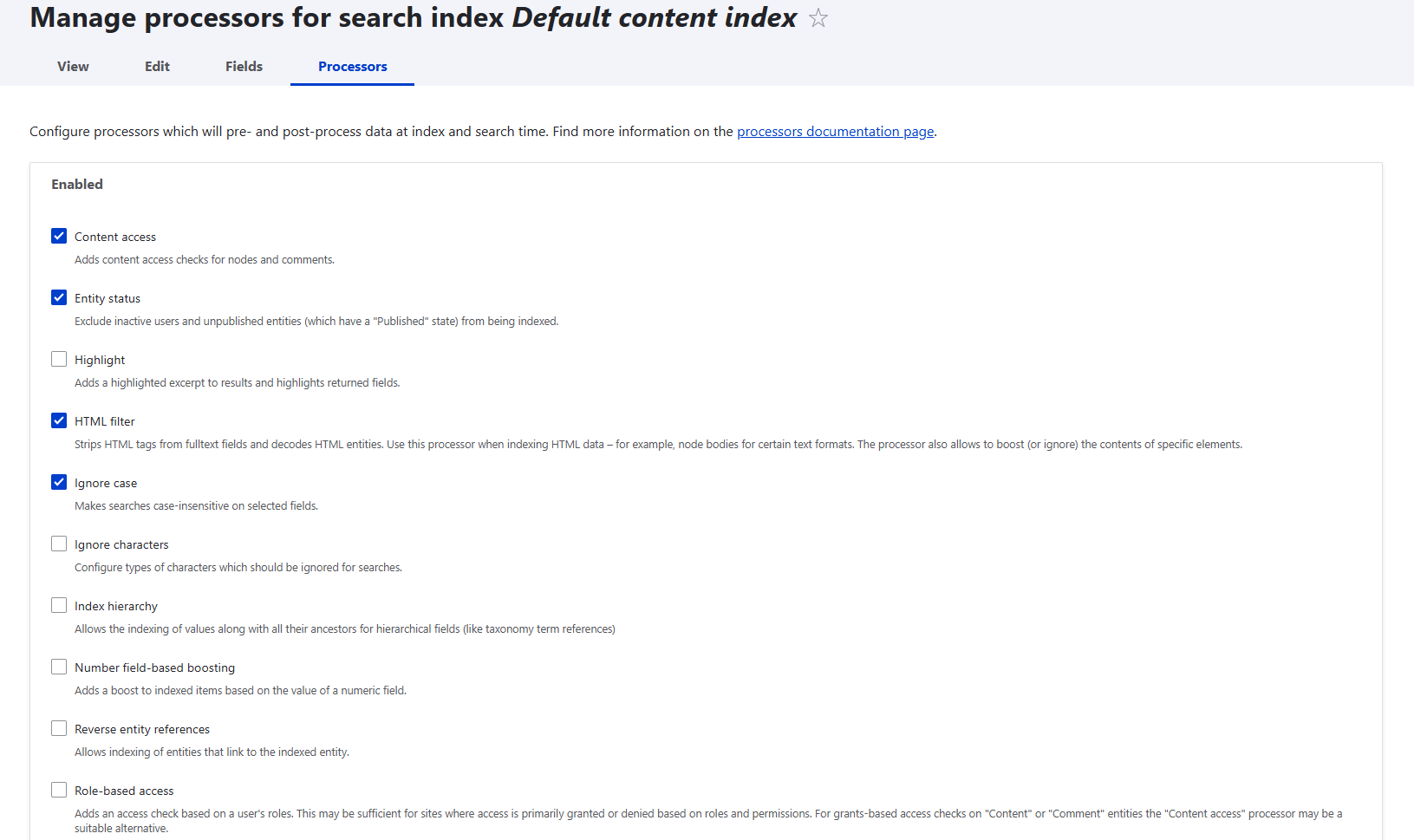
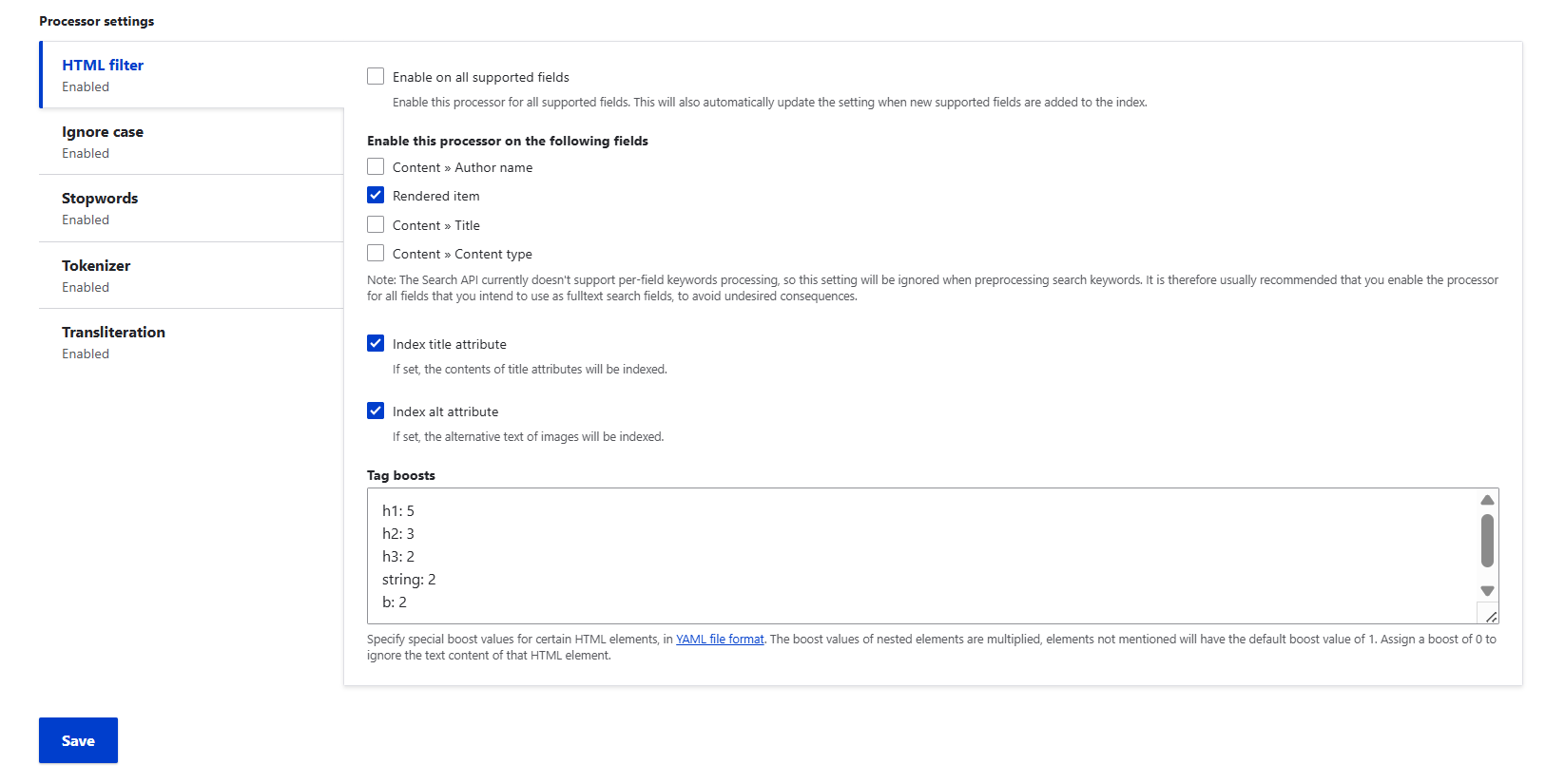
Processors are small, specialized tools that prepare your content before it gets stored in the search index. They help clean, transform, or enhance the data so your search results become more accurate and relevant.
On the Processors tab, you can:
- enable or disable individual processors depending on what your content needs
- change the order in which processors run, because some processes should happen before others
- adjust settings for each processor to fine-tune how it handles your content
Some of the common processors:
- HTML filter: strips out HTML tags so your search index contains only clean text, preventing markup from interfering with search queries.
- Transliteration: converts accented or special characters (like é or ñ) to their simpler equivalents (e or n), helping users find matches regardless of typing accents.
- Stopwords: removes very common words such as “and,” “the,” or “of” that don’t help differentiate search results and can slow down searches.
- Ignore case: tells the search system to treat uppercase and lowercase letters as the same. For example, searching for “Drupal”, “drupal”, or “DRUPAL” will all return the same results.
Final thoughts
You can make your website’s search seamless, fast, and efficient, even with a really huge amount of content. The Drupal community has created robust tools like Search API, along with the modules that add specific features or connect to renowned search engines. The right configuration, along with help from expert Drupal developers, can help you unlock the full potential of search to better serve your users and grow your site.