
Canonical Tags in Drupal: Preventing Duplicate Content Issues And Boosting SEO

One of the gold standards of impeccable search engine optimization (SEO) is using canonical tags for your web pages. These small but powerful tools make a big difference; they help you avoid duplicate content issues and keep your SEO signals strong.
Drupal provides basic built-in support for canonical tags, and several add-on modules take things further. They handle a great variety of scenarios and let you fine-tune your settings to keep your site in Google’s good graces. In this article, we’ll cover everything: what canonical tags are, why they matter for SEO, and how to configure them effectively on your Drupal website.
What is a canonical tag?
A canonical tag is a small piece of code added to a web page that tells search engines which version of a page is the preferred, or “main” one. In simple terms, it’s like putting up a sign that says: “This is the page I want search engines to index and rank — ignore the duplicates.”
A canonical tag is placed in the <head> section of your page’s HTML code and looks something like this:
<link rel=”canonical” href=”https://example.com/main-page” />
Why do canonical tags matter for SEO?
Canonical tags help search engines identify the preferred version of a web page when there are multiple URLs containing identical or very similar content. This prevents your pages from competing against each other and avoids problems like diluted rankings or unwanted indexing.
Thanks to canonical tags, all ranking signals are consolidated to the main version of the page. These signals include backlinks (links from other sites that boost authority), crawl budget (the number of pages search engines are willing to crawl on your site), and more. As a result, the main page version retains maximum SEO value and your website’s visibility improves.
Why do multiple URLs for the same page even exist?
You might think, “Wait, all my content is original — I don’t have duplicates.” But even if your content is unique, technical factors can create multiple access points to the same page. These duplicates aren’t always obvious and can confuse search engines if not managed properly. Common scenarios include:
- Tracking parameters
URLs with UTM tags or other tracking codes used in newsletters or ads:
https://example.com/page?utm_source=newsletter
- Sorting or filtering options
multiple URLs for the filtered or sorted results (for example, products of a certain color or size): https://example.com/products?color=red&size=m
- Session or referral codes
temporary parameters for user sessions or affiliate tracking:
https://example.com/page?ref=affiliate123
- Pagination
blog, news, or product listings split across multiple pages: https://example.com/blog?page=2
- Protocol or subdomain variations
URLs differing by protocol or subdomain:
http://example.com/page vs. https://www.example.com/page
- Mobile vs. desktop versions
separate subdomains or paths for device-specific layouts:
https://m.example.com/page vs. https://www.example.com/page
- Printable or printer-friendly versions
separate layouts designed for printing: https://example.com/page/print
How to manage canonical tags in Drupal?
By default, Drupal already provides basic canonical tag support: since Drupal 8, they are automatically included in the HTML <head> of standard content pages. You can verify this by viewing the page source of a page and searching for:
<link rel=”canonical” href=”https://example.com/my-page” />
Viewing canonical tags in the page source of a Drupal web page
https://drive.google.com/file/d/1MrdU2Sw3WGCr8pDFI4LgWvZCIbEihSKR/view?usp=drive_link
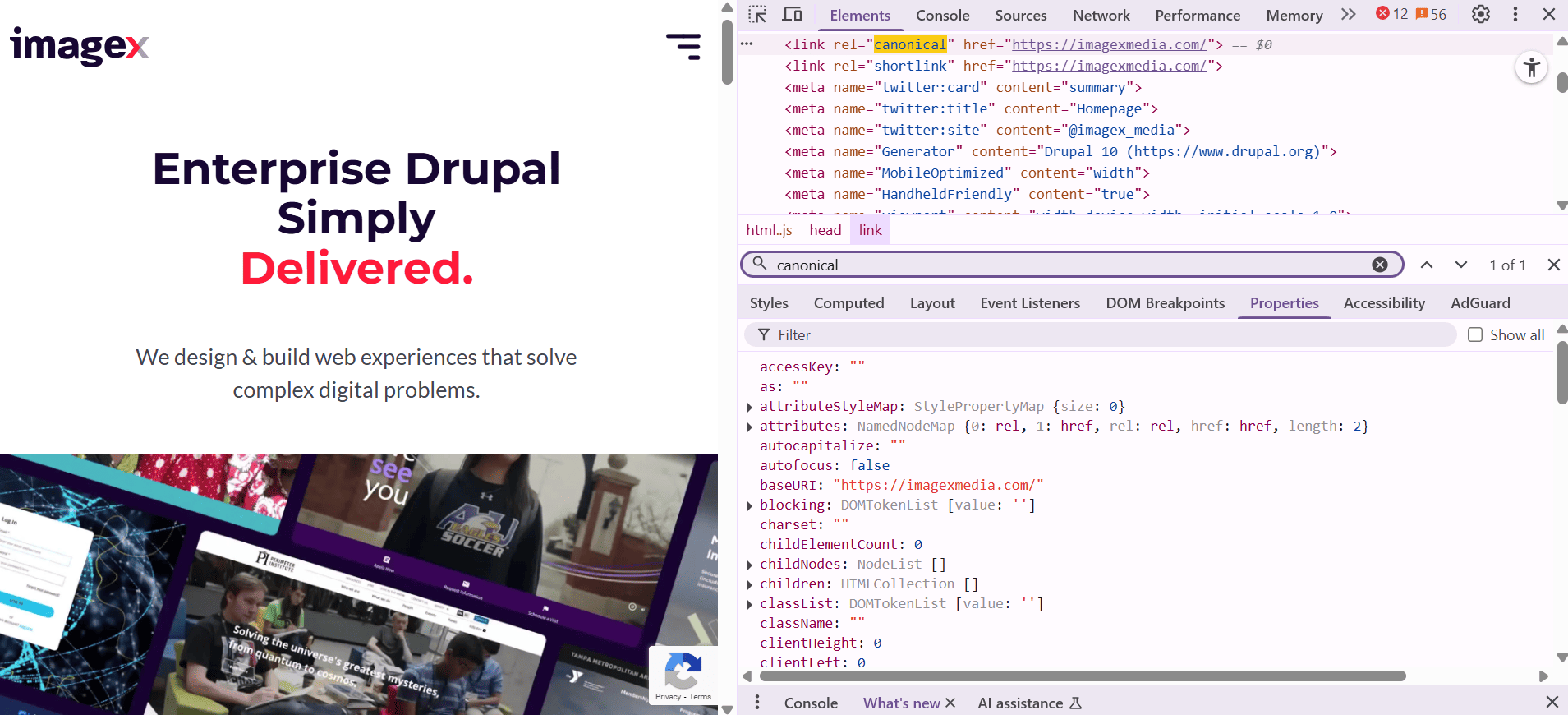
Drupal core handles the main SEO purpose: pointing search engines to the primary version of each page, as opposed to alternate paths that might exist, such as:
- the system path (/node/123) versus a clean alias (/news/latest)
- other minor variations of the same page
However, more complex cases are not fully handled by Drupal core out of the box, and here is where extra modules come in.
Using the Metatag module to fine-tune canonical tags
Contributed modules like Metatag will give you more control over canonical tags in cases like the following:
- Custom entities
Drupal may not automatically generate canonicals for custom entity types created specifically for your site. In these cases, you’ll need to set the canonical URL manually to make sure search engines know which version to index.
- Filtered or sorted Views pages
Drupal Views that generate URLs with filters or parameters, such as /news?category=events, /news?sort=latest, or /news?author=anna, will usually have a separate canonical tag for each URL, pointing to itself. This means search engines see each filtered page as its own “main” page, even if the content is mostly the same.
Usually, it’s best to point these filtered pages to the main, unfiltered page to consolidate SEO value. However, if a filtered page is truly unique, like a category page meant to rank on its own, it can keep its own canonical tag. The key is having a clear SEO strategy to avoid duplicate content issues.
- Campaign and tracking parameters
URLs with UTM or other query parameters (like ?utm_source=newsletter) aren’t handled by Drupal core. If you want the canonical to point explicitly to the base URL — without the query strings — you’ll need the Metatag module.
- Multilingual setups
By default, Drupal includes the language-specific canonical tag in a translated page as well as “alternate” link tags showing all the available translation using the “hreflang” attribute like this:
<link rel="alternate" hreflang="fr" href="https://example.com/fr/node/2">

While it works for standard content pages, we might need the Metatag module for multi-language views, taxonomy, and so on. Using the Metatag module, you can set the French page’s canonical to /fr/blog and the English page’s canonical to /en/blog. This ensures that each language version is clearly recognized as the “primary” page for its own language.
How to set up the Metatag module
Installing the Metatag module
Install the Metatag module and enable it on the Extend page.
Configuring the canonical tags at the global (site-wide) level
Metatag uses a layered system for managing canonical tags, you can go from the global configuration to individual page configuration.
Go to Configuration > Search and metadata > Metatag > Metatag defaults. The global defaults are applied automatically to all the pages of your Drupal website unless they have their own settings. By default, the canonical URL is set to [current-page:url].
To know the current page’s URL, Metatag relies on placeholder tokens provided by the Token module. It simply takes the URL of the page currently being viewed and inserts it into the [current-page:url] pattern.
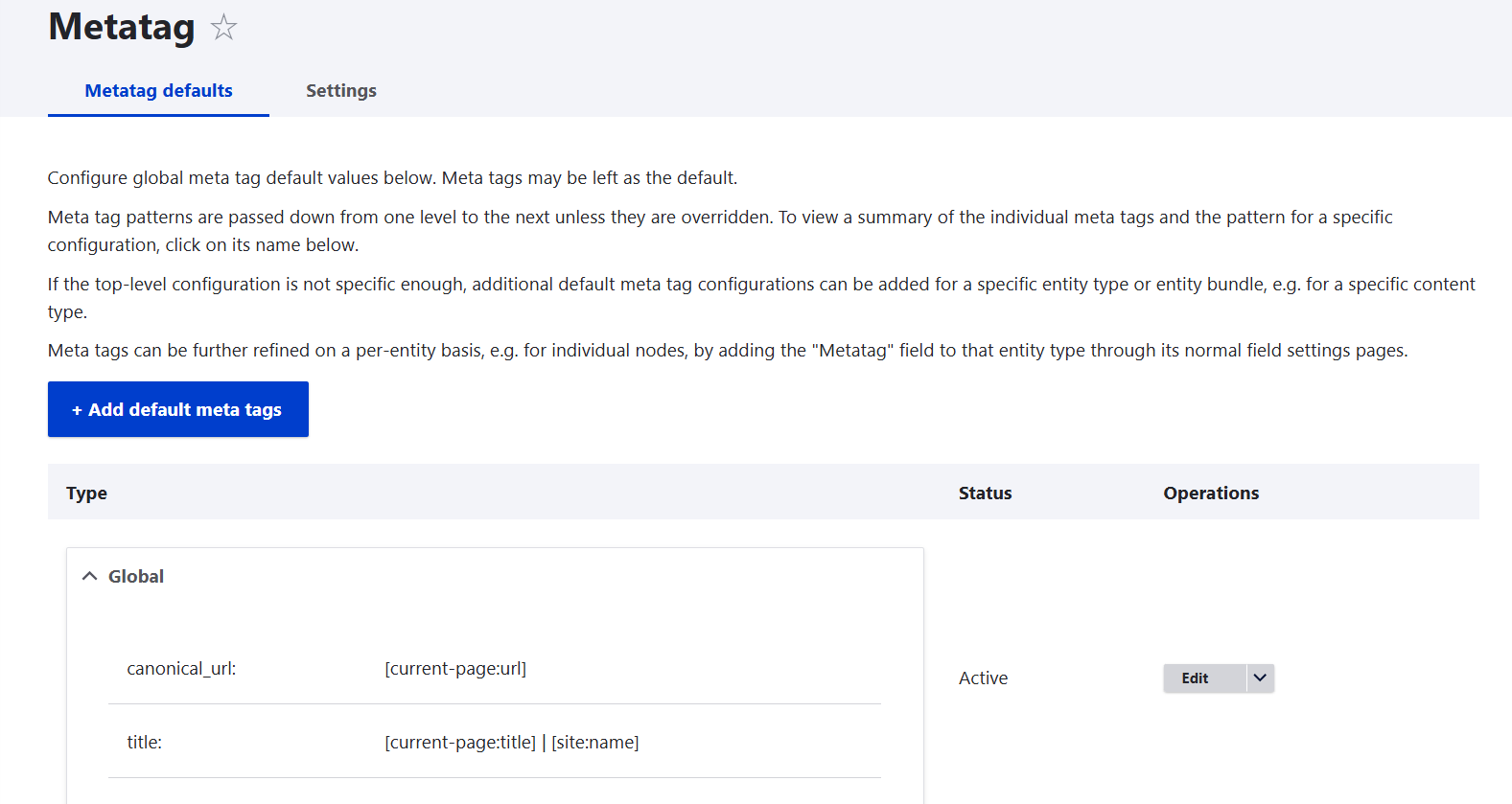
Configuring the canonical tags for specific types of pages
You can scroll down to fine-tune the canonical tag defaults for specific types of pages if needed. This includes:
- the front page
- the “403 access denied” page
- the “404 page not found” page
- content pages in general
- specific content types you might have on your site (articles, news, events, and so on)
- taxonomy terms
- user account pages
If you specify canonical tags here, they will override the global defaults.
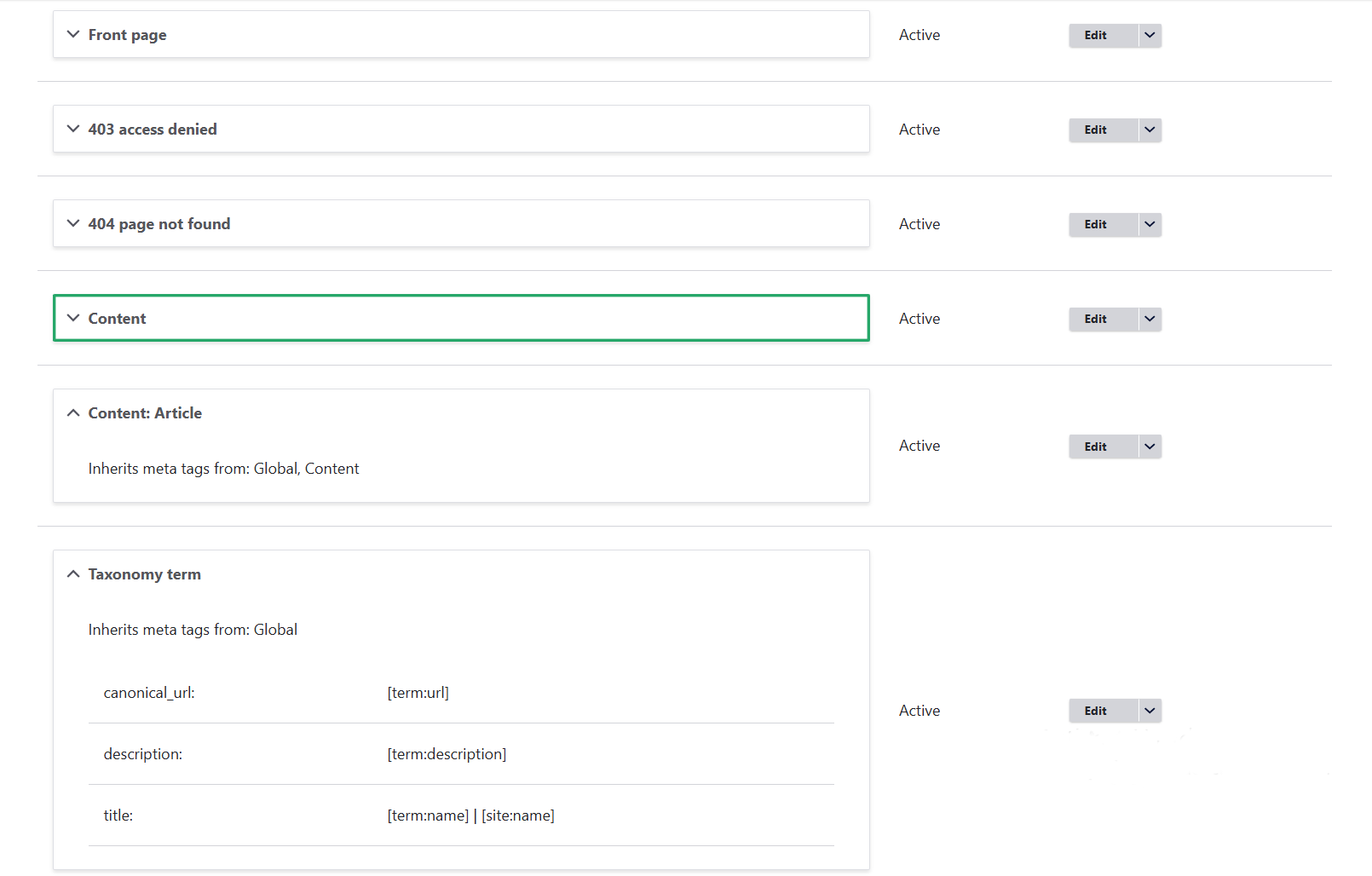
Configuring the canonical tags for individual pages
For a specific content, taxonomy term, or view page, you can set custom canonical tags if needed. This will override both the global and content-type defaults. These settings are not in the Metatag defaults but they are available as you edit individual pages.
For example, if it’s a content page, then you need to go to Metatag > Advanced > Canonical URL to the right of the text editor. Before you proceed, make sure the Meta tags field is added to the structure of the specific content type (see more about adding fields in Drupal).
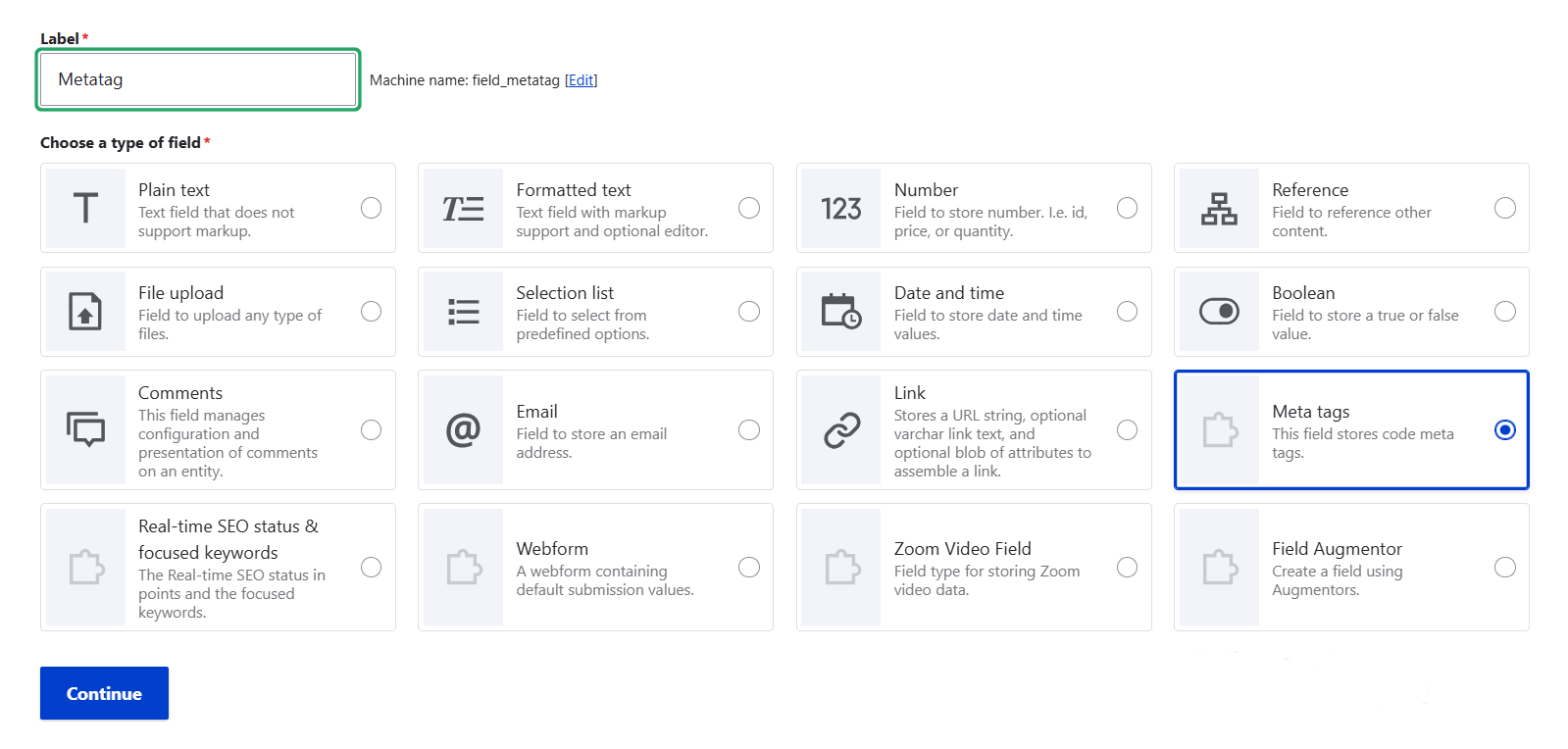
Multilingual setup + the Pathauto module
If your site uses path prefixes per language (like /fr/), Metatag will automatically generate language-specific canonicals for you.
It will work with any URL you have on the translated page, but there is a way to make things more user-friendly, SEO-friendly, and just beautiful. Drupal doesn’t automatically give translated content clean, readable URLs — that’s where the Pathauto module comes in. Pathauto automatically generates user-friendly aliases based on a page’s title or other content, and it works seamlessly with translations, just like with the originals.
Similarly to Metatag, Pathauto uses placeholder tokens. In this example, we used the [node:title] token that pulls the actual title from a content item after the prefix “/blog/” and generates a human-readable URL alias with it.
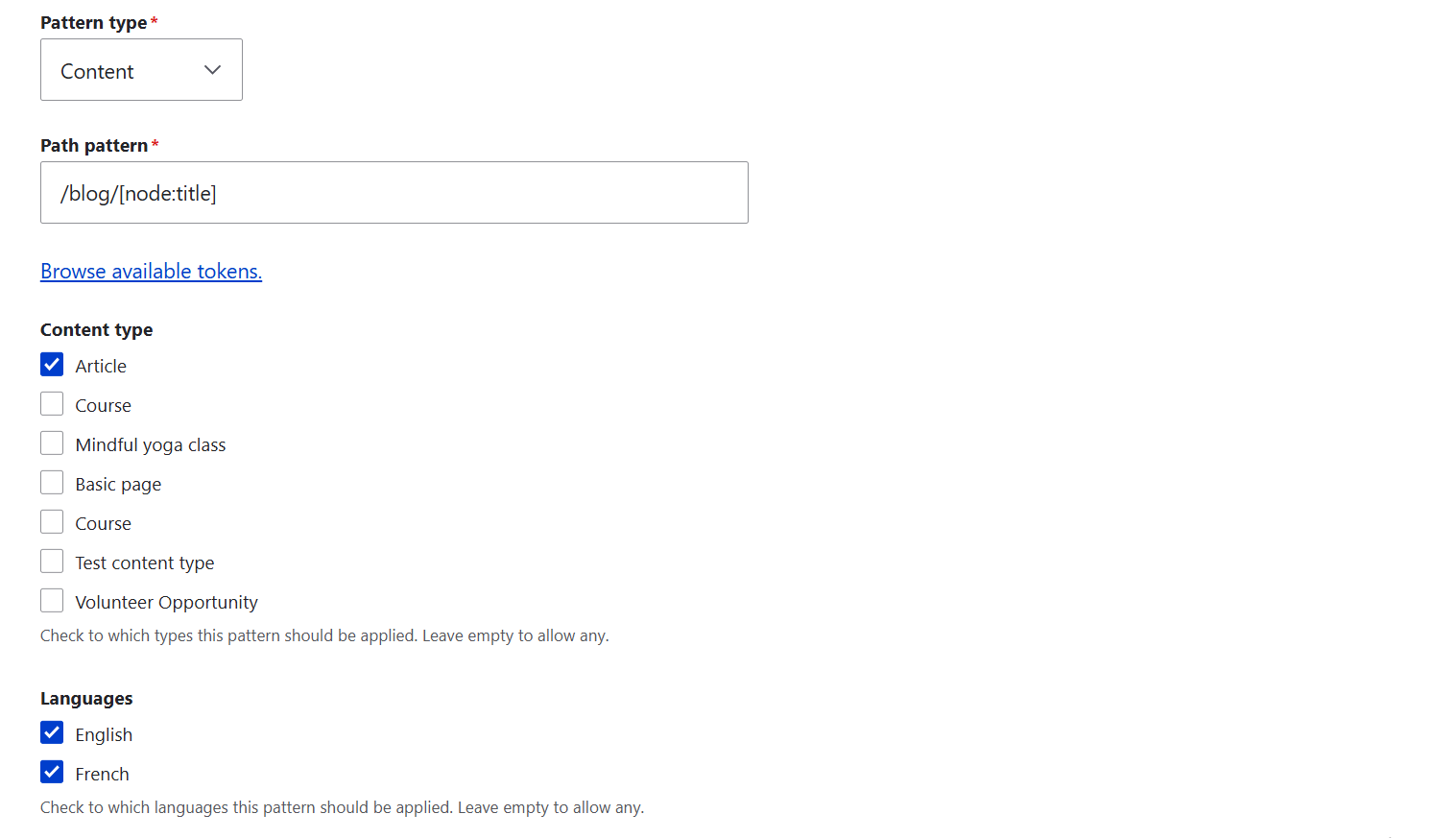
For a French translation of a blog post, Pathauto creates an alias from the translated French title. With the /fr/ language prefix enabled, the French page receives a clean, language-specific URL like this:
/fr/blog//présence-en-ligne-exemplaire
The canonical tag generated by Metatag points to this alias, ensuring that SEO signals are correctly consolidated per language:
<link rel=”canonical” href=”https://example.com/fr/blog/présence-en-ligne-exemplaire” />
Using the Redirect module to complement canonical tags
The Redirect module isn’t required for canonical tags to function, but it complements them nicely. Canonical tags are suggestions, not commands. They tell search engines which version of a page you prefer, but they don’t block duplicates from being indexed or crawled. In fact, search engines may:
- still index duplicate URLs if they find them through inbound links or sitemaps.
- ignore canonical tags if they suspect manipulation or inconsistency.
- split ranking signals across versions if redirects aren’t in place.
That’s why canonical tags, while essential, aren’t enough for strong SEO hygiene on their own. Redirects are the enforcement mechanism: they remove access to duplicate URLs entirely, ensuring all signals point to the canonical version. So while Metatag tells search engines which page version is preferred, Redirect ensures visitors (and crawlers) actually land there.
The Redirect module helps you manage this process by automatically redirecting alternate paths to the correct one.
How to set up the Redirect module
Installing the Redirect module
Install the Redirect module and enable it on the Extend page.
Configuring URL redirects to the canonical pages
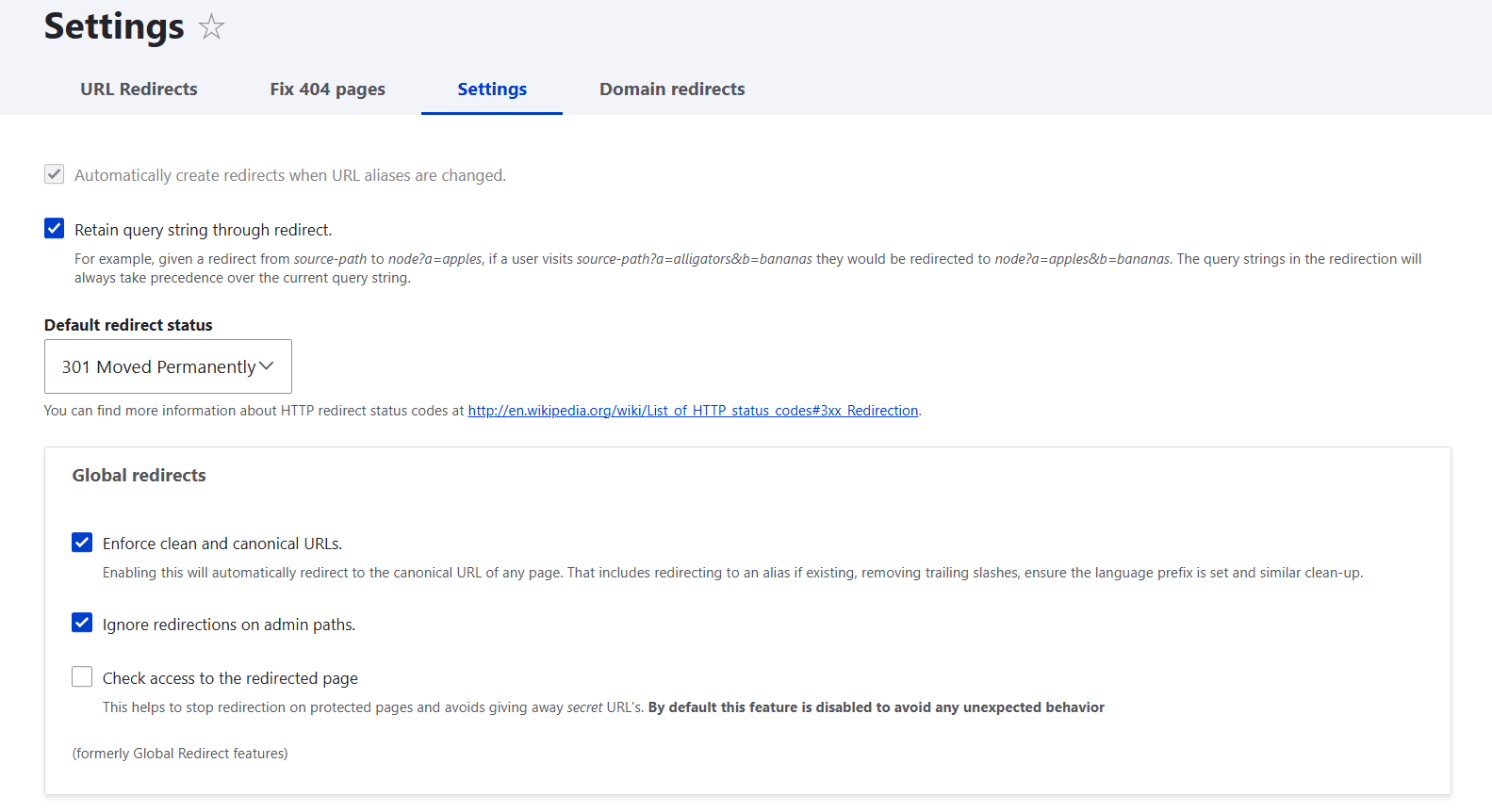
Go to Configuration > Search and metadata > URL redirects > Settings. Go through these checkboxes:
- “Automatically create redirects when URL aliases change”: this setting is strongly recommended because it ensures that when you update a path alias, the old one redirects properly instead of leaving a broken or duplicate URL behind.
- “Retain query string through redirect”: it’s recommended if you use campaign tracking or analytics tools. This preserves parameters like utm_source, utm_medium, or utm_campaign during redirects, ensuring accurate attribution and consistent user experience. Avoid this only if your query strings contain sensitive data or generate significantly different content versions that could confuse search engines.
The Global redirects subsection:
- “Enforce clean and canonical URLs”: this is essential for SEO. This setting automatically redirects system paths to their aliases and removes trailing slashes or other inconsistencies — helping consolidate ranking signals and avoid duplicate indexing.
- “Ignore redirections on admin paths”: this checkbox is safe to check. It avoids unnecessary redirects in the admin interface and prevents confusion for editors. Most sites enable it — it doesn’t affect SEO, only convenience.
- “Check access to the redirected page”: leave this unchecked unless your site includes private or restricted-access content. Enabling it adds an access check before redirecting, which can be useful for security-sensitive environments.
A note on redirects in paginated and filtered view pages
Paginated views (like /blog?page=2) and filtered views (like /blog?category=travel) require careful handling.
If you redirect them all to the root page (/blog), you risk:
- Breaking navigation: users can’t access deeper or filtered results.
- Confusing search engines: they may not understand your site structure.
- Losing crawl coverage: unique articles or filtered combinations might never be indexed.
Best practices:
- Do not redirect paginated or filtered URLs unless they’re true duplicates. In most cases, canonical tags are the preferred way to consolidate SEO value, while redirects are reserved for exact duplicates or outdated URLs.
- Each paginated or filtered page that shows unique results should have a self-referencing canonical tag.
- Optionally, add rel=”prev” and rel=”next” link tags for paginated sequences.
- If filtered pages produce mostly overlapping content (like the same articles sorted differently), consider using a canonical to the unfiltered base view instead.
- Try to minimize repeated elements like intros or static blocks, keeping the main content distinct.
Final thoughts
Canonical tags are a cornerstone of effective SEO. Using the Metatag, Redirect, and Pathauto modules is your key to effective canonical tag management. Search engine optimization has many nuances that depend on your site’s structure and goals. Inspired to bring these SEO best practices to your own website? Consider a tailored approach that will make all the difference!