
Take Control of Links in Drupal with Modules Like Linkit and Editor Advanced Link

Links help shape the experience of discovery: they are like little portals that transfer readers to a different place on the web with a single click. For search engines, they act more like pathways that reveal how your content connects to everything else. The practical importance of both internal and external links deserves special coverage, which we’ll explore in this post.
Of course, understanding why links matter is only half the story — the real challenge lies in managing them efficiently. This is especially true for content-rich Drupal websites, where editors often juggle hundreds of links across pages. The revamped text editor in Drupal, CKEditor 5, modernized and sped up this process by introducing the new and sleek balloon panel.
Some Drupal tools, however, take link management to yet another level, giving editors and SEO managers richer options and sharper control. In this post, we’ll explore two modules that make managing links both easier and more precise: Linkit and Editor Advanced Link. You’ll also find a straightforward guide to using them effectively on your Drupal site.
Internal and external links: why they matter
Internal links
Internal links connect your content in ways that make it easier to explore. A well-placed internal link can turn a single visit into a journey. Links guide visitors toward related articles and keep them engaged longer and more profoundly. For example, linking from a blog post about “volunteer opportunities” to a page with “how to sign up for a local event” helps readers take action.
Another mission of internal links is to help search engines understand the structure of your site. They spread authority across your site, so newer or less visible pages benefit from the strength of your most popular ones.
External links
External links point readers to resources outside your site. They show where your information comes from, highlight trusted references, and demonstrate that your content is part of a wider conversation. Used wisely, external links encourage readers to return, knowing you’ll guide them to reliable information. For instance, linking to an official Drupal documentation page or a respected industry blog reassures readers that your content is well-grounded.
Search engines also see these outbound links as a sign of credibility, especially when they connect to authoritative sources.
Best practices for links in Drupal
- Use clear, descriptive anchor text. The clickable words should tell readers exactly where the link leads. For example, instead of “click here,” write “Explore our new study programs.”
- Keep links relevant and purposeful. Every link should genuinely help the reader. Irrelevant or excessive links can distract and dilute the message.
- Balance internal and external links. A healthy mix strengthens both user experience and SEO.
- Avoid overwhelming readers. Limit the number of links in each section. A few well-chosen links are more effective than a cluttered list.
- Maintain link health. Regularly check for broken or outdated links to ensure a smooth browsing experience.
- Add descriptive attributes. They can improve accessibility, SEO, and even security. We’ll explore these in more detail soon.
The Linkit module in Drupal
The Linkit module helps you manage your Drupal website’s internal links effortlessly and reliably, serving two key goals:
- editorial efficiency
- broken link prevention
How Linkit improves editorial efficiency
Instead of copying and pasting URLs or remembering exact content titles, editors just start typing keywords in the link dialog. Linkit finds content instantly and shows it using an autocomplete feature.
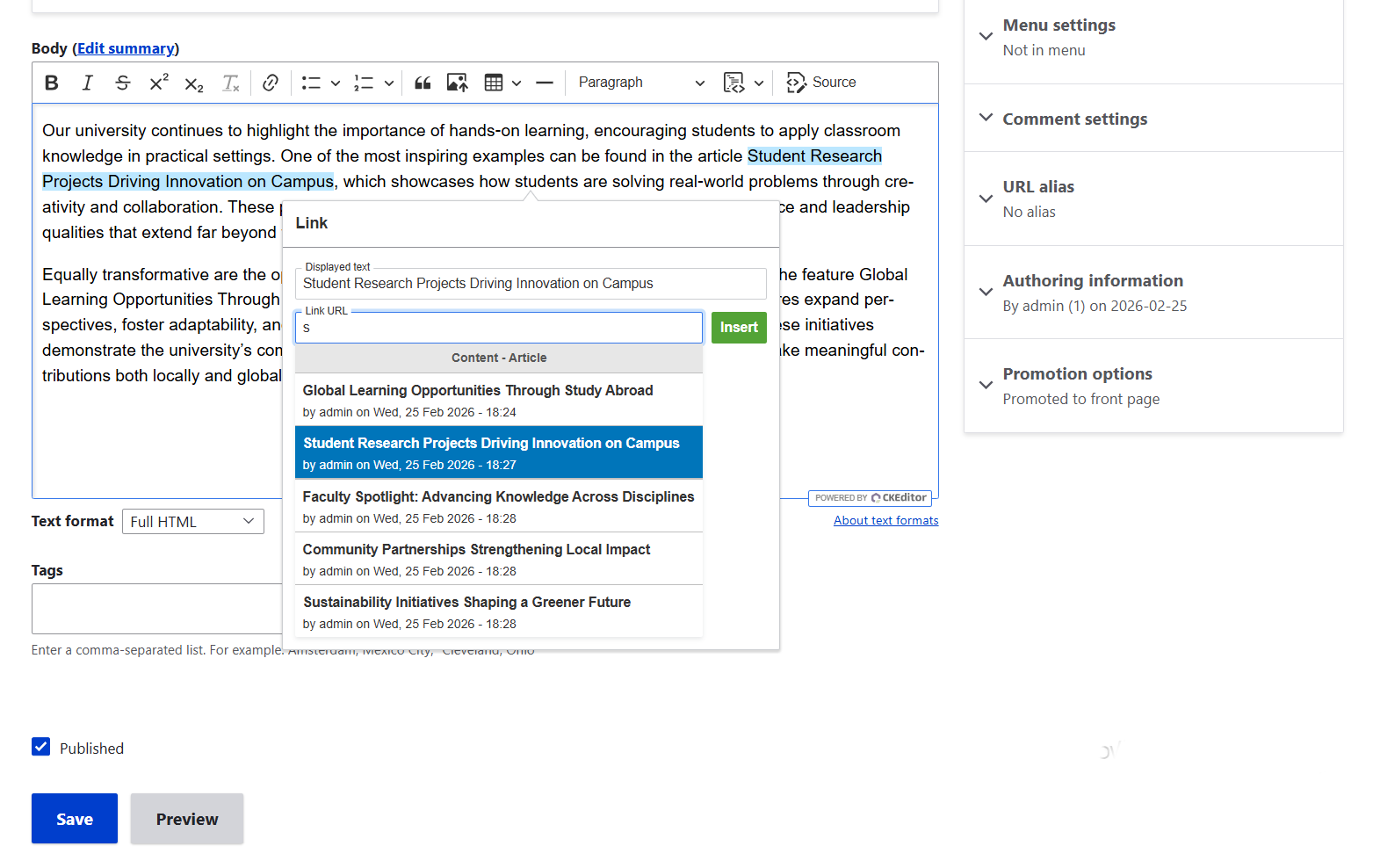
How Linkit prevents broken links
Using Linkit is a clean practice because the module connects links directly to content items rather than raw URLs. This means that if a page’s path alias changes later, the link still works. Behind the scenes, the module saves the link using the content item’s unique identifier, known as the Node ID (NID). For the end user, it still resolves into a real, clickable URL.
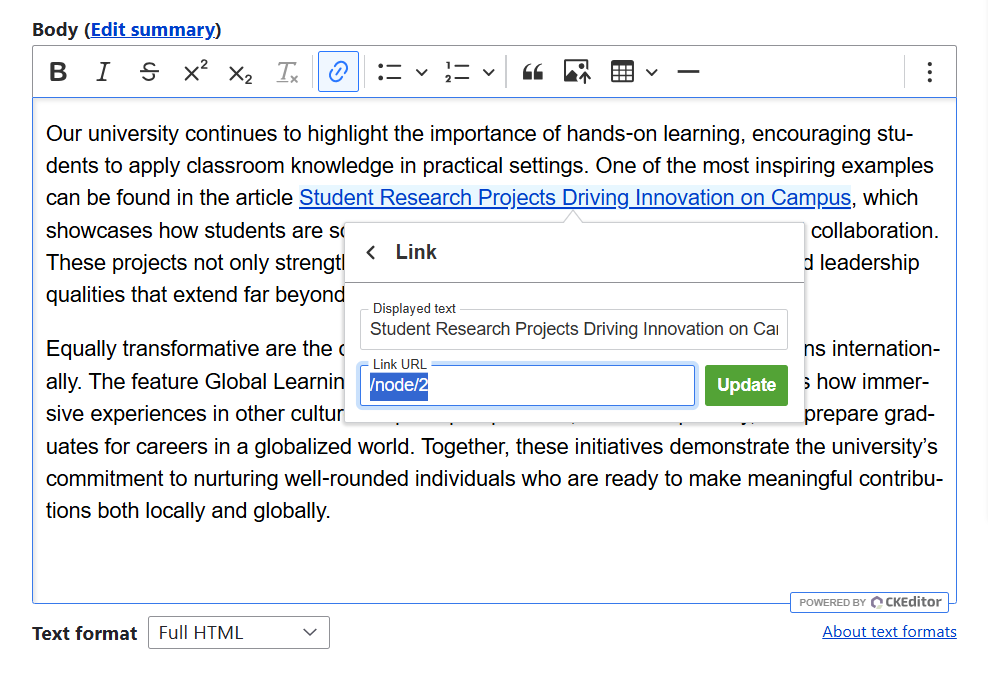
A certain overlap with Drupal 11.3 core
There is a note on the Linkit module’s page that, as of Drupal 11.3, link autocomplete suggestions in CKEditor are provided out of the box, with no need to use the module. However, if you are not yet using the latest release, Linkit can prove very useful to your team.
Furthermore, the module provides much richer options than Drupal core alone. It enables you to customize multiple details in the autocomplete results, and we’ll take a look at them shortly as we guide you through the settings.
How to set up the Linkit module on your Drupal website
1. Enabling Linkit for your text format
To access the Linkit link dialog in CKEditor, start by enabling it in the settings of the text format your team uses (Basic HTML, Full HTML, and so on). Go to Configuration > Content authoring > Text formats and editors, select the format, and open it to edit. Scroll down to the “Enabled filters,” enable the “Linkit URL converter” and the “Entity links” filters, and save the configuration. Read more about customizing your CKEditor toolbar with the features you like.
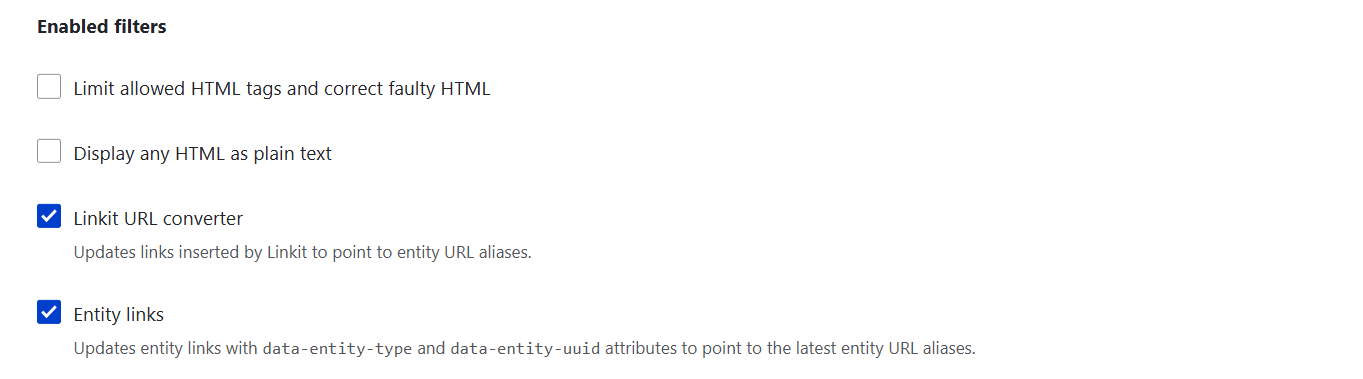
2. Configuring how the results are displayed
Linkit profiles define which types of results appear in the link dialog and how they are formatted. For example, you can configure profiles to display content, media, taxonomy terms, users, or other entity types, and control the sequence of elements such as title, creation date, author, and more.
You can create multiple profiles as needed and organize results into groups. Profiles are managed under Configuration > Content authoring > Linkit.
By default, Linkit provides a “Default” profile that includes all content types. This is the primary option for adding links, and in many standard cases, you may not be required to create additional profiles.
Profiles are powered by an extensible system of matchers. Each profile can contain one or more matchers, which determine exactly how autocomplete results are generated. For example, the “Default” profile uses the Content matcher.
When you click Edit next to a profile, you’ll find the “Manage matchers” tab, where you can add or configure matchers. Let’s look at the anatomy of a matcher using the default one as an example.
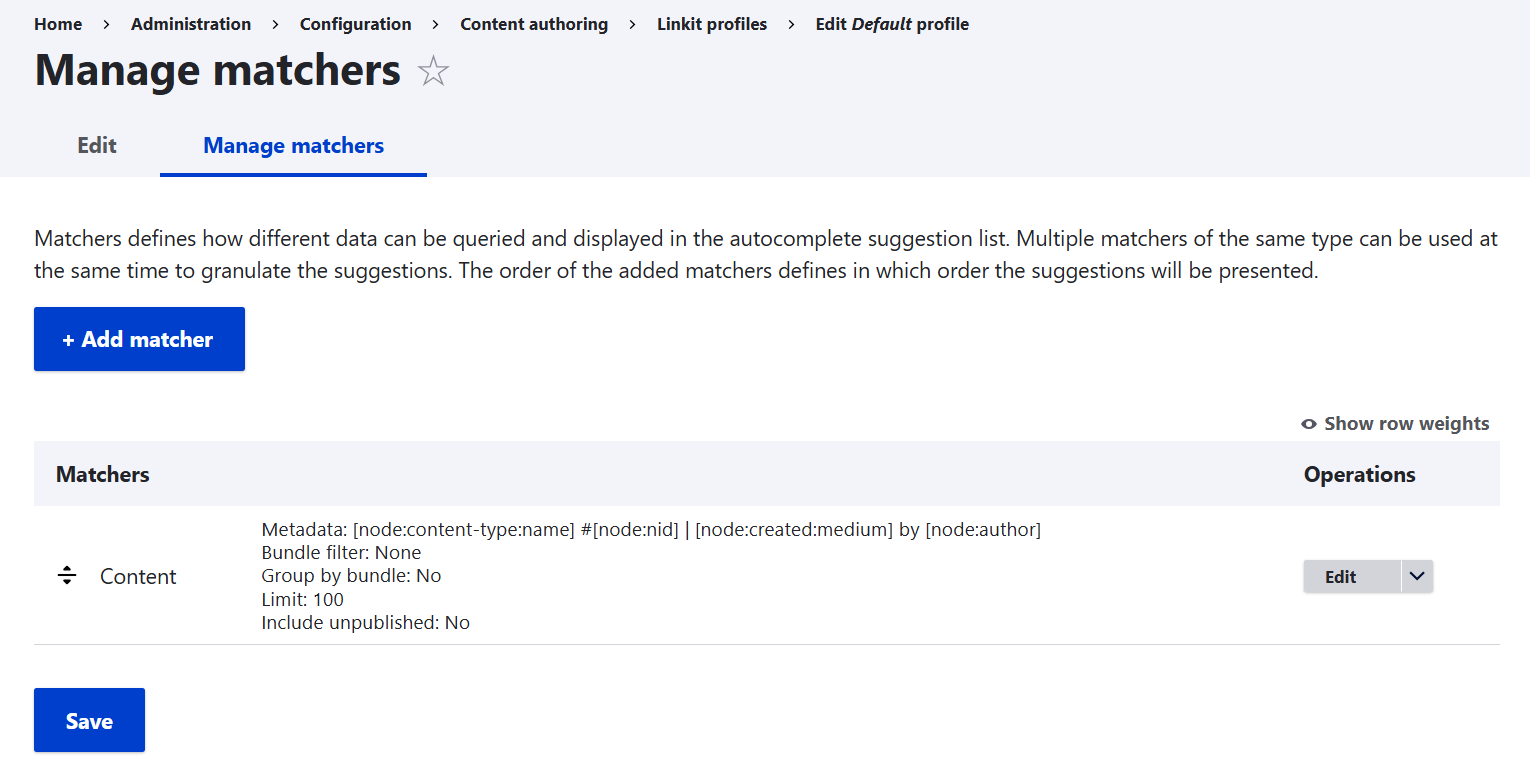
In the Metadata field, you can define the format of the results using placeholder tokens. For example, the default profile uses the following metadata string:
[node:content-type:name] #[node:nid] | [node:created:medium] by [node:author]
In practice, this shows the content type name, the creation date, and the author of the node. Although the string includes the node ID, the default matcher does not output it in the suggestions.
Autocomplete results can also be restricted by content type — for instance, you might configure them to show only articles.
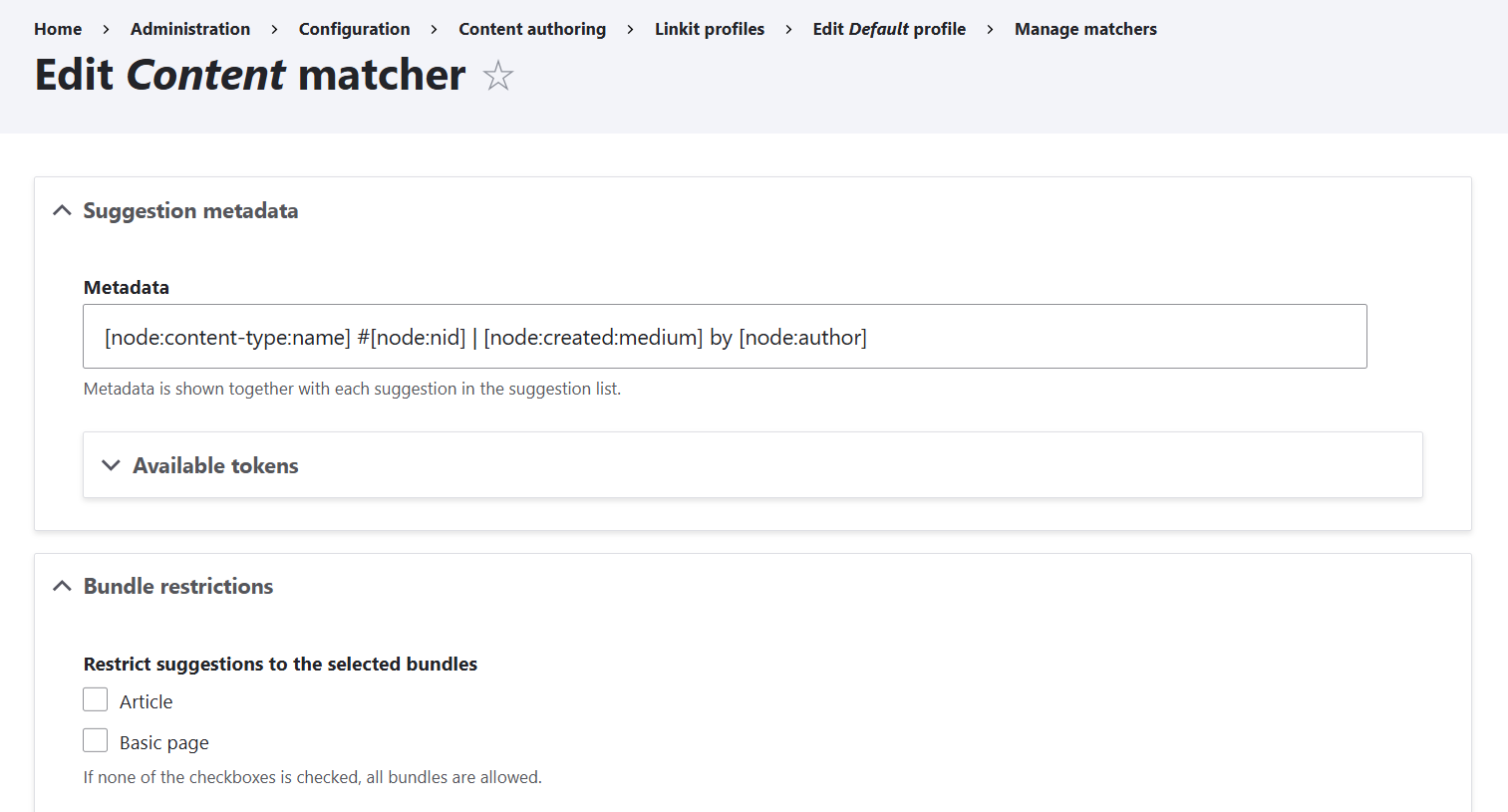
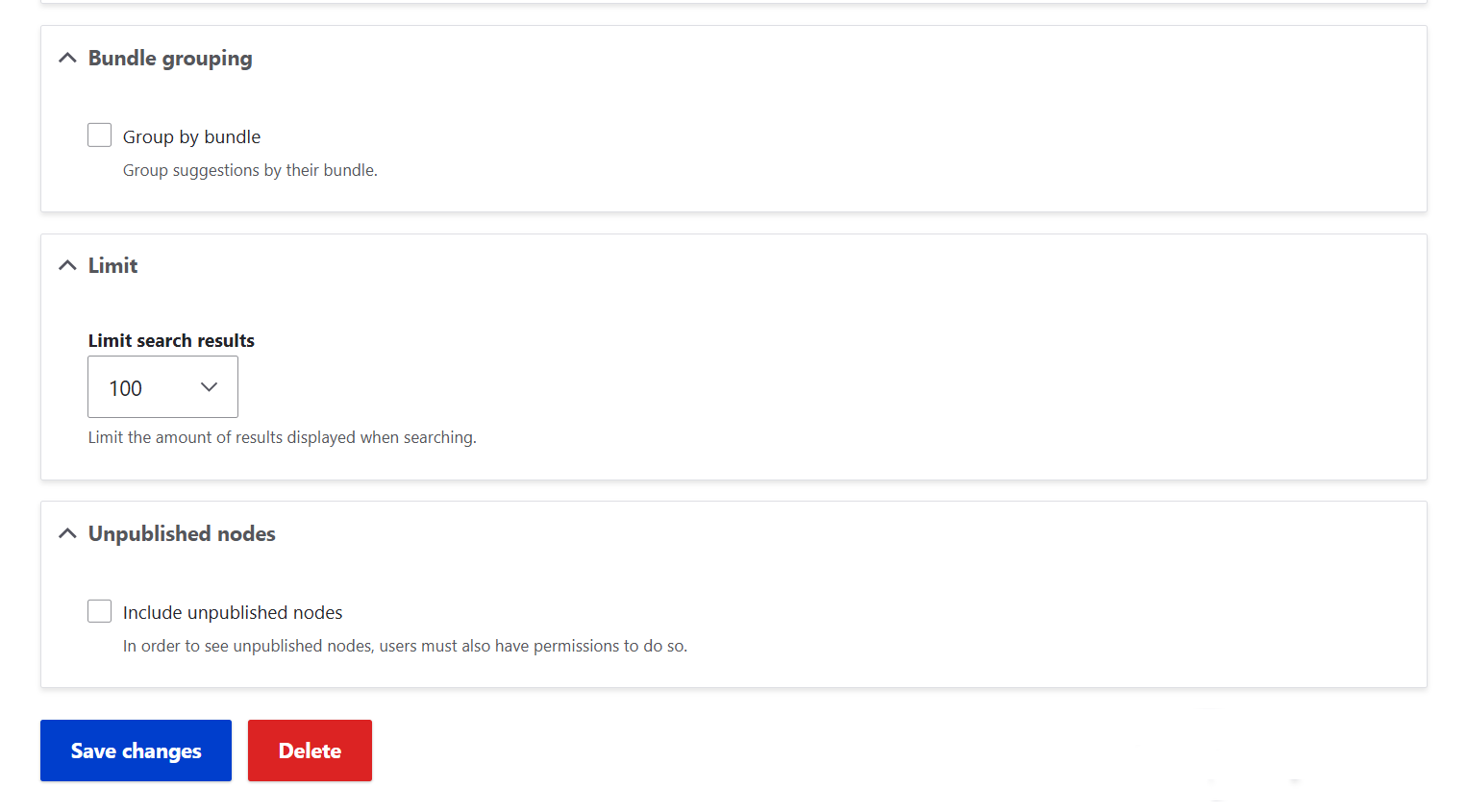
You can group results by content type, set a limit on the number of suggestions, and decide whether unpublished content should be included. By default, results are not grouped, the maximum number of suggestions is 100, and unpublished content is excluded.
The Editor Advanced Link module in Drupal
The Editor Advanced Link module expands Drupal’s default link dialog, giving editors structured control over how links behave and how they are interpreted, all without touching HTML. Instead of just letting you insert a basic hyperlink, it adds support for extra HTML attributes.
This module is a little more sophisticated and is helpful not only for content editors but also for SEO managers, accessibility specialists, and developers.
In many Drupal setups, certain link attributes are enforced globally and added automatically. However, editors may still need to apply them manually to individual content items when specific customization is required, and here is where the module really shines.
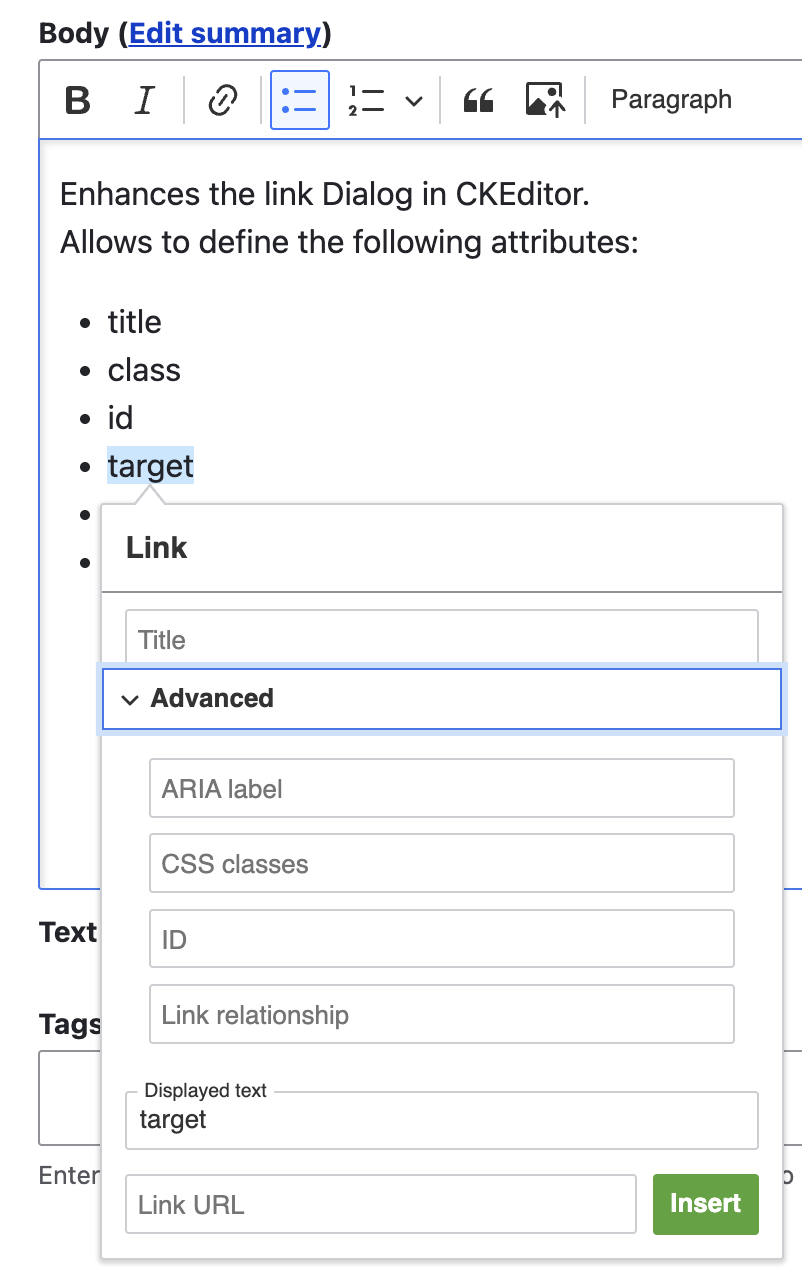
The Editor Advanced Link module can help you achieve the following:
- Better content accessibility: clearer context for all audiences.
- Improved SEO flexibility: control over link relationships and descriptive attributes.
- Cleaner collaboration: editors configure links through the interface, developers retain structural control.
- Safe configuration: available fields respect Drupal’s text format permissions.
What attributes can you add with Editor Advanced Link?
1. Attributes for accessibility enhancements
- ‘aria-label’ — explains the link’s purpose to assistive technology like screen readers, but is not displayed visually
- ‘title’ — adds descriptive text that is displayed in a tooltip by most browsers, and users can hover over, but it is not consistently used by screen readers
That being said, these attributes provide additional context about a link to all users, including those relying on screen readers and those scanning visually.
In most cases, though, a well-written anchor like “View scholarship opportunities” is enough on its own as a good accessibility practice. The ‘aria-label’ and ‘title’ attributes are designed to support clear link text, not replace it. They are helpful in specific situations for providing additional information, for example, if a link contains only an icon or very short or ambiguous text like “Learn more,” if you want to clarify abbreviations, and so on.
ARIA (WAI-ARIA) deserves a special explanation. “Web Accessibility Initiative — Accessible Rich Internet Applications” is a set of technical specifications designed to improve web accessibility. Developers can add ARIA attributes to HTML so that assistive technologies can better interpret and communicate the structure, roles, and behaviors of dynamic web content. Discover a detailed post on how WAI-ARIA works in Drupal.
2. Attributes for link behavior control
- ‘target’ — controls how links open
- ‘rel’ — defines link relationships
Examples for ‘target’:
- ‘blank’ — opens the link in a new tab or window
Note: Always pair target=”_blank” with rel=”noopener” or rel=”noreferrer” to prevent malicious sites from hijacking the original tab (tab‑nabbing).
Examples for ‘rel’:
- ‘noopener’ — improves security when opening external links in a new tab.
- ‘noreferrer’ — similar to noopener, but also prevents sending referrer information
- ‘nofollow’ — tells search engines not to pass ranking credit to the linked page
- ‘ugc’ — marks user-generated content links (like in comments), helping search engines distinguish editorial content from user submissions and protecting your site’s SEO reputation
- ‘sponsored’ — signals to search engines that the link is part of advertising or sponsorship, ensuring compliance with search engine guidelines
These attributes allow editors to control how links function and how they relate to other pages and interact with search engines and external sites.
3. Attributes for styling and scripting
- ‘class’ — applies CSS classes for styling
- ‘id’ — gives links unique identifiers
With the ‘class’ attribute, you can style specific links differently or reuse CSS classes across multiple elements. It also enables you to attach JavaScript behavior for dynamic behavior.
The ‘id’ attribute is often used for anchoring (like linking directly to a section). It is also helpful for attaching specific JavaScript actions or tracking analytics.
How to set up the Editor Advanced Link module on your Drupal website
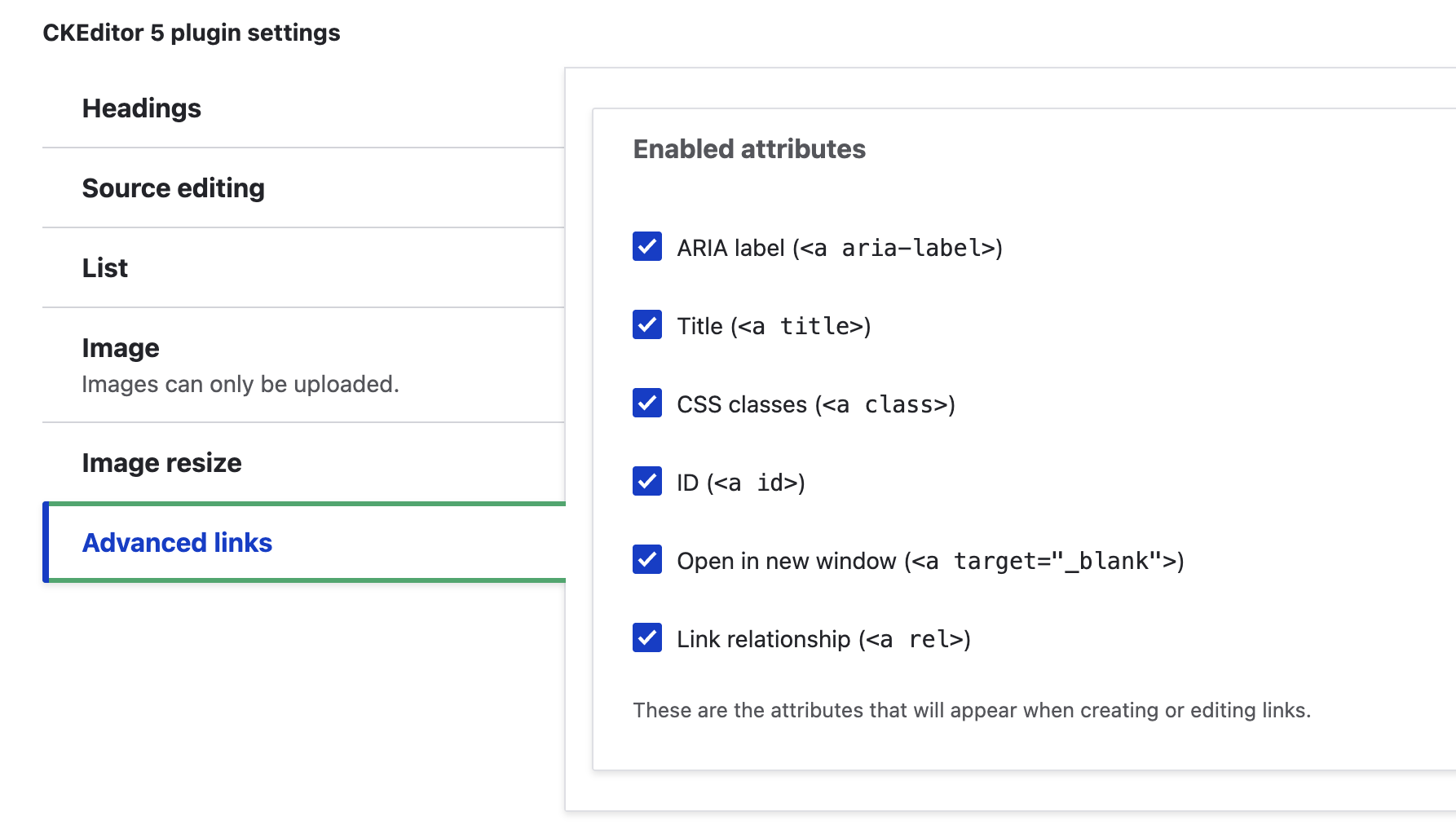
Similar to the Linkit module, you’ll need to enable the needed plugins for Editor Advanced Link in the CKEditor settings for the needed text format.
The module has a special tab there named “Advanced link” where you’ll see all the above-discussed attributes. You’ll need to enable the specific attributes that you want to be available to editors. Save your configuration.
Final thoughts
With the capabilities of the Linkit and Editor Advanced Link modules, managing links in Drupal becomes not just easier but far more precise. Instead of treating link management as a routine chore, these tools transform it into a strategic advantage, helping you build a site that is user‑friendly, engaging, SEO‑ready, accessible to all audiences, and secure.